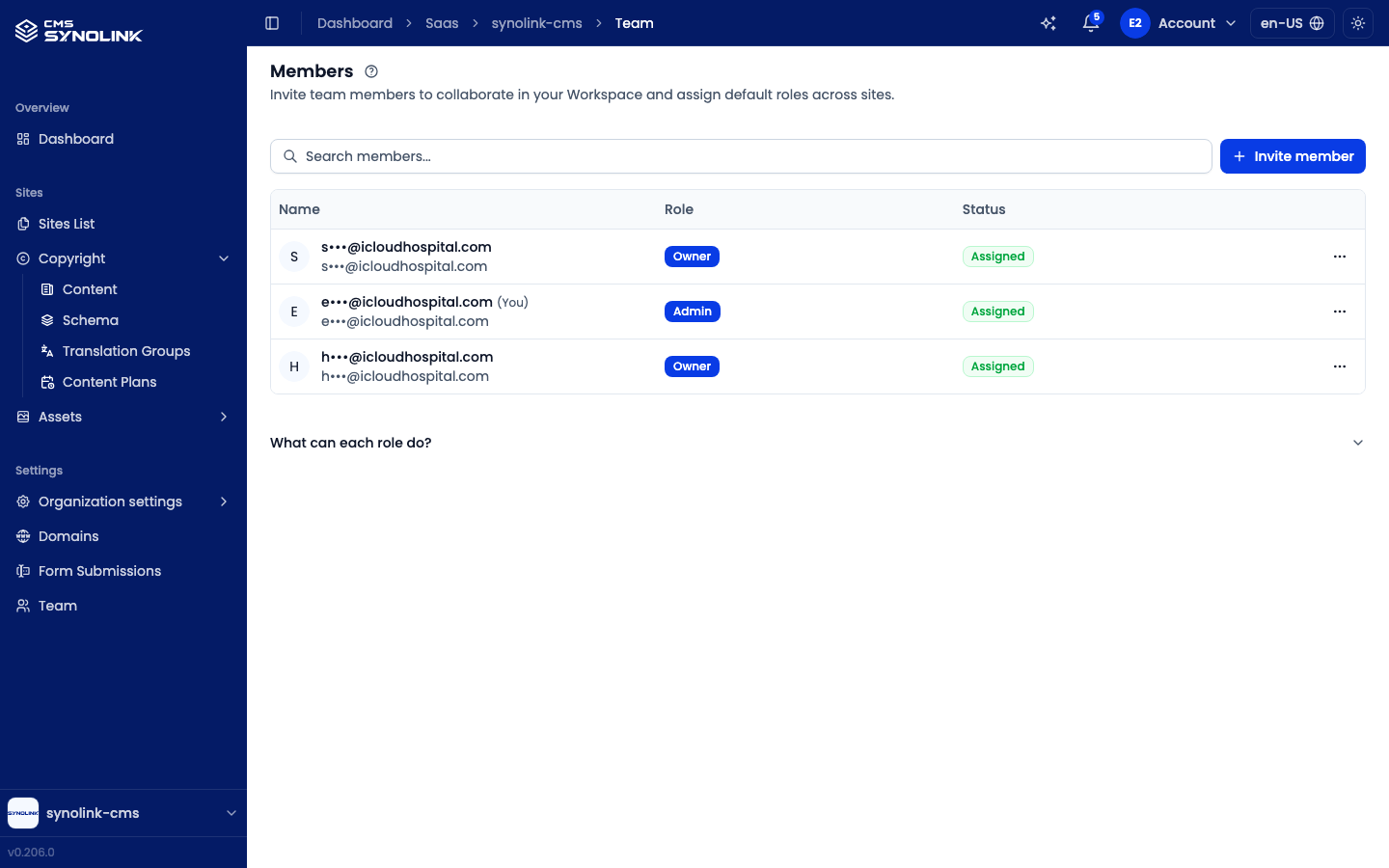
Invite and manage your teammates from Settings → Team. The Members screen lists everyone in the workspace with their role and status.
Team appears in the sidebar for Member and above. Viewers don't see it.
The members list
| Column | What it shows |
|---|---|
| Name | Member's name and email (your own row is marked (You)) |
| Role | The member's workspace role (see roles below) |
| Status | Assigned (active), Pending (invited, not yet accepted), or Suspended |
- Type in Search members... to filter the list.
- The list shows 20 members per page; use the pagination below it when there are more.
- The ⋯ menu at the end of each row has Change role and Remove.
Inviting a member
- Click Invite member (next to the search box).
- Enter the person's Email.
- Pick a Role — it defaults to Member.
- Click Invite.
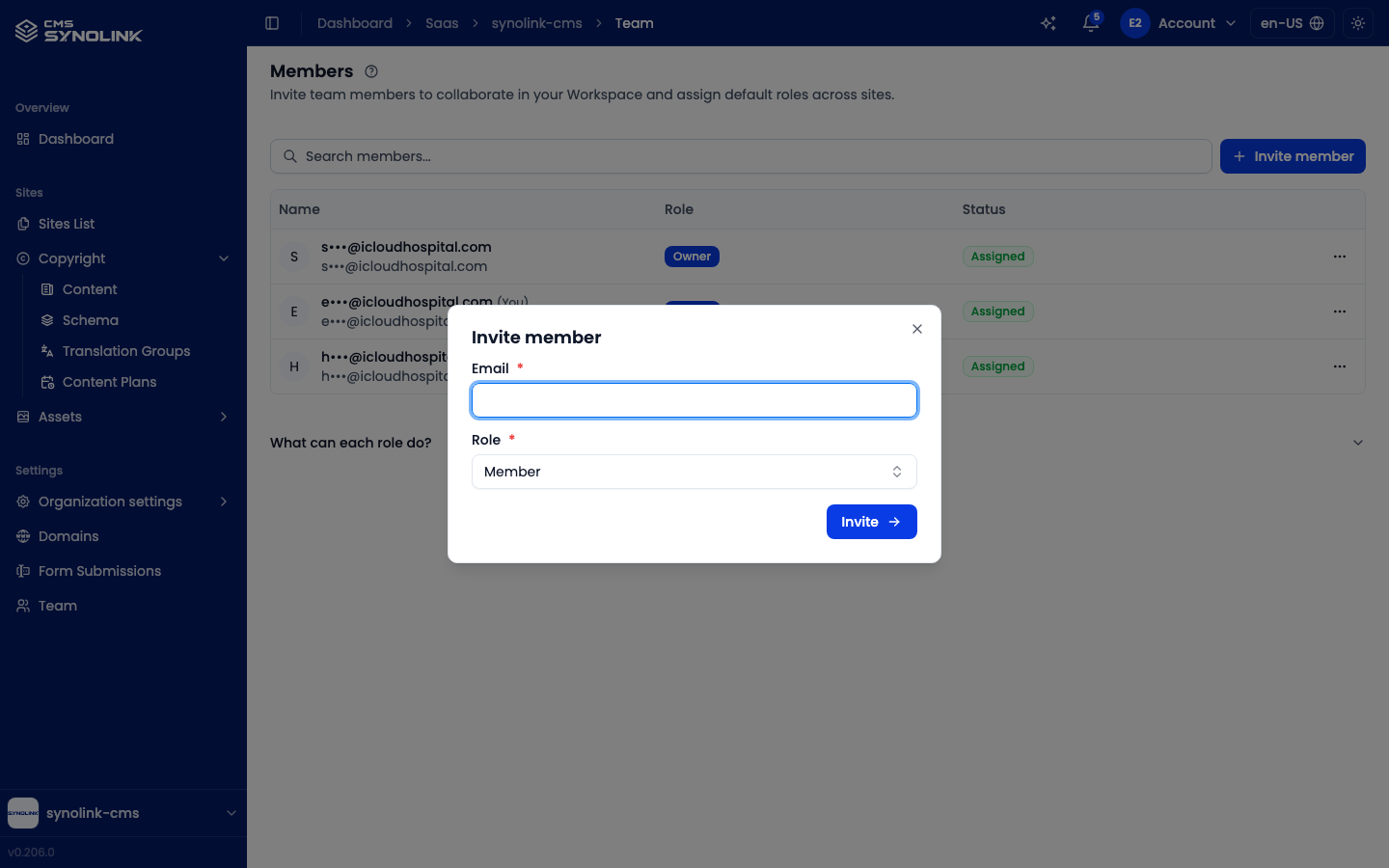
The invitee receives an email with an invitation link and appears as Pending until they accept. They can accept by opening the link (see Register & Logging In), or — if they already have access to this list — by clicking Accept on their own row.
Roles
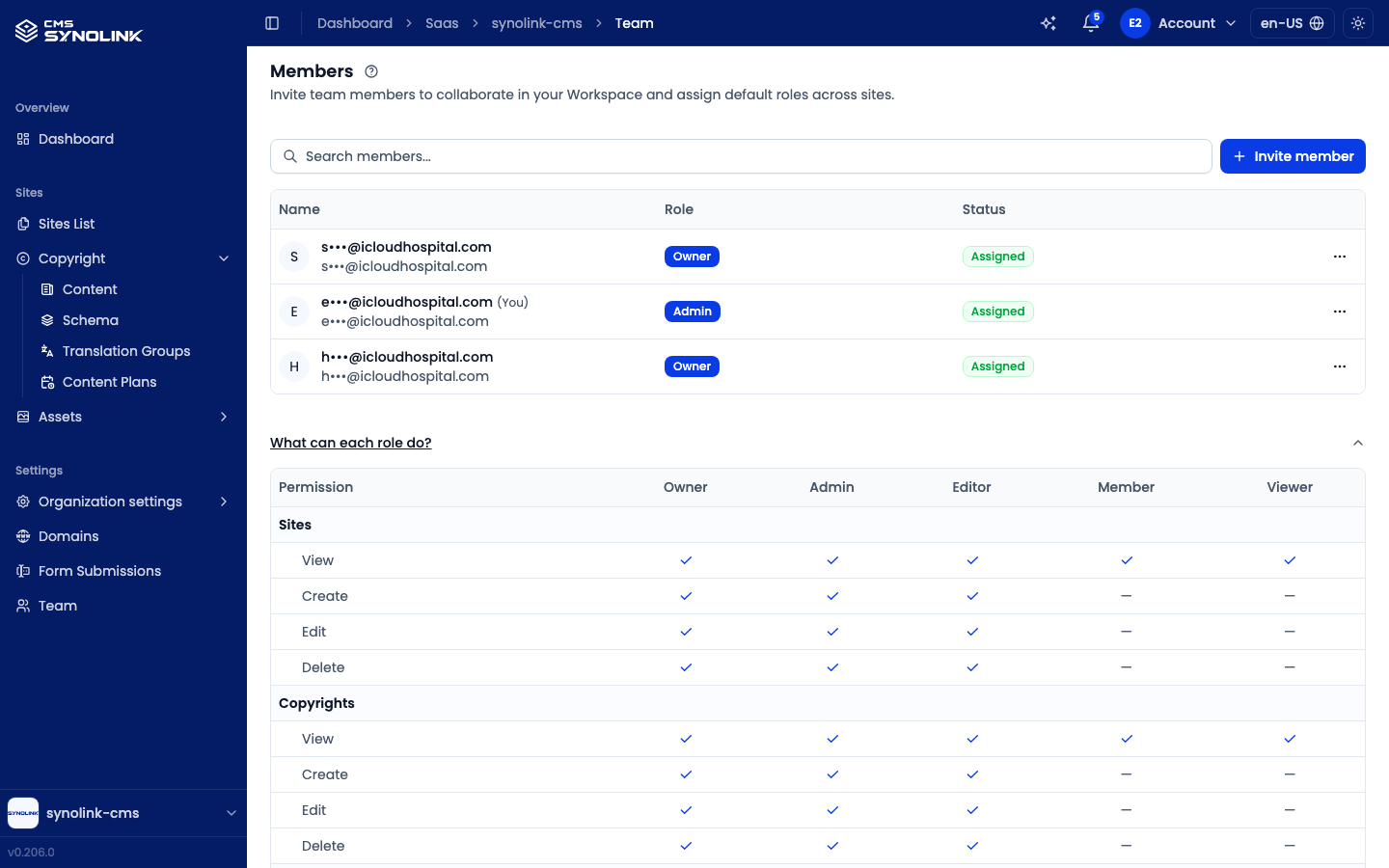
Every member has one workspace role. Roles are ranked Owner → Admin → Editor → Member → Viewer, and each higher role includes everything below it.
| Role | What they can do |
|---|---|
| Owner | Everything — same permissions as Admin |
| Admin | Everything: edit organization settings, manage domains, manage the team, edit the Context, and view Cost management and Infrastructure |
| Editor | Create, edit, and delete sites, content (Copyrights), and assets. Can view settings, domains, and team members |
| Member | View sites, content, assets, settings, domains, and team members; no editing |
| Viewer | Read-only access to sites, content, assets, settings, and domains. Can't see the team |
Expand What can each role do? below the list for the full permission matrix, covering Sites, Copyrights, Assets, General settings, Domains, and Team.
Managing members
From a member's ⋯ menu:
- Change role — opens the Change role dialog; pick the new role and confirm.
- Remove — asks you to confirm, then removes the member from the workspace. You can re-invite them later.
Inviting, changing roles, and removing members require the Admin role or higher. For other roles these buttons are disabled.