The Collection group holds elements bound to a data collection — Live data from an API, a Fixed list written as JSON, or the site's Language list. They render their child template once per item. Bind the data in the Collection panel — see Data, AI & Translation for how data binding works.
The screenshots below show the elements before a collection is bound; once bound, the template repeats for every item in your data.
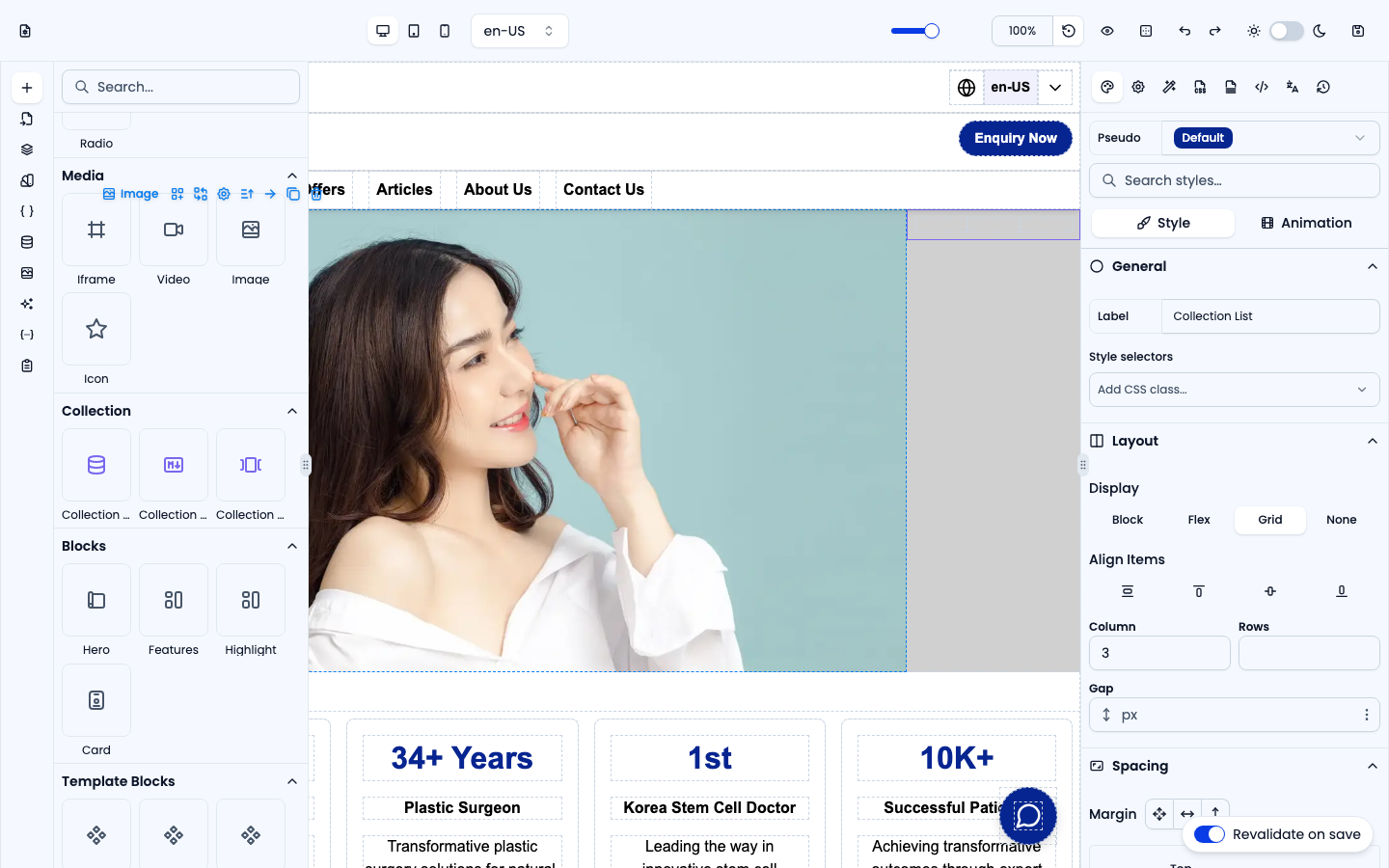
Collection List
Iterates over a data collection and renders its child template once per item. Use handlebars such as {{name}} inside the child elements to output each item's fields.
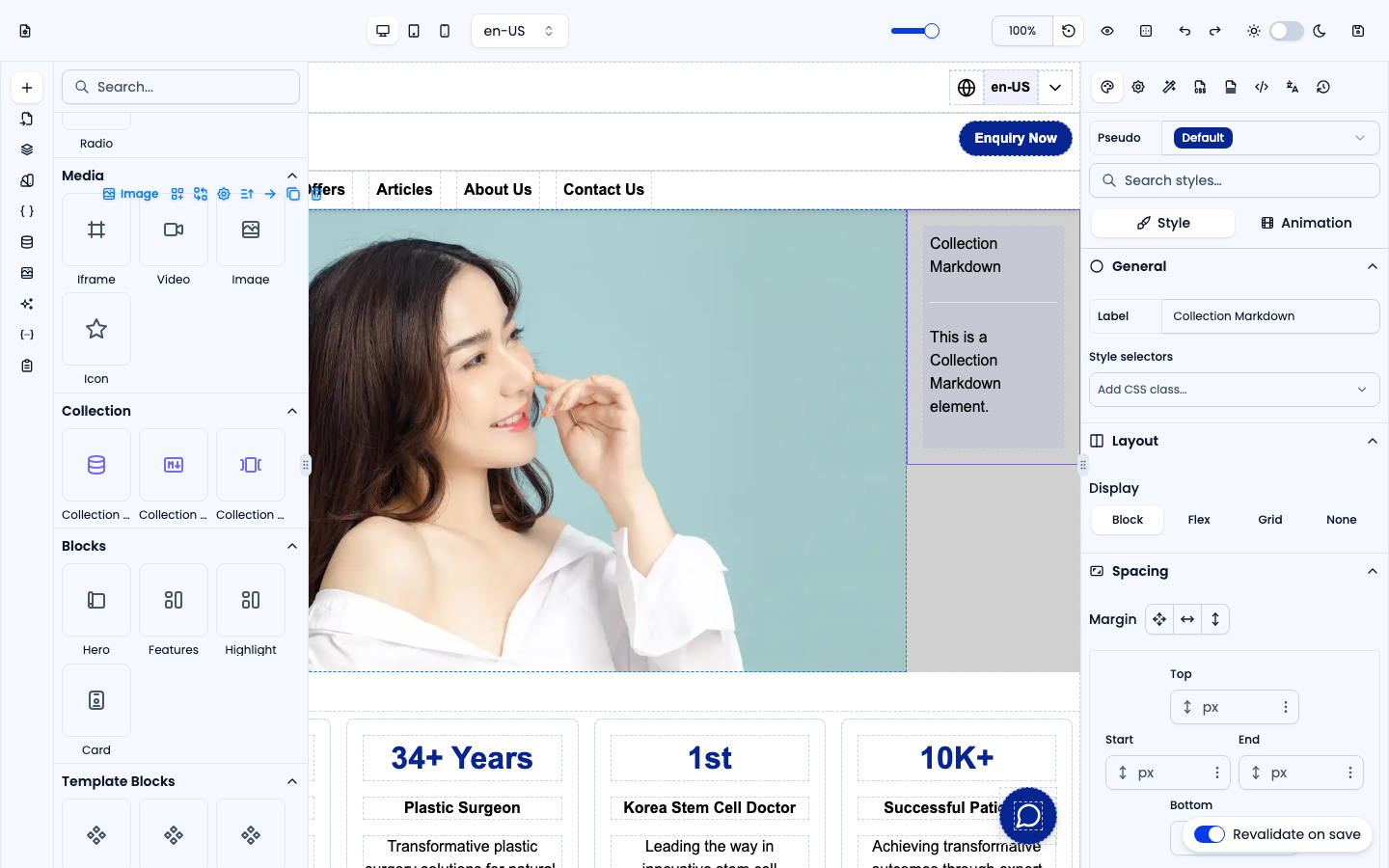
Collection Markdown
A Collection List pre-wired to render a {{markdown}} field from each item as formatted HTML — ideal for lists of articles or rich descriptions.
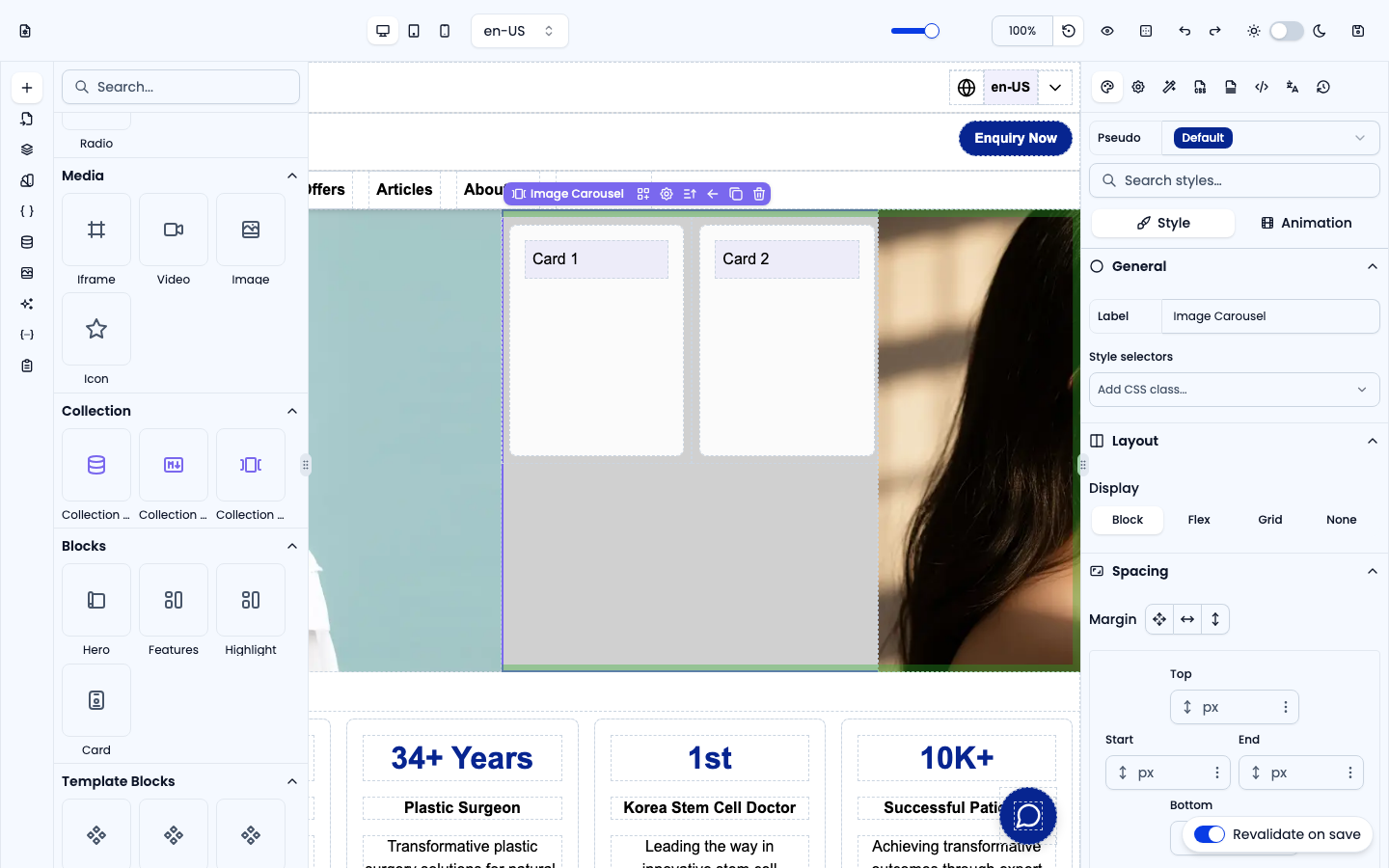
Collection Carousel
A Carousel whose slides are generated automatically from a data collection — one slide per item.
Loading UI
A collection list can show a Loading element while its data is still loading. The Loading element replaces the whole list until the data arrives — by default it's a pulsing placeholder box sized like the list.
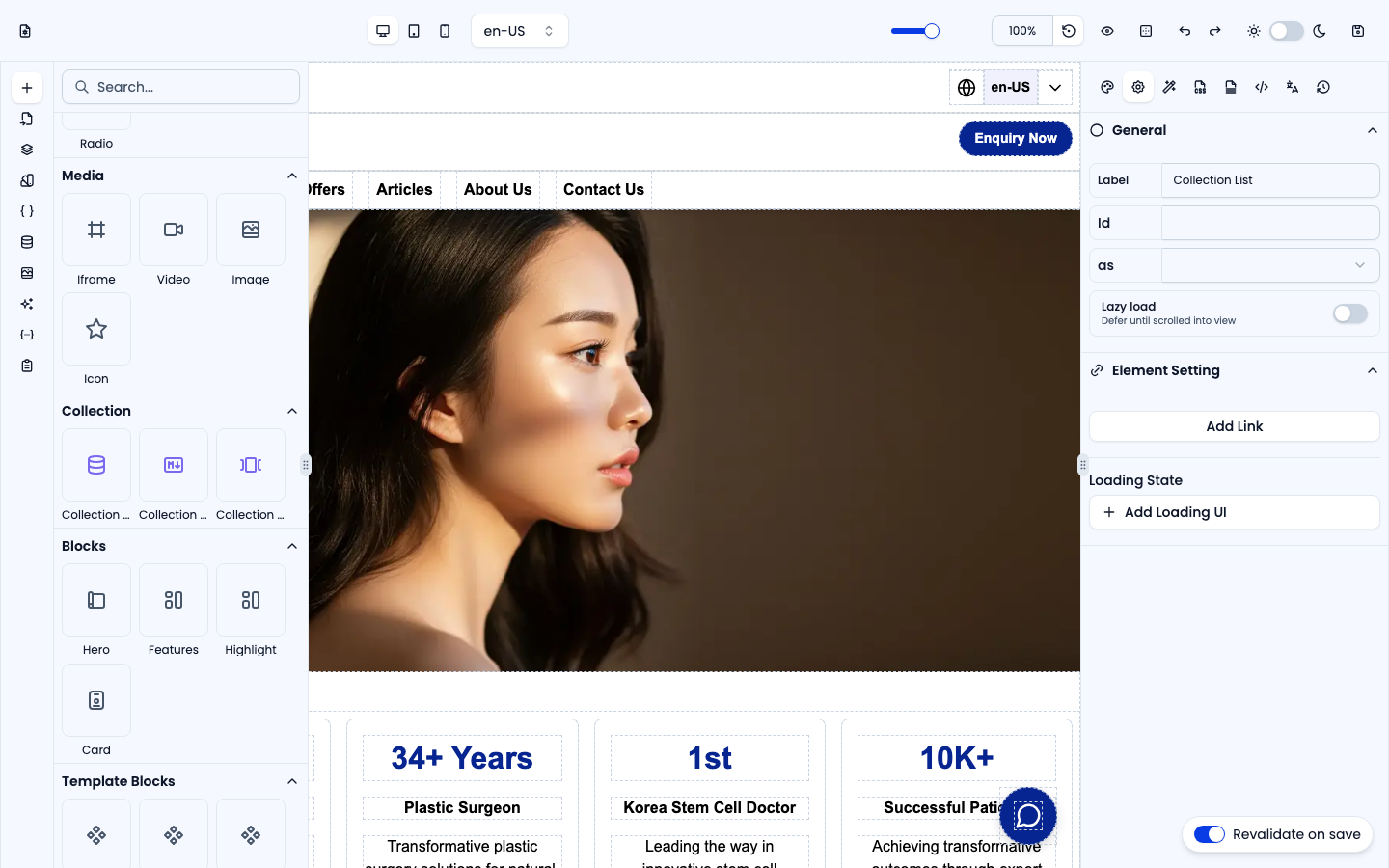
- Select the collection list — or any element inside it — and open the Settings panel on the right.
- Under Element Setting → Loading State, click Add Loading UI. If you selected an element inside the list, a note reads Applies to collection list "…".
- Turn on Show Loading State to show the Loading element on the canvas so you can design it. It also appears in the Layers panel under the list as Loading — add, move, and style elements inside it like any other element.
- Turn Show Loading State off to see the list again.
On the live site the Loading element appears only while the data is loading; the Show Loading State switch affects only the editor. To remove it, click Remove Loading UI (or delete the Loading element).