Connect your AI lets you work on Synolink CMS from the AI assistant you already use — Claude, ChatGPT, or Gemini. The assistant connects over the Model Context Protocol (MCP), an open standard for giving AI clients tools, and then reads and edits your sites and content directly, using your own account and permissions.
Your assistant does the writing itself, so no AI runs on the Synolink side for this and there's no API key to set up. You ask in plain language — "add an FAQ page to our site", "write this week's news article in English and Korean" — and the assistant carries it out in your workspace.
Before you start
- You need an active membership in at least one workspace (status Assigned on the Team screen). A pending invitation isn't enough.
- What the assistant can change follows your workspace role — see What your role allows.
- You need one of the supported AI clients (see Compatibility).
Opening the page
The page lives at /account/ai-clients in the admin portal. There's no link to it in the workspace sidebar or the Account menu yet, so open it by adding /account/ai-clients to the portal address you sign in at.
The page has three parts:
- MCP endpoint — the server address your AI client connects to, with Copy and Test connection. Test connection makes the same request your client will make; on success it shows "Connected. Available tools:" followed by the tools your account can use, and on failure it shows the reason.
- Clients — Claude, ChatGPT, and Gemini in the left-hand menu. Each opens numbered setup steps; where a provider has more than one client, tabs switch between them. Every guide ends with a Sign out note.
- Reference — Signing in, Compatibility, and Local models.
The commands and URLs in the steps already include the endpoint for your environment. Use the Copy button next to each one instead of typing it.
Claude
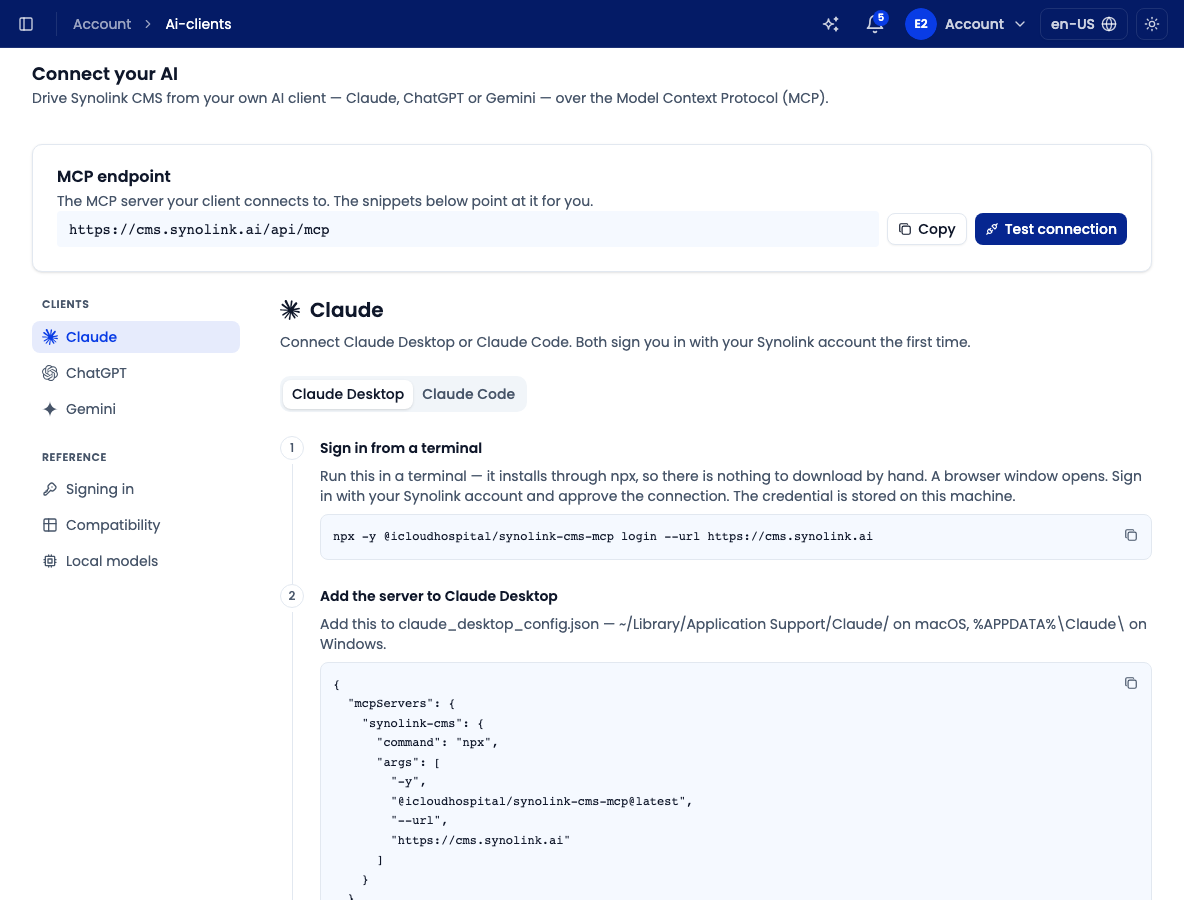
Choose Claude in the menu, then the Claude Desktop (local), Claude Code, or claude.ai connector tab. Claude Desktop (local) adds the server to a config file on your computer, so it works only in Claude Desktop on that computer. claude.ai connector adds it to your Claude account, so it works in claude.ai, Claude Desktop, and the mobile apps.
Claude Code
Status: Works. Claude Code connects to the endpoint directly.
- Add the server — run the
claude mcp add --transport http synolink-cms …command shown on the page, once. - Sign in — in Claude Code, run
/mcp, pick synolink-cms, and choose Authenticate. A browser window opens for you to sign in and approve.
To sign out, run /mcp, pick synolink-cms, and choose Clear authentication.
Claude Desktop (local)
Status: Works. Claude Desktop connects through a small helper package that installs through npx; there's nothing to download by hand.
- Sign in from a terminal — run the
logincommand shown on the page. A browser window opens; sign in with your Synolink account and approve the connection. The credential is stored on your computer. - Add the server to Claude Desktop — add the snippet from the page to
claude_desktop_config.json(~/Library/Application Support/Claude/on macOS,%APPDATA%\Claude\on Windows). - Restart Claude Desktop — the Synolink CMS tools appear after the restart. The helper never opens a browser on its own: if you're signed out, Claude Desktop shows the sign-in command to run.
To sign out, run the logout command shown on the page. It revokes the credential and deletes it from your computer.
claude.ai connector
Status: Works. claude.ai adds Synolink CMS as a custom connector, and the connector also appears in the Claude Desktop and mobile apps.
- Open Connectors — on claude.ai, open Settings → Connectors and choose Add custom connector. On a Team or Enterprise plan, an Owner adds it first under Admin settings → Connectors.
- Add the connector — give it a name and paste the endpoint URL from the page as the remote MCP server URL. Leave Advanced settings empty.
- Sign in — choose Connect, then sign in and approve. Turn the connector on from a conversation's connector menu.
To sign out, disconnect or remove the connector under Settings → Connectors.
If Claude Desktop has both the config-file server and the claude.ai connector, every tool shows up twice. Keep only one of them on.
ChatGPT
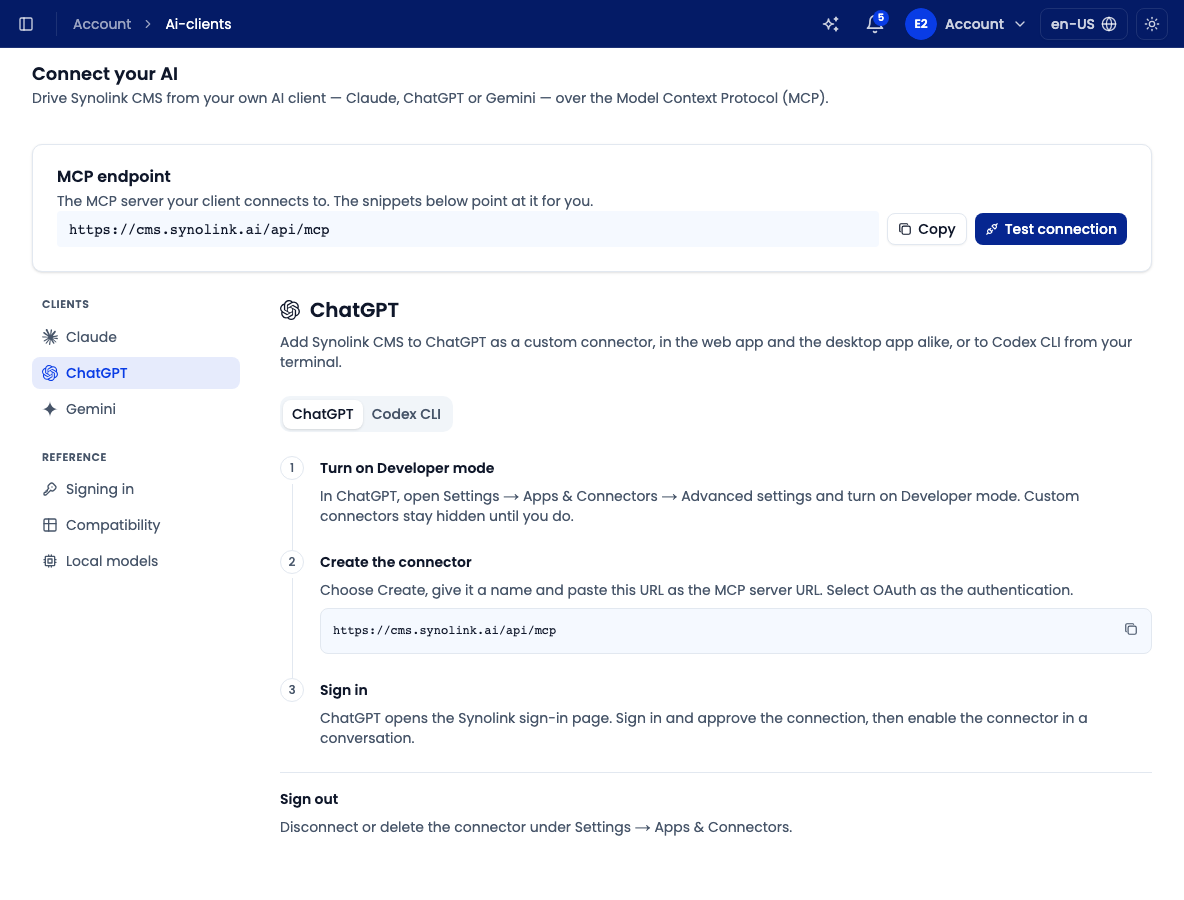
Choose ChatGPT in the menu, then the ChatGPT or Codex CLI tab. Both Work.
ChatGPT app
ChatGPT adds Synolink CMS as a custom MCP server (a plugin), in the web app and the desktop app alike.
- Open custom MCP servers — in ChatGPT, open Plugins → Add and choose Create custom MCP server.
- Create the server — give it a name, choose Server URL under Connection and paste the endpoint URL from the page, and keep OAuth as the authentication. Leave Advanced OAuth settings as discovered. Check I understand and want to continue, then choose Create as a plugin.
- Sign in — ChatGPT opens the Synolink sign-in page. Sign in and approve, then use the plugin in a conversation.
To sign out, disconnect or delete the plugin under Plugins.
Codex CLI
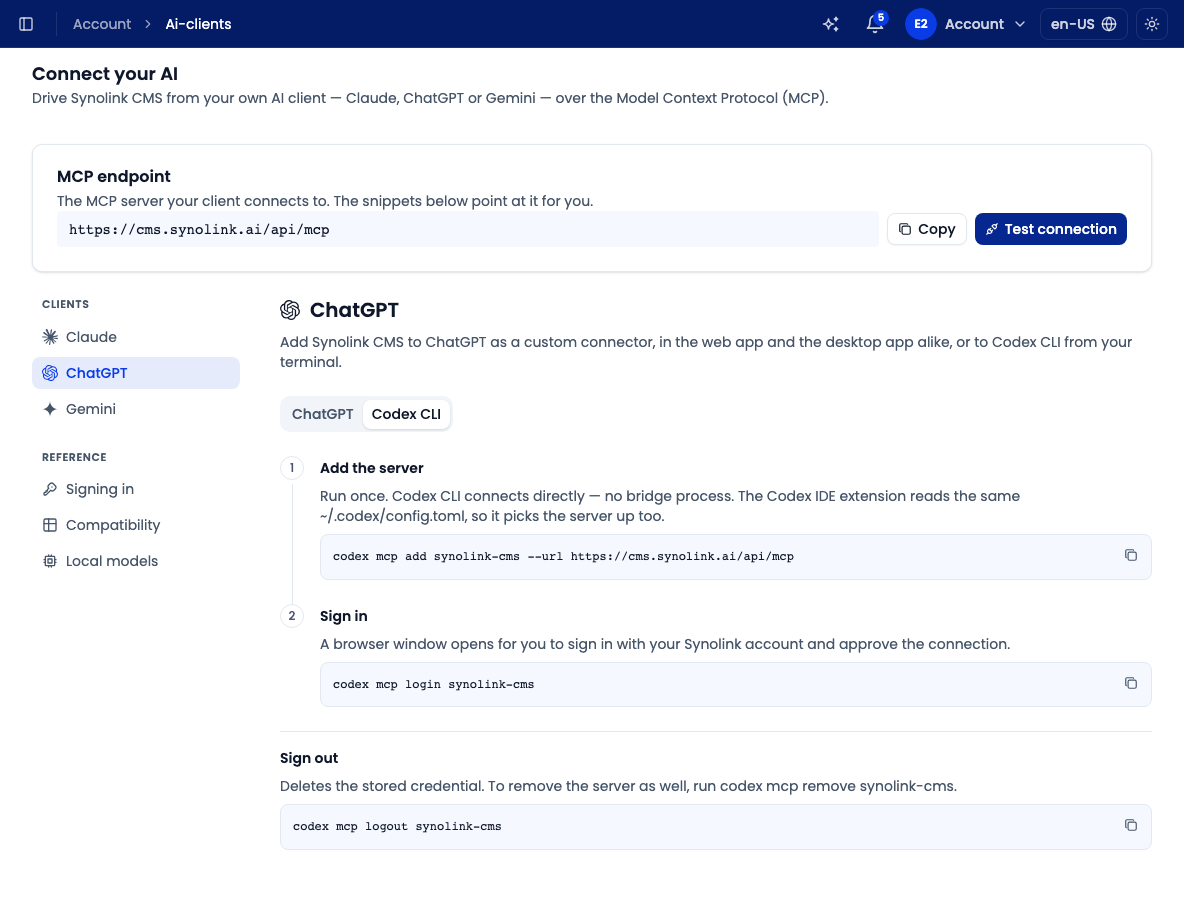
- Add the server — run the
codex mcp add synolink-cms --url …command shown on the page, once. Codex CLI connects to the endpoint directly, and the Codex IDE extension reads the same~/.codex/config.toml, so it picks the server up too. In the Codex app, you can instead open Plugins → MCPs → Add, choose Streamable HTTP as the type, and paste only the endpoint URL — leave the bearer token and headers empty. - Sign in — run
codex mcp login synolink-cms. A browser window opens for you to sign in and approve.
To sign out, run codex mcp logout synolink-cms. To remove the server as well, run codex mcp remove synolink-cms.
Gemini
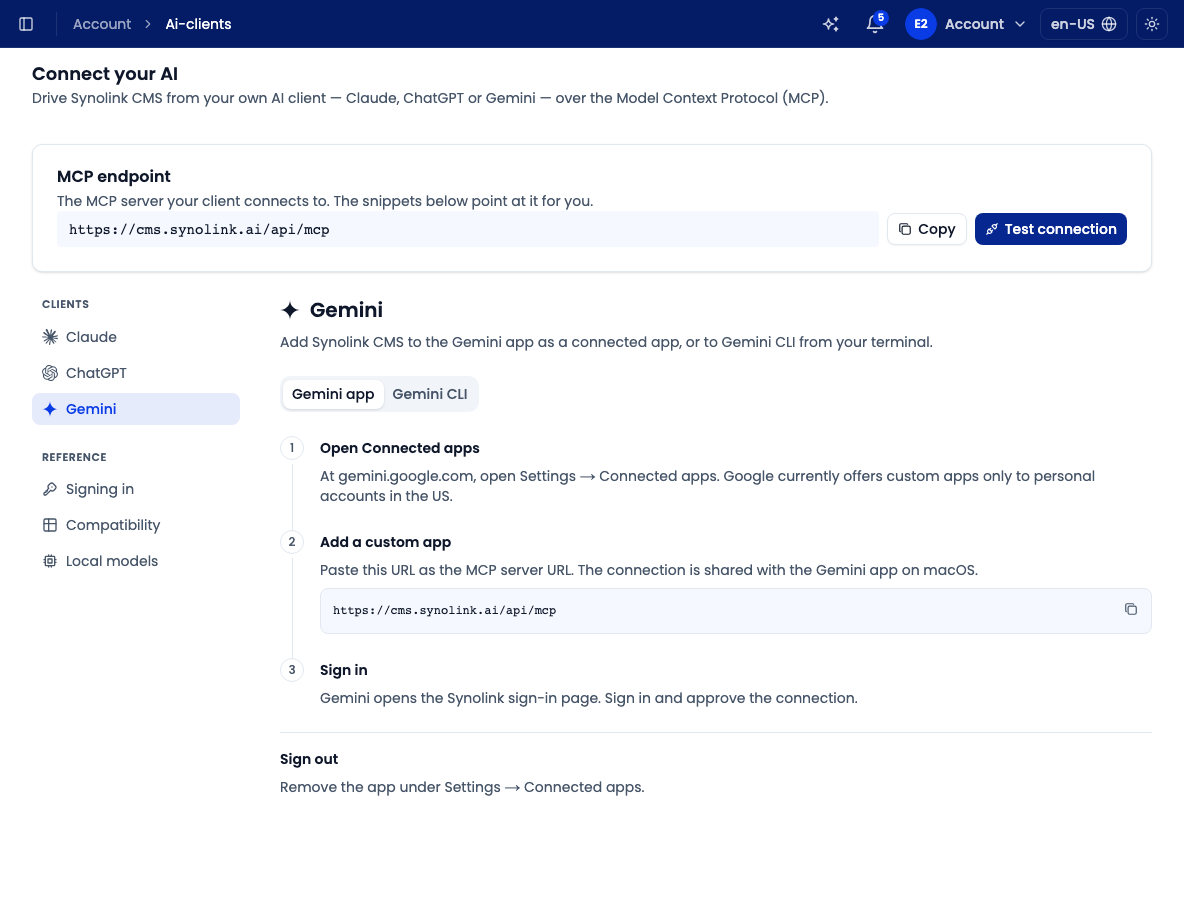
Gemini covers the Gemini app, Gemini Enterprise, Antigravity, and Gemini CLI. None has been tested yet, so Gemini is greyed out as Coming soon in the menu; the steps below are written ahead of time.
Gemini app
- Open Connected apps — at gemini.google.com, open Settings → Connected apps. Google currently offers custom apps only to personal accounts in the US.
- Add a custom app — paste the endpoint URL from the page as the MCP server URL. Leave Client ID and Client secret under the advanced settings empty. The connection is shared with the Gemini app on macOS.
- Sign in — Gemini opens the Synolink sign-in page. Sign in and approve the connection.
To sign out, remove the app under Settings → Connected apps.
Gemini Enterprise
Gemini Enterprise doesn't register itself the way the other clients do. A Google Cloud admin adds Synolink CMS once as a custom MCP server data store, with fixed OAuth settings; after that, each user signs in from the chat.
Create a custom MCP server data store — in the Google Cloud console, open Gemini Enterprise → Data stores → Create data store and choose Custom MCP Server. Your organization policy may first need to allow custom MCP servers and this server's domain.
Enter the OAuth settings — under Authentication settings, choose OAuth 2.0 and enter the values shown on the page:
Field Value MCP Server URL the endpoint URL ( …/api/mcp)Authorization URL …/api/oauth/authorizeon the same addressToken URL …/api/oauth/tokenon the same addressClient ID gemini-enterpriseClient Secret any value — it isn't checked Scopes cms_admin_mcp offline_accessTurn on Enable PKCE Support. Sign-in fails without it.
Verify — click Verify Auth. A browser window opens: sign in and approve, then click Continue to create the data store.
Turn on the tools — once the data store is Active, open Actions, click Reload custom actions, pick the tools, and click Enable actions. Each user then signs in once through the Authorize prompt the first time a tool is used in a chat.
To sign out, disconnect in Gemini Enterprise. An admin deleting the data store disconnects everyone.
Antigravity
- Add the server — add the snippet shown on the page to
~/.gemini/config/mcp_config.json(global) or.agents/mcp_config.jsonin a project. Remote servers are read fromserverUrlonly, noturlorhttpUrl. - Sign in — in Agent Settings → Customizations, click Authenticate next to synolink-cms. Sign in and approve in the browser, then copy the code it shows and paste it into Antigravity.
To sign out, remove the server from mcp_config.json, or delete the synolink-cms entry from ~/.gemini/antigravity/mcp_oauth_tokens.json.
Gemini CLI
- Add the server — run the
gemini mcp add --transport http synolink-cms …command shown on the page, once. - Sign in — the first time a tool is used, a browser window opens for you to sign in. To sign in again, run
/mcp auth synolink-cmsinside Gemini CLI.
To sign out, delete ~/.gemini/mcp-oauth-tokens.json, or remove the server with gemini mcp remove synolink-cms.
Signing in and approving
Every client signs in the same way (OAuth). You never copy a token or password into the AI client.
- The client opens a browser window. If you aren't signed in to the admin portal, sign in with your Synolink account as usual (see Register & Logging In).
- An Authorize this AI client? screen shows Signed in as (your account) and Sends the result to (the app that asked to connect). The client will be able to read and change the CMS content your account can reach.
- Click Approve only if you just started the sign-in from that client. If the screen appeared on its own, click Decline.
After that there's nothing to renew: the access token lasts one hour and is refreshed automatically in the background. Neither it nor the refresh token passes through the Connect your AI page. Claude Desktop keeps them in ~/.synolink/mcp, Claude Code, Codex CLI, and Gemini CLI in their own credential stores on your computer, Antigravity in ~/.gemini/antigravity/mcp_oauth_tokens.json, and claude.ai, ChatGPT, the Gemini app, and Gemini Enterprise in your account with those services.
If the browser says This account cannot connect an AI client, your account doesn't have the access the endpoint requires. Ask your workspace Admin for help.
What you can do after connecting
Once connected, ask your assistant in plain language. It can act on every workspace you're an active member of:
- Look around — list your workspaces, their sites, page trees, pages, components, and design variables, and read this user guide to answer "how do I …" questions.
- Build sites — browse the template catalogue, create a site (from scratch or from a template), add and edit pages and components, adjust design variables and page SEO, and publish or discard a site's draft.
- Plan sites — plan a new site (its pages, each page's sections, the header and footer, and the style and tone), revise a page's planned sections, then write the page and publish it.
- Write content — create and update content items (Copyrights), their translation groups, and copyright schemas; create content plans and add, approve, publish, unschedule, cancel, or delete their entries.
- Manage media — upload images from public URLs into your media library and update their tags.
- Keep the Context current — read and update your organization's Context.
- Go live — check a subdomain, see a site's deployment status, deploy a site, and revalidate it so visitors see the latest version.
What your role allows
The assistant can only do what your workspace role allows in each workspace. If you ask for more, it reports which role the action needs.
| Your role | What the assistant can do |
|---|---|
| Viewer, Member | Read sites, content, media, Context, and deployment status |
| Editor | Everything above, plus create and edit sites, pages, components, content, content plans, and media; delete pages and components; and publish or discard site drafts |
| Admin, Owner | Everything above, plus edit the Context, deploy a site, and revalidate it |
Compatibility
Choose Compatibility under Reference to see which clients have been checked against the endpoint:
| Client | Status |
|---|---|
| Claude Code | Works |
| Claude Desktop (local) | Works |
| claude.ai connector | Works |
| ChatGPT | Works |
| Codex CLI | Works |
| Gemini app | Not yet tested |
| Gemini Enterprise | Not yet tested |
| Antigravity | Not yet tested |
| Gemini CLI | Not yet tested |
A client marked Not yet tested has a guide, but a sign-in and tool call against Synolink haven't been confirmed yet.
Local model runners such as Ollama, LM Studio, and llama.cpp can't connect on their own. MCP is implemented by the host application, not by the model, so you need one of the clients above (see Local models under Reference).