The Advanced group holds interactive and composite elements. Each ships with sub-elements you can style individually.
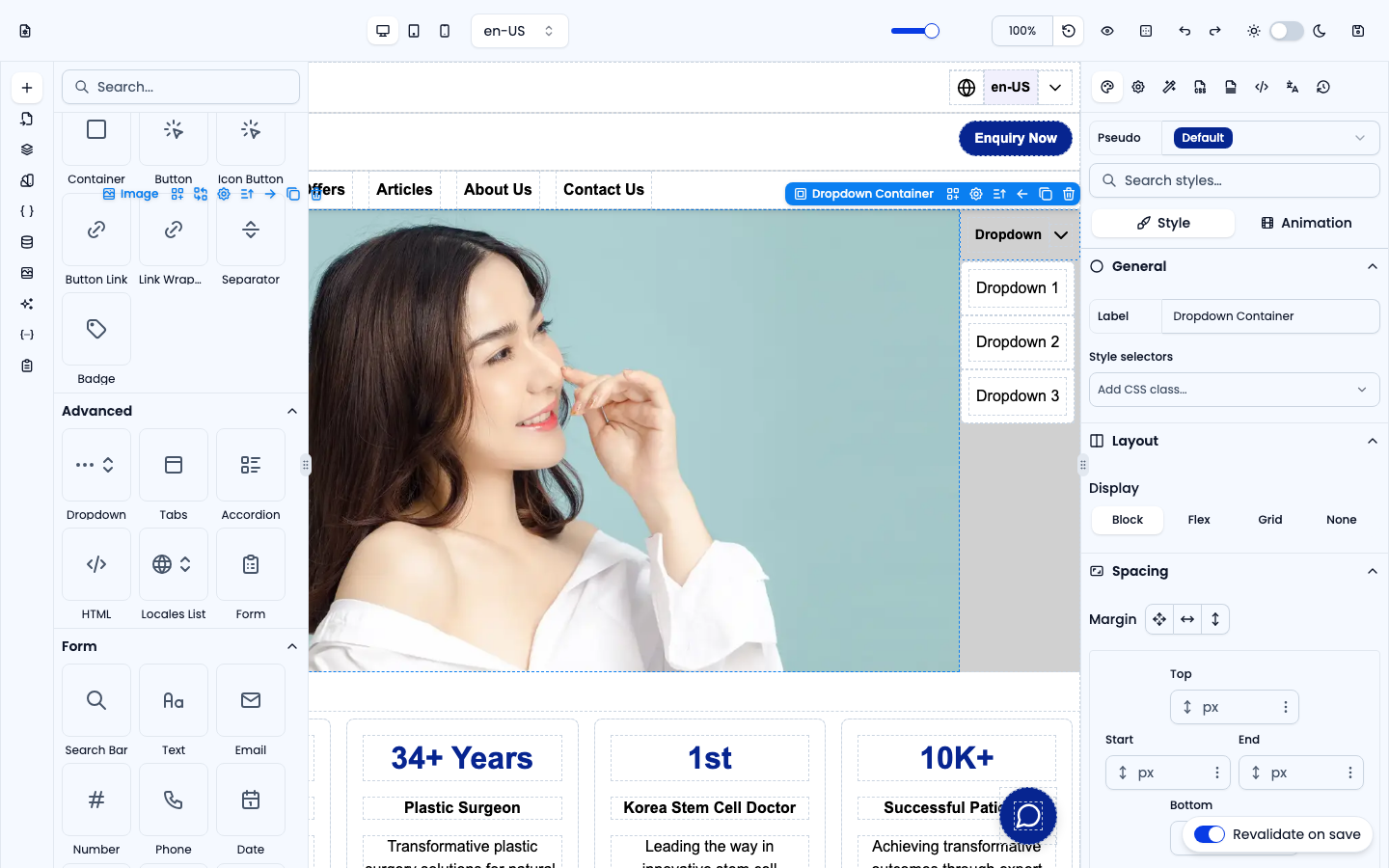
Dropdown
A trigger plus a content menu. It contains Dropdown Trigger, Dropdown Content and Dropdown Item sub-elements — edit the items to build navigation menus or option lists.
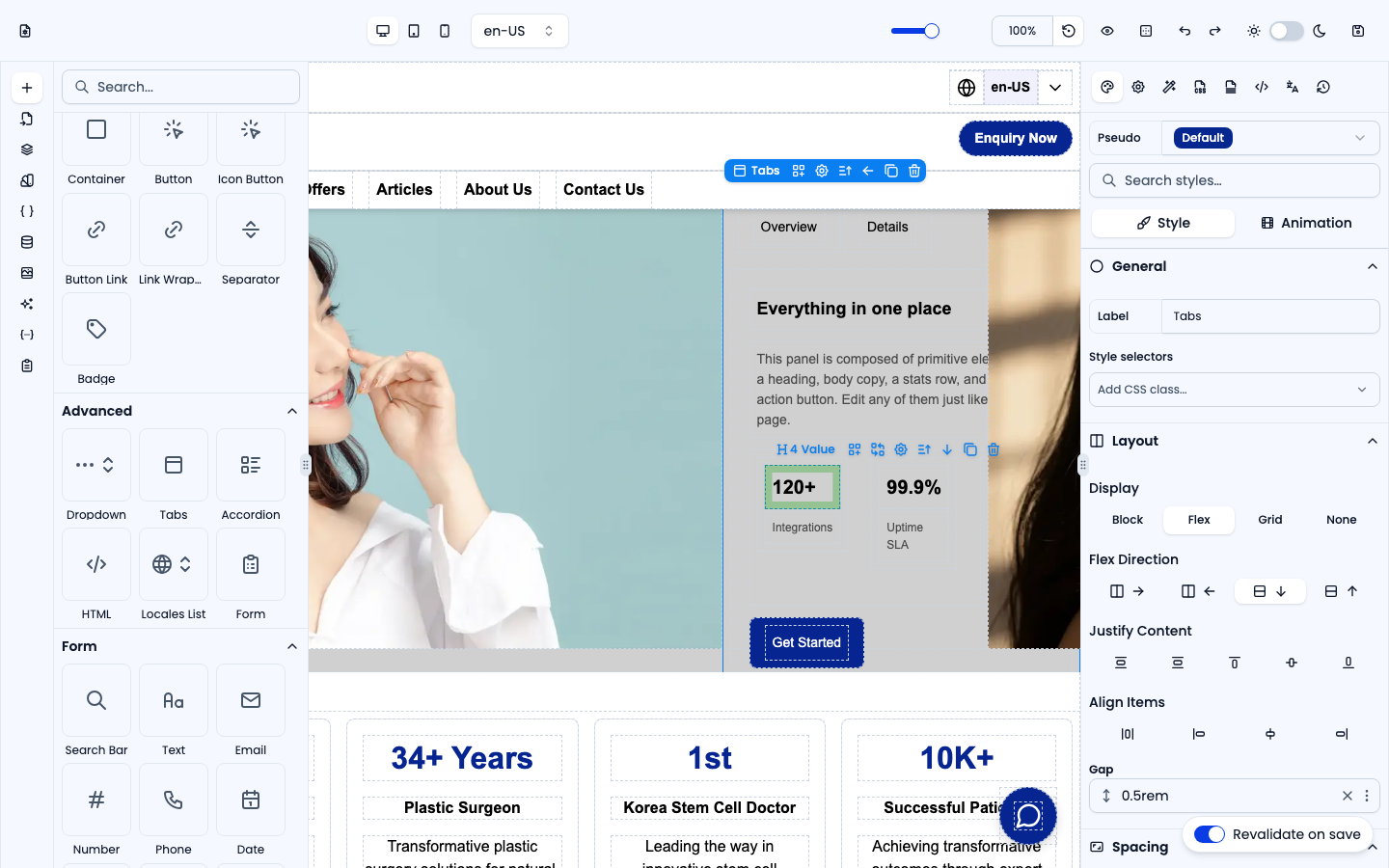
Tabs
A row of tab triggers, each with its own content panel (the default has Overview and Details tabs with a heading, text, a stats row and a button). Edit each panel like any other part of the page. In Settings, choose the Orientation (Horizontal or Vertical) and use Add Tab to add another tab.
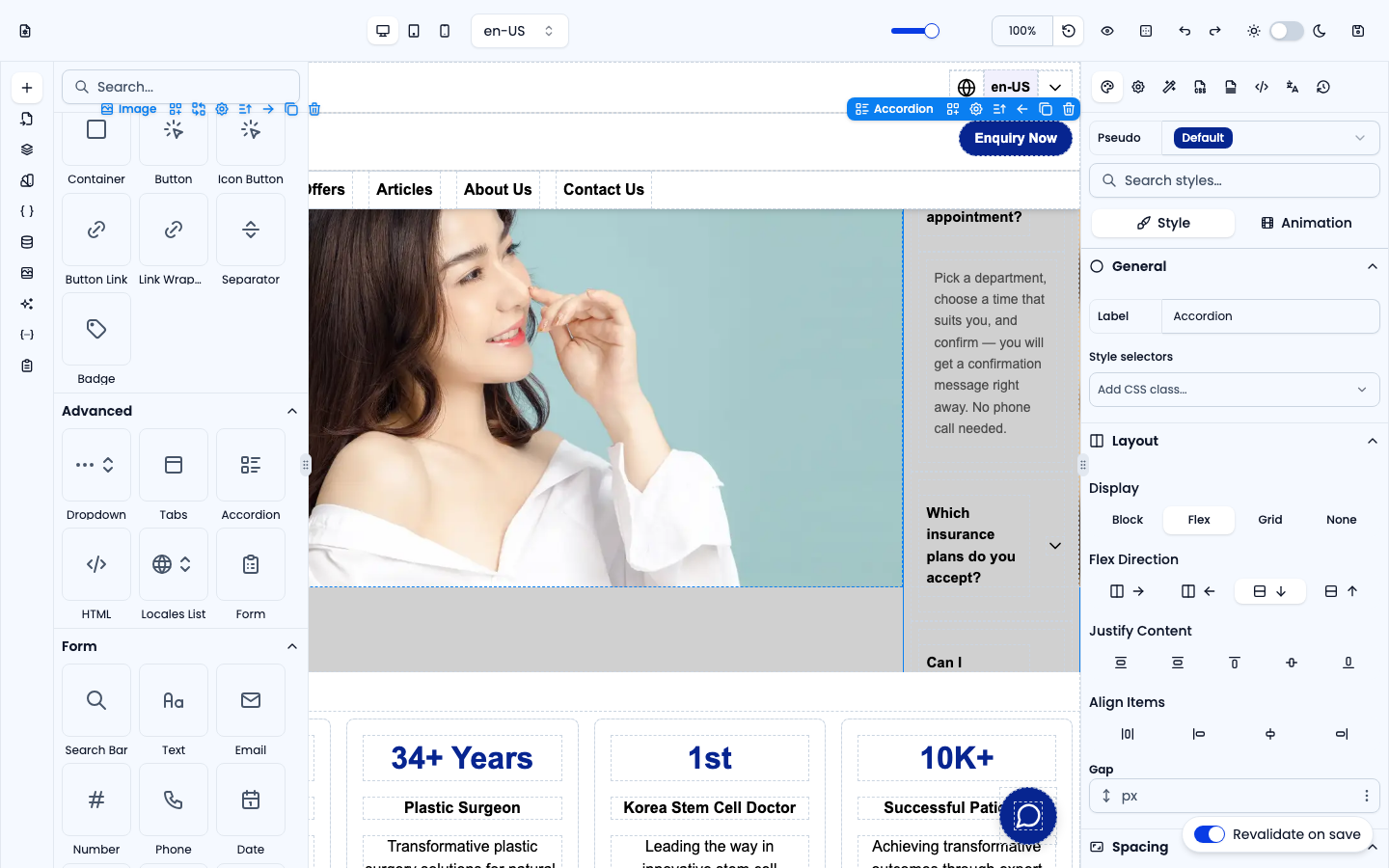
Accordion
A list of expandable items — a question (trigger) and an answer (content) each — ideal for FAQs. In Settings, pick the Mode: Single (one item open at a time; turn on Collapsible so the open item can be closed again) or Multiple. Use Add Item to add another question.
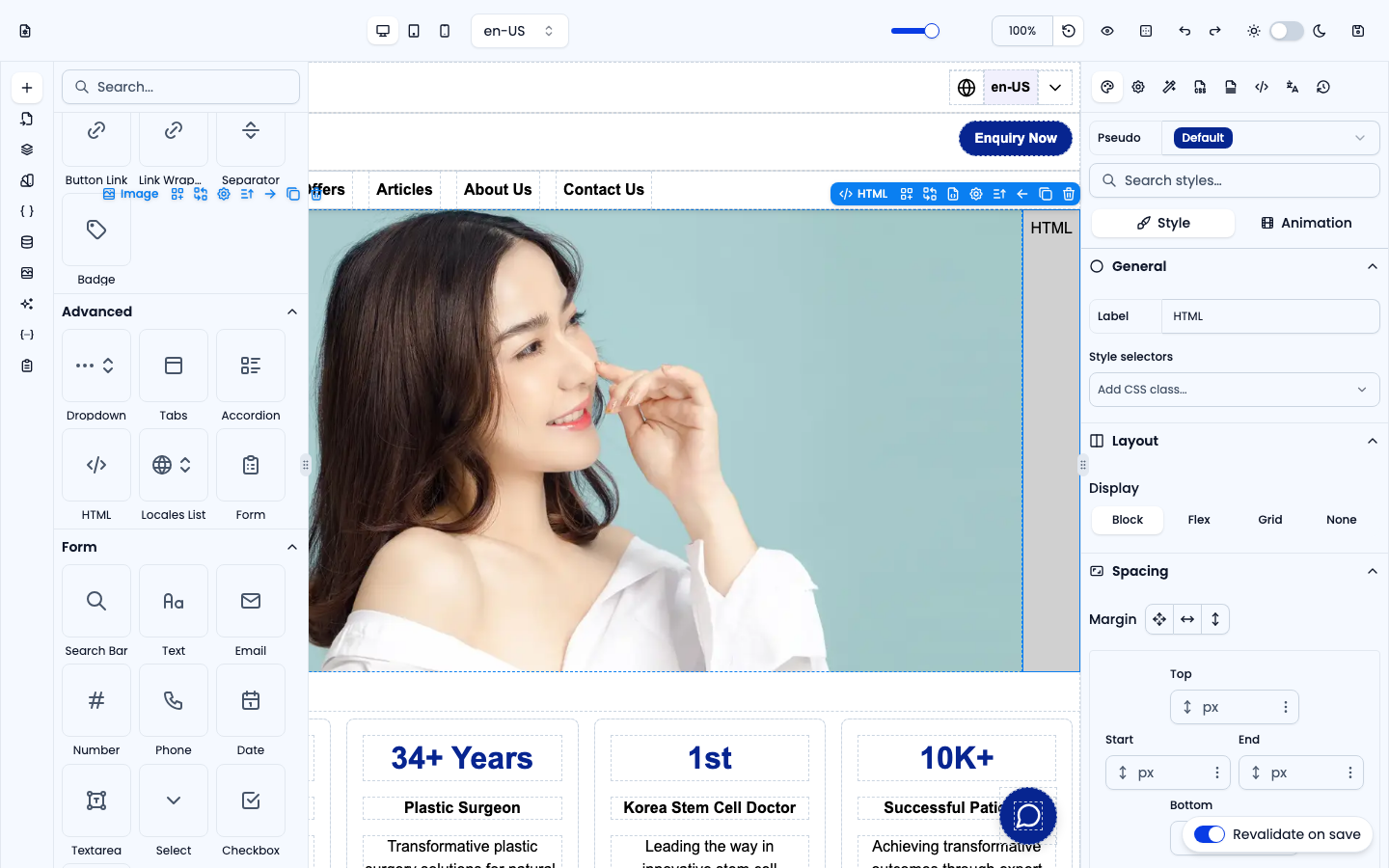
HTML
A raw HTML block. Paste custom markup or third-party snippets (widgets, embeds) that aren't covered by the other elements.
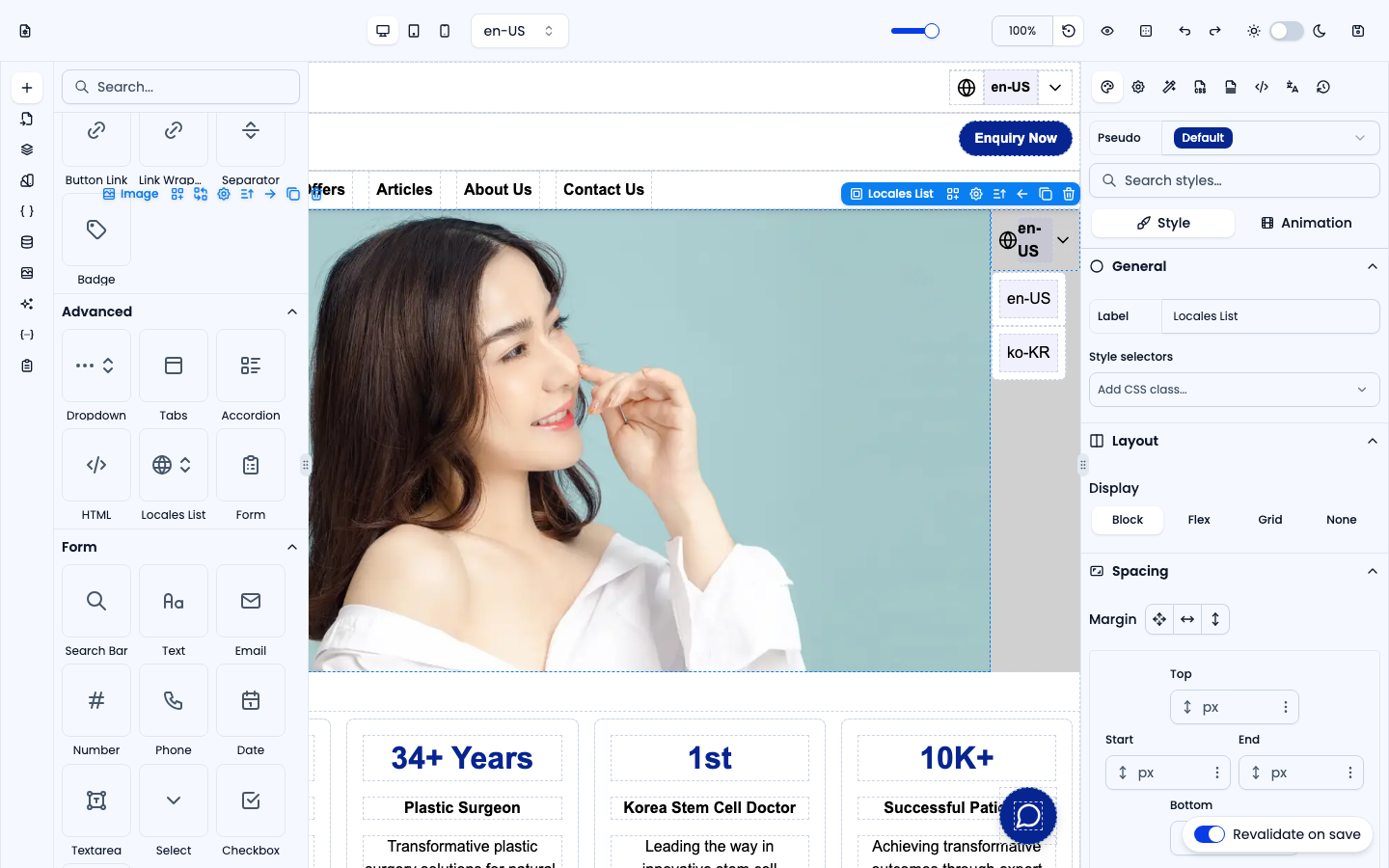
Locales List
A dropdown pre-wired to list every locale enabled on the site. It uses the {{ currentLocale }} and {{ this.locale }} handlebars automatically, so it stays in sync as you add languages — ideal for a language switcher.
Form
A complete contact form: Name, Email, Message and Subject fields plus a Submit button. It is built from Form Field / Input / Label / Submit sub-elements; add fields by dragging them in from the Form group (see Components: Forms). In Settings, keep Submit to endpoint and pick one of the Available Endpoints (or enter an endpoint and method), and set the Success Banner and Error Banner under Submit Feedback. Submissions appear in Form Submissions.