A detailed walkthrough of the page editor screen, with real screenshots. For the basic editing flow, see Using the Page Editor first. The editor's panel and palette labels are shown in English regardless of the dashboard language.
The full screen
The editor has four areas: top toolbar · left panel · center canvas · right panel.
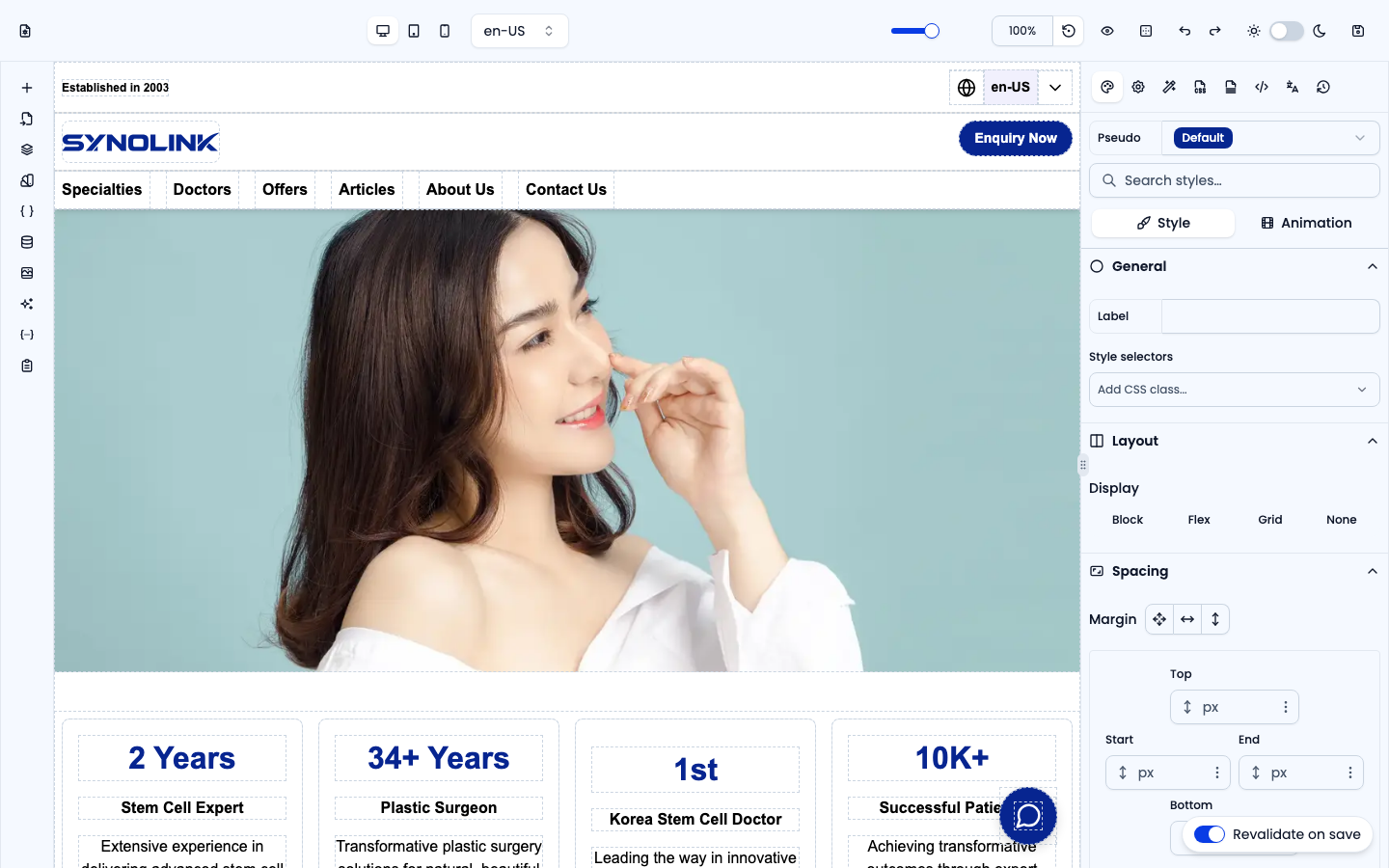
| Area | Role |
|---|---|
| Top toolbar | Page details, screen size, language, canvas zoom, preview, outline toggle, undo/redo, dark mode, save |
| Left panel | "What to add" — elements, structure, data, assets, AI, the draft plan |
| Canvas | The live page you edit (click to select) |
| Right panel | "How it looks" — styles, settings, actions, SEO, translation, history of the selected element or page |
Top toolbar
From left to right:
Page details (page icon, far left) — A popover with the Page name, the Url path, and Path variables. For dynamic pages (for example
{{urlPath}}), pick which item the canvas previews.Screen size — Switch between desktop / tablet / mobile to check each device.
Language — Choose the language to edit/preview (multilingual sites).
Canvas zoom — A
25%–200%slider with a percent input and a reset-to-100% button (shown in edit mode). Use it for fine alignment or to fit a large page on screen.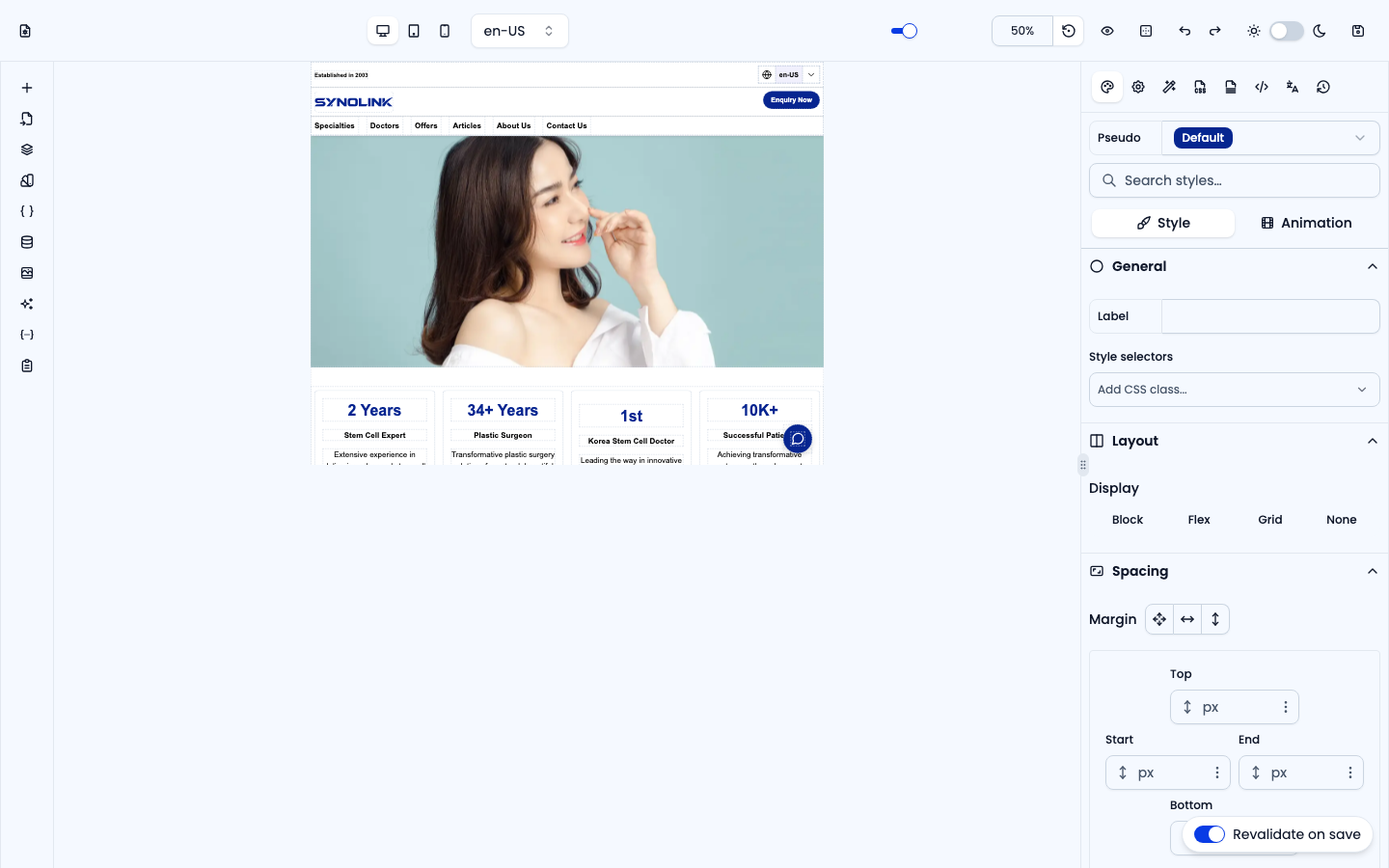
Canvas zoom control Preview (eye) — Hide the editing chrome to see the real look. Click the eye-off button in the corner to return.
Outline toggle — Turn the editing outlines and labels on the canvas on or off. Turn them off to check the real look while still editing.
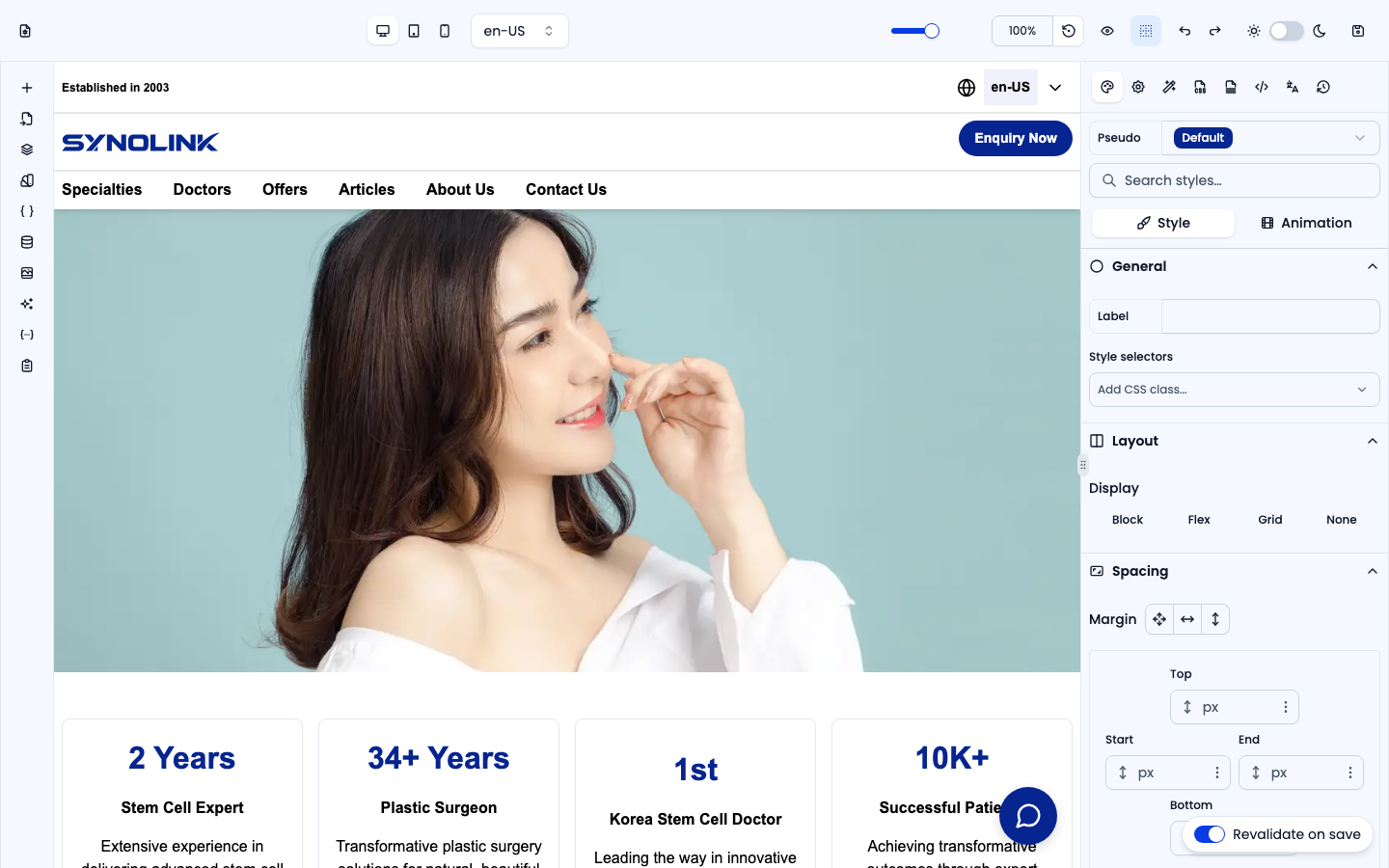
Outlines hidden Undo / redo, dark mode (light/dark switch), and save (floppy icon).
At the bottom right, the Revalidate on save switch (on by default) refreshes the live page on your verified domains right after each save, so visitors see the change immediately. It has no effect while you edit a draft.
Changes take effect only after you save. A site that has never been deployed must also be deployed to be public — see SEO, Publishing & Domains.
Left panel — elements and data
Switch panels using the vertical icons on the left.
| Panel | What it does |
|---|---|
| Elements | Drag text, images, buttons, layouts, etc. onto the canvas |
| Import | Paste HTML (and optional CSS) or load a file and turn it into editor elements |
| Layers | View the page's element tree to select, hide, lock and organize |
| Variables | Manage design values like brand colors, sizes, fonts |
| Classes | Edit CSS classes shared across the site, or only for this page |
| Collection | Bind elements (or the whole page) to dynamic data such as articles |
| Assets | Pick images, videos and icons |
| AI Prompt | Build or modify the selected element with natural language |
| Context Values | Values you can drop into text or URL fields as {{key}} (org info, etc.) |
| Plan | The page's draft brief — AI instruction, sections, and Generate |
For detailed usage of the Collection, AI Prompt, and I18n panels, see Data, AI & Translation.
Adding elements
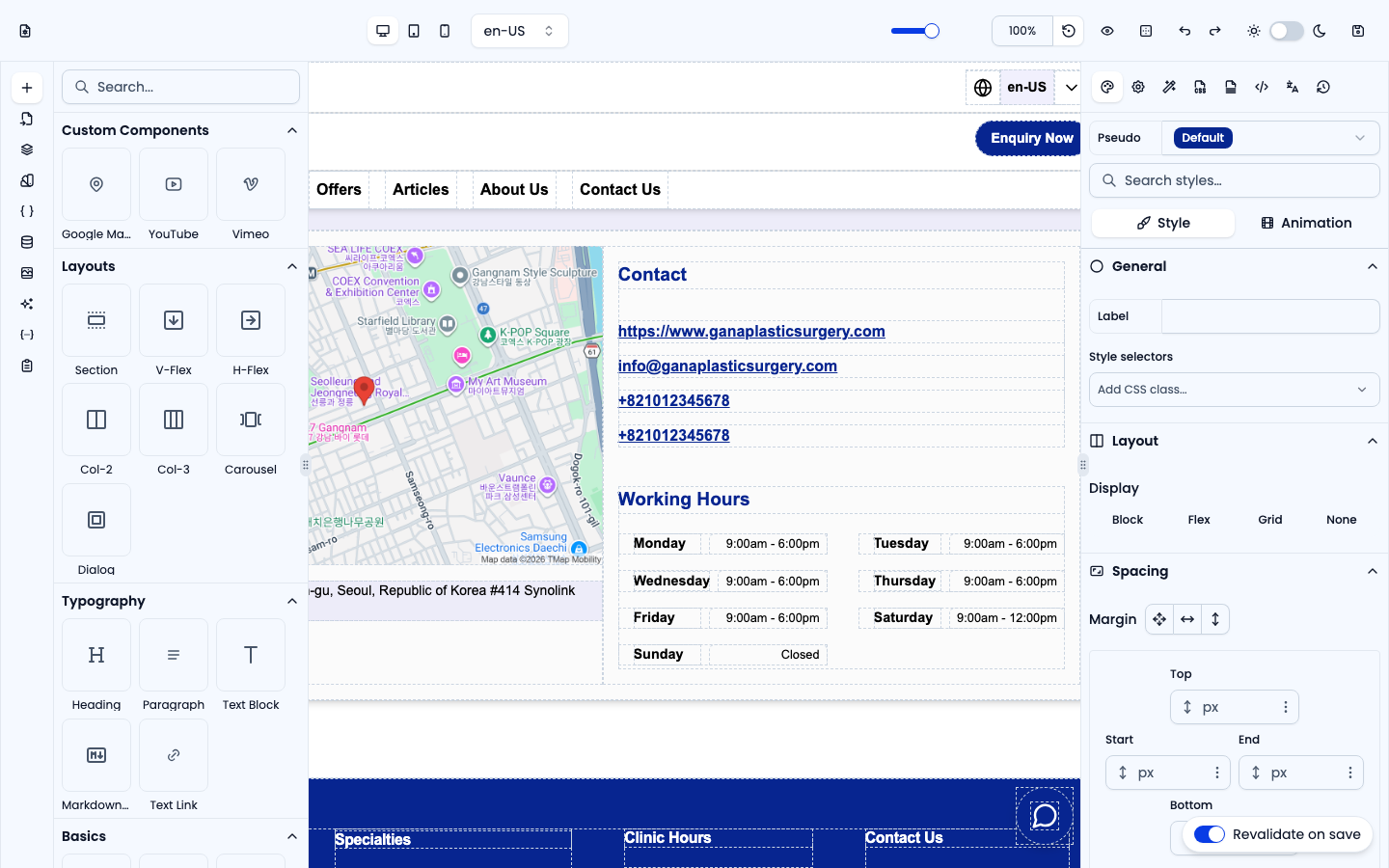
Find an element in the panel, then drag it onto the canvas. Use the Search... box at the top to filter by name across all categories.
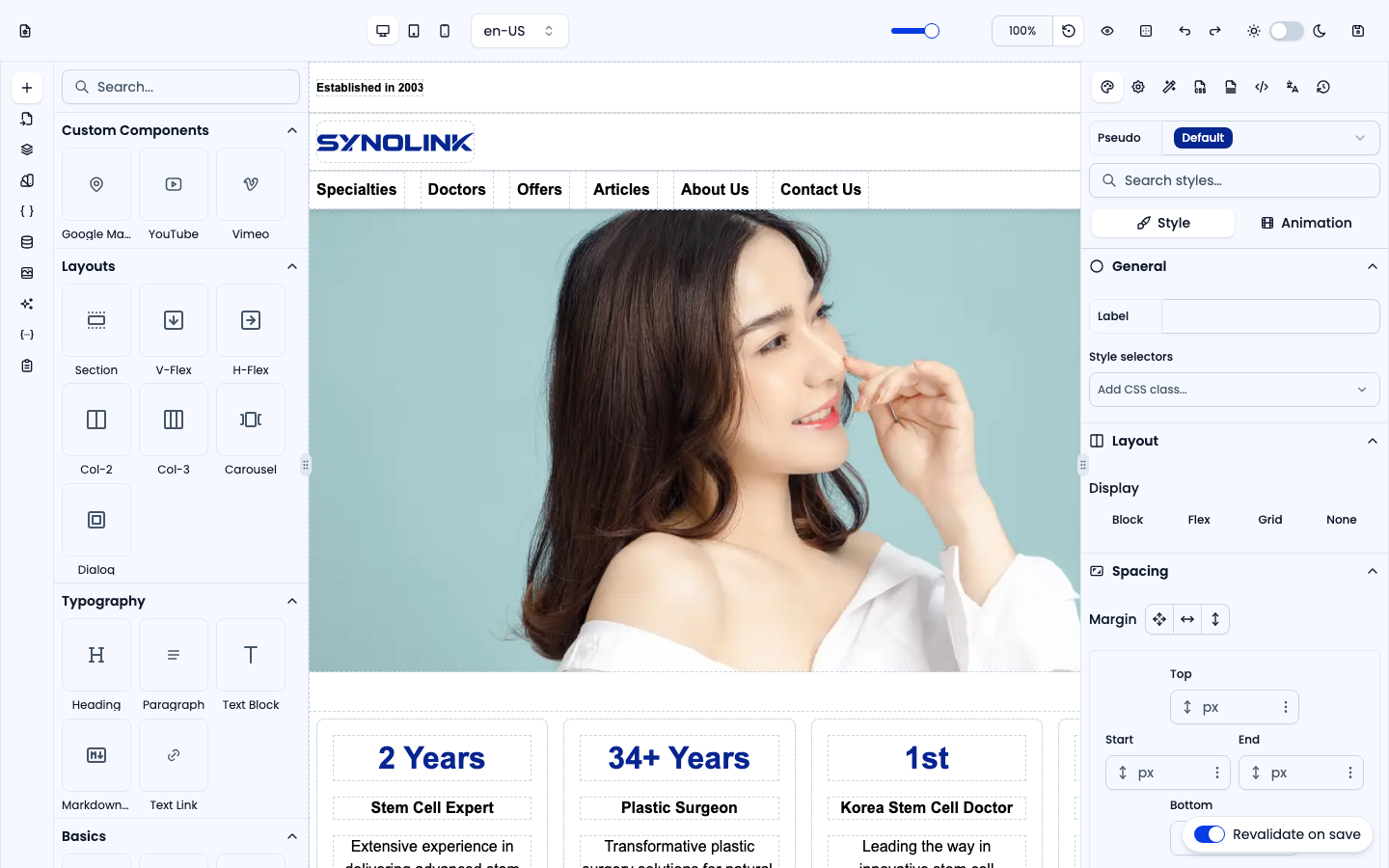
Component reference
The panel groups elements into categories, in this order: Custom Components, Layouts, Typography, Basics, Advanced, Form, Media, Collection, Blocks, and — when the site has reusable components — Template Blocks. Expand a category to see its items. For a screenshot and description of every individual element, see the Components guides (Basics, Layouts, Typography, Media, Advanced, Forms, Blocks, Collection).
Custom Components
Always at the top. It holds the built-in embeds Google Maps, YouTube and Vimeo, plus any custom components registered for the site. Drag to add, then configure the embed in Settings.
Layouts
| Component | Description |
|---|---|
| Section | Full-width <section> with a centred inner container (max 1280 px). The standard page section. |
| V-Flex | Vertical flex column (flex-direction: column, gap 1 rem). |
| H-Flex | Horizontal flex row with wrapping (flex-wrap: wrap, gap 1 rem). |
| Col-2 | Two-column CSS Grid; collapses to one column on mobile. |
| Col-3 | Three-column CSS Grid; two columns on tablet, one column on mobile. |
| Carousel | Horizontally scrolling carousel. Contains Carousel Item slides; slide width is configurable per device. |
| Dialog | Overlay modal with a dark backdrop. Pre-built with a heading, description, Close button, and Confirm button. |
Typography
| Component | Description |
|---|---|
| Heading | <h1>–<h6> heading (default H1). Applies the responsive heading class automatically. |
| Text Block | inline-block text span. Best for short labels or inline text. |
| Paragraph | Multi-line text block (white-space: pre-line). Best for body copy. |
| Markdown Container | Wrapper + Markdown renderer — renders GitHub-flavoured markdown from content or a {{variable}}. |
| Text Link | Inline <a> hyperlink element. For links inside a paragraph. |
Basics
| Component | Description |
|---|---|
| Container | Generic block-level box. The default wrapper for grouping other elements (width 100%). |
| Button | Clickable button with a configurable action (alert, page navigation, custom event). |
| Icon Button | A Button with an icon next to its label. |
| Button Link | A button styled as an anchor — navigates to a URL on click. |
| Badge | Small pill-shaped label (e.g. tags, status) with an accent background. |
| Link Wrapper | Full-width <a> container — wraps any child elements to make them a clickable link. |
| Separator | A horizontal divider line. |
Advanced
| Component | Description |
|---|---|
| Dropdown | Trigger + content menu. Contains Dropdown Trigger, Dropdown Content, and Dropdown Item sub-elements. |
| Tabs | Tab triggers with a content panel per tab; horizontal or vertical. |
| Accordion | Expandable question/answer items (single or multiple open). |
| HTML | Raw HTML content block — for custom embeds or third-party code snippets. |
| Locales List | Dropdown pre-wired to list all site locales. Uses {{ currentLocale }} and {{ this.locale }} handlebars automatically. |
| Form | Complete contact form: Name, Email, Message, Subject fields + Submit button. |
Form
| Item | What it is |
|---|---|
| Search Bar | A ready-made search form: one input and a Search button that opens /search?q=… |
| Text · Email · Number · Phone · Date · Textarea · Select · Checkbox · Radio | Individual fields — drag them into an existing Form element to add inputs one at a time |
Media
| Component | Description |
|---|---|
| Iframe | Embeds an external URL in a frame (default 600 × 400 px). |
| Video | Plays a video file, with Controls / Autoplay / Muted / Loop switches in Settings. |
| Image | <img> with object-fit: cover. Set src, alt, width, and height in Settings. |
| Icon | SVG icon element (default: chevron-down). Pick an icon or paste SVG markup in Settings. |
Collection
Dynamic components bound to data. Configure the data in the Collection panel.
| Component | Description |
|---|---|
| Collection List | Iterates over a data collection and renders the child template once per item. Use handlebars (e.g. {{name}}) inside child elements to output item fields. |
| Collection Markdown | A Collection List pre-wired to render a {{markdown}} field from each item as formatted HTML. |
| Collection Carousel | A Carousel whose slides are generated automatically from a data collection. |
A collection list can also show a Loading element while its data loads — add it with Add Loading UI in the Settings panel. See Components: Collection.
Blocks and Template Blocks
Blocks are pre-built sections — Hero, Features, Highlight, Card (see Components: Blocks). Template Blocks lists the site's own reusable components (from the site's Components tab) that already have content, so you can drop them onto any page.
Import
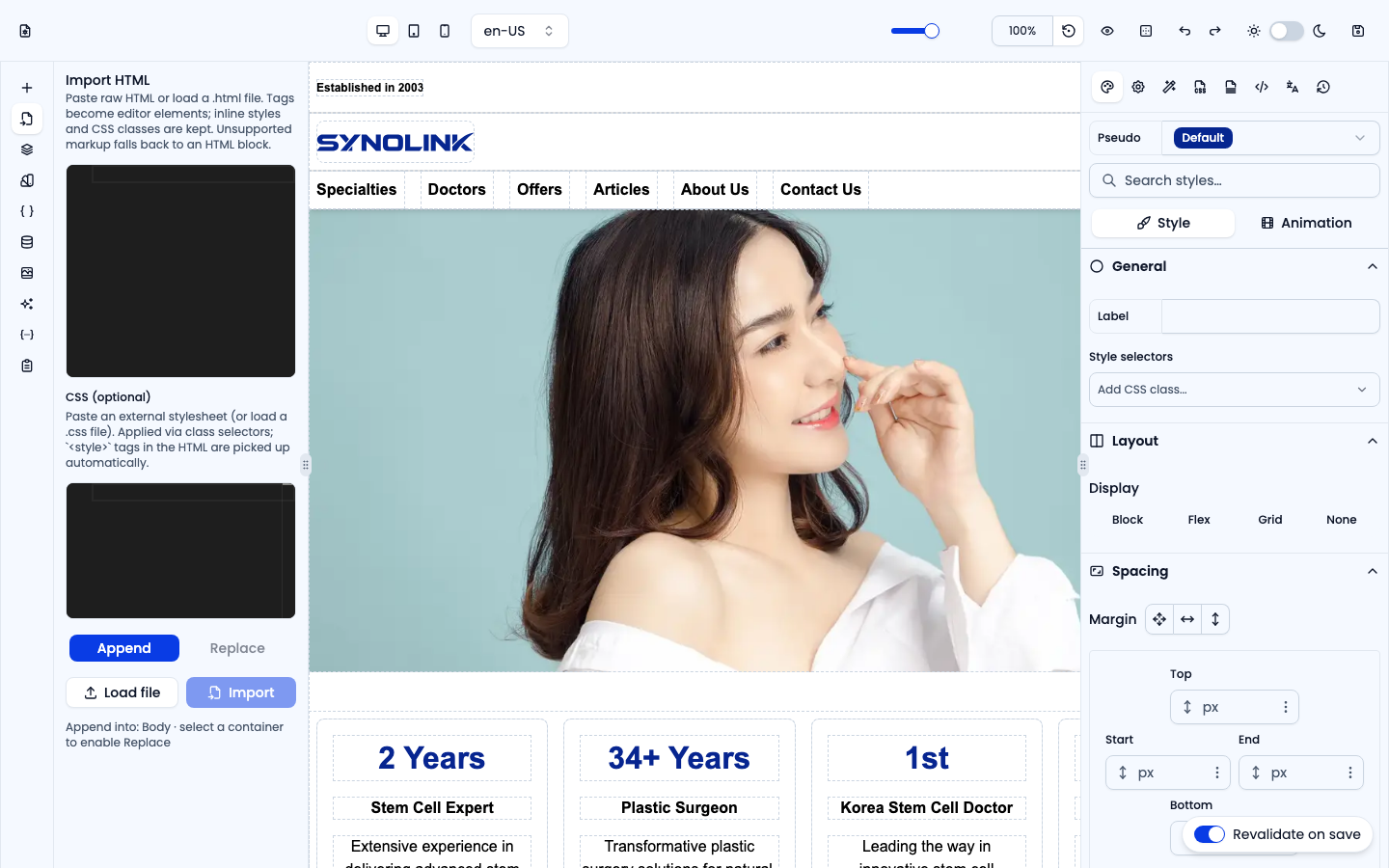
Paste raw HTML (or Load file to load a .html file) and, optionally, CSS. Tags become editor elements; inline styles and CSS classes are kept, and unsupported markup falls back to an HTML block. Choose Append (add into the body or the selected container) or Replace (replace the selected container's content), then click Import.
Layers
The hierarchy of elements that make up the page — handy for finding nested or overlapping elements quickly. Use the search box and the type filter to narrow the tree.
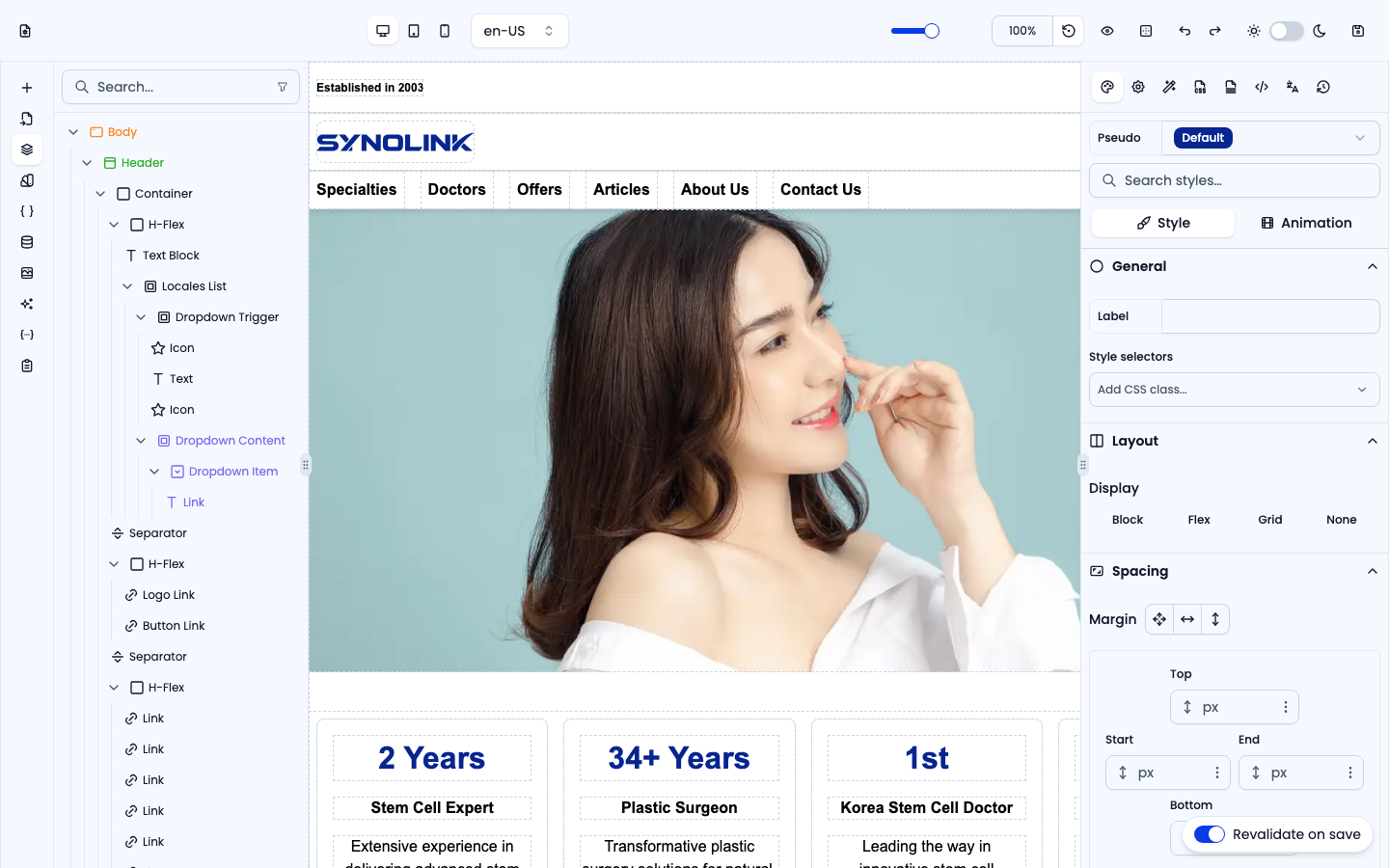
Hover a layer row to reveal its visibility (eye) and lock toggles (also available from the row's right-click menu). Use the eye to hide an element on the canvas (display: none), and lock to prevent accidental edits or moves. Both apply per device (desktop/tablet/mobile).
Classes
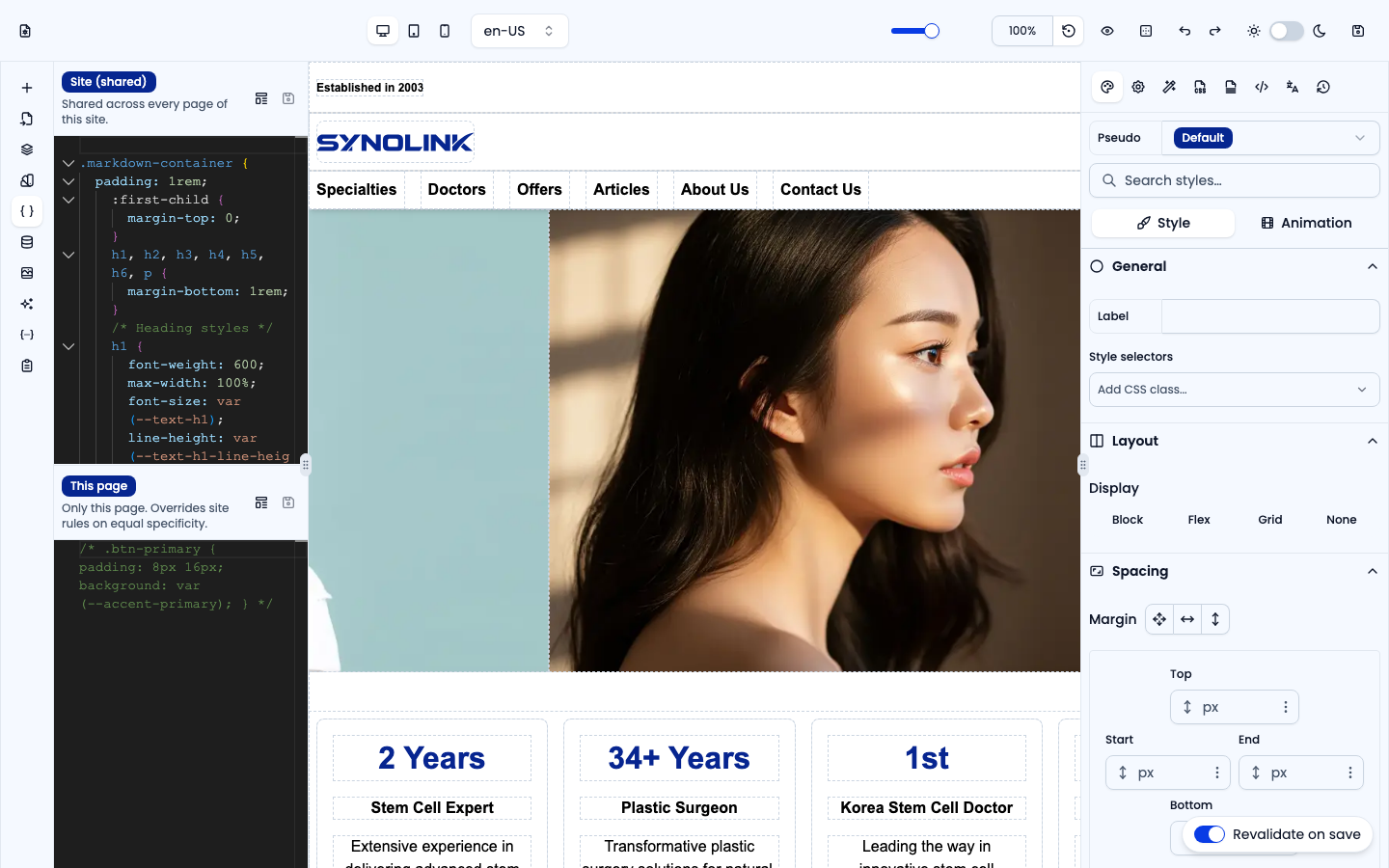
Write CSS classes in two scopes: Site (shared) — shared across every page of this site — and This page — only this page, overriding site rules of equal specificity. Apply classes to an element from Style selectors in the right-hand Style panel.
Assets
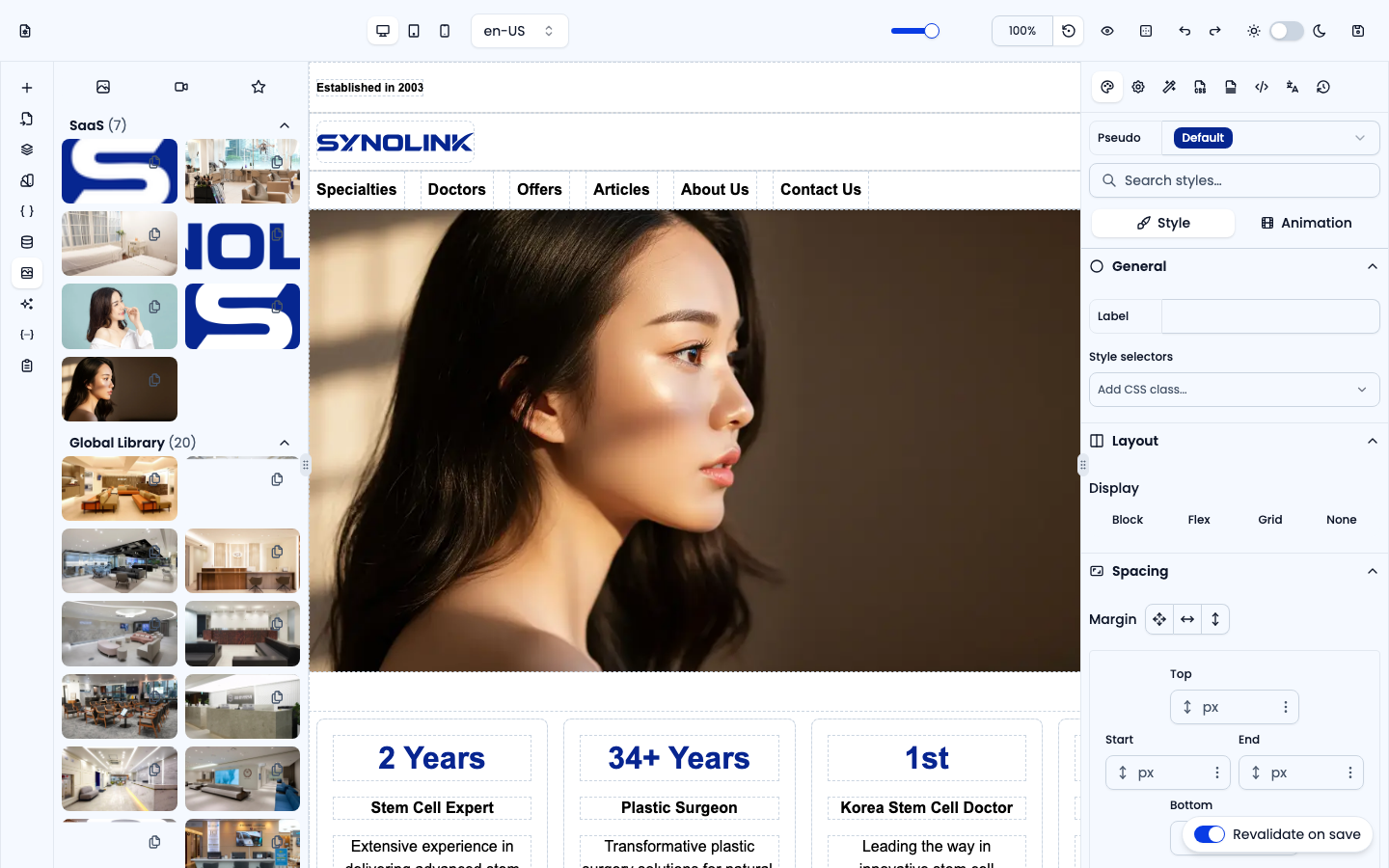
The panel has three sub-tabs — Images, Videos and Icons — each with a count. Items are grouped into SaaS (your workspace's uploads) and Global Library (shared media). Drag an item onto the canvas to add it; the Icon element's settings also offer a searchable icon grid.
Plan
When you open a page from a site, the Plan tab shows the page's Draft brief: its sync status, a Generate button, and the same fields as the side panel of the site's Pages tab (title, URL path, AI instruction, content sections). Edit the brief while looking at the rendered page, then generate the draft again.
Canvas — selecting elements
Click an element on the canvas to select it (an outline appears); the right panel then reflects that element. Quick-action buttons also appear above the selection.
Panning the canvas: hold the spacebar and drag, or drag with the middle mouse button, to pan around. Together with zoom this makes navigating a large page easy.
Editing several elements at once: hold Shift and click to select more than one element. Edits you make in the right-hand CSS panel then show an N selected badge, and only the declarations you changed are applied to every selected element, in a single undo step. Convert to site CSS class likewise applies the new class to all selected elements.
Right panel — styles and settings
Switch panels using the icons at the top right.
| Panel | What it does |
|---|---|
| Style | Color, spacing, size, fonts, background, border, effects — plus an Animation sub-tab |
| Settings | Per-element properties (form fields, image/video settings, links, tabs, accordion, a collection list's loading UI) |
| Actions | Wire up interactions (open a popup, etc.) |
| CSS | Write CSS directly on the selected element (advanced) |
| Stylesheet | Write a page-wide stylesheet (advanced) |
| Metadata | Page SEO — search preview, title, description, OG image, canonical URL, robots, JSON-LD |
| I18n | Manage per-language content, AI translation, and AI rewrite of selected text |
| History | Edit history — revert to an earlier state |
The Style panel has Style and Animation sub-tabs. At the top, the Pseudo selector lets you style states such as :hover, and Search styles… jumps to a property. Styles are grouped into General, Layout, Spacing, Dimensions, Typography, Position, Backgrounds, Borders, and Effects — and you can set them per device (desktop/tablet/mobile) for responsive design.
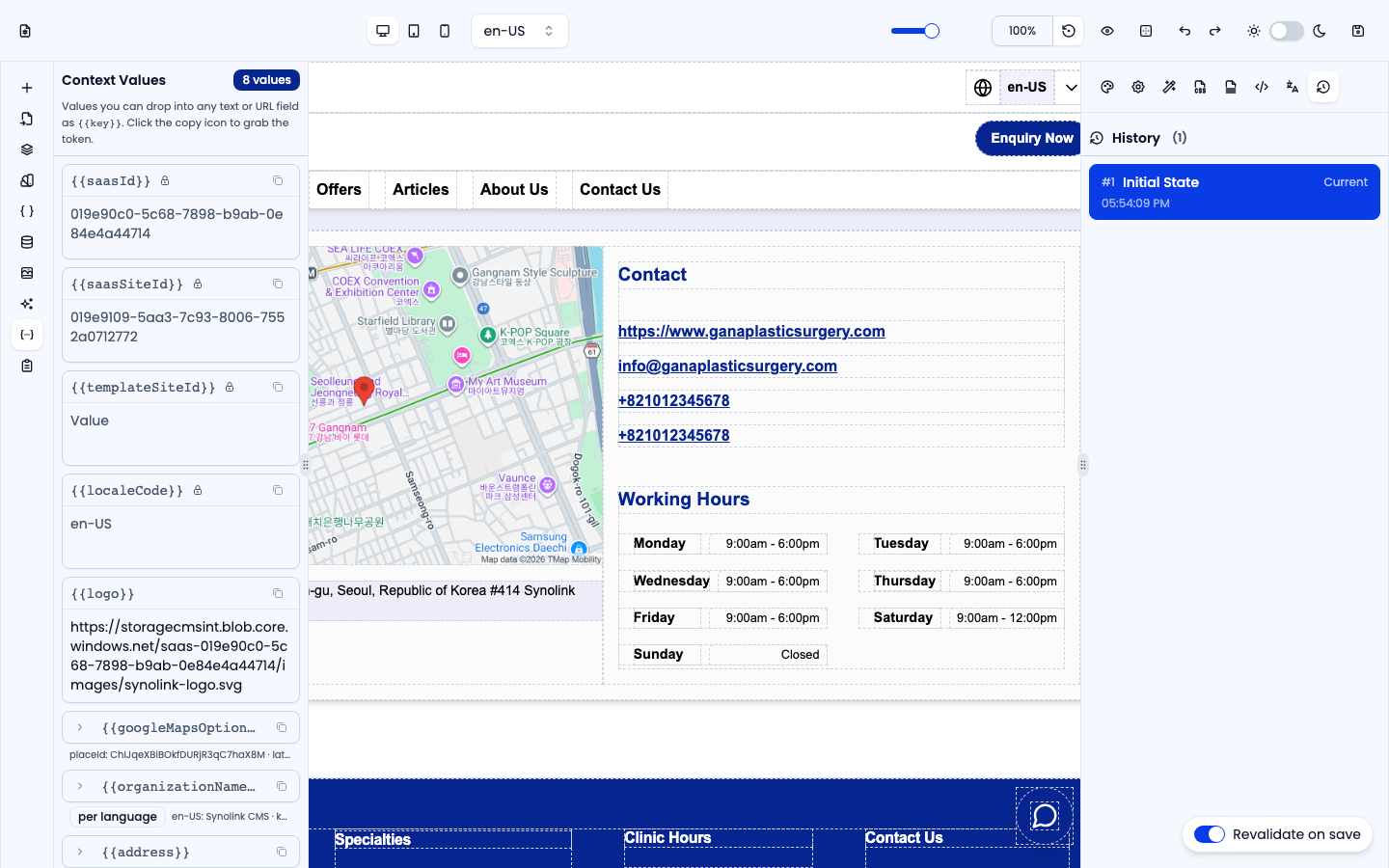
Context Values and History
Below, the left Context Values and the right History are both open. Click the copy icon on a context value to grab its {{key}} token; History lets you step back through your edits.
Summary
- Drag from Elements on the left → 2. click on the canvas to select and enter content → 3. style it with Style on the right → 4. configure data / language / metadata → 5. check in preview → 6. save.