A detailed look at three powerful editor panels — Data (Collection) · AI Prompt · Translation (I18n). For the overall layout see Editor Screen Tour, and for basic editing see Using the Page Editor first.
AI Prompt works on a selected element — click an element on the canvas first. Collection binds either the selected element or the whole page, and the translation panel lists all page text even without a selection.
Data binding (Collection)
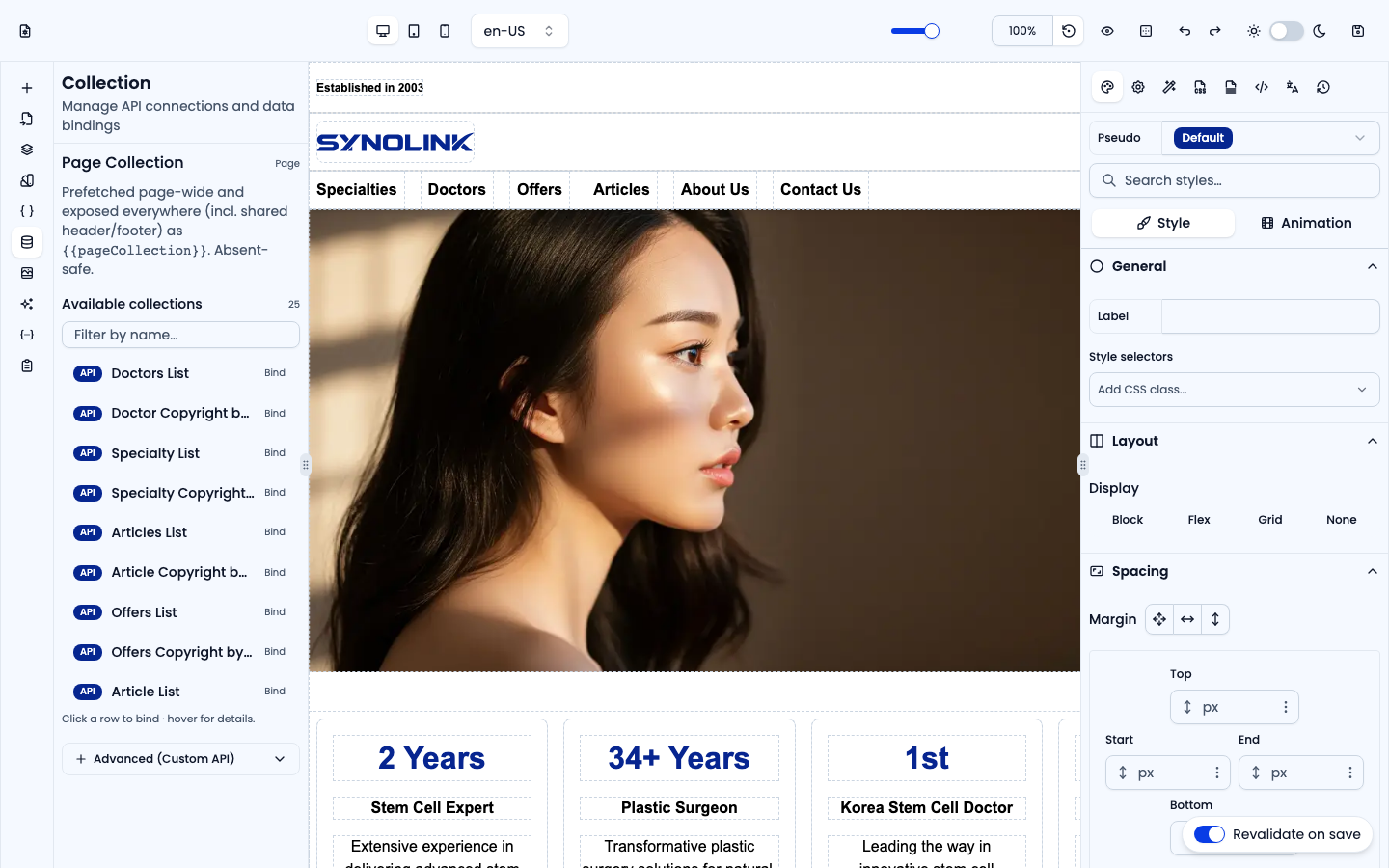
Frequently-changing information such as articles, products or events should be bound to data rather than typed in by hand. Once bound, the page updates automatically when the source changes. Configure this in the left Collection panel ("Manage API connections and data bindings").
Element or page
- With no element selected, the panel shows Page Collection — data prefetched page-wide and available everywhere on the page (including the shared header and footer) as
{{pageCollection}}. Pick one from Available collections, or define one under Advanced (Custom API). - With an element selected, switch between Element (bind this element) and Page (the page collection above).
Only a container with content inside it can repeat rows. If you select a leaf element (a heading, text or button) outside any collection, the panel explains that This element doesn't repeat — bind the container that holds it instead, then show a value in the element by typing / in its Inner Text or URL field.
Source types
With an element selected, pick one of three data source types:
| Type | When to use |
|---|---|
| Live data | Fetched from an API — a list loaded live (articles, products, etc.) |
| Fixed list | Written out as JSON — a small, fixed set of data pasted directly |
| Language | One row per language — the site's languages as data (e.g. a language menu) |
Live data and Fixed list each have two sub-tabs: Binding and Field of the row (see Nested binding below).
Live data
- Available APIs — Pre-registered APIs are listed as rows; filter them by name. Click a row to bind · hover for details (URL, query params, data path). The bound row is highlighted with a check mark, and a Currently bound box appears at the top — use Clear to unbind.
- Advanced (Custom API) — Enter your own API URL Template. Click a Path Variables or Context Values chip to insert a
{{variable}}handlebar at the cursor; the parsed preview shows the real request URL. Edit query parameters as rows. - Data Path (optional) — Where the list (array) lives in the response, e.g.
data.items. Run the API preview to fetch the response (the first 3 items) and reveal available fields. - Click Bind API to connect (it shows Update binding after you change a bound URL, and Bound when nothing changed).
- Prefetch on server — When on, the list is rendered during server-side rendering. Better for SEO and removes first-paint flicker, at the cost of added server response time.
Fixed list
Pick one of the Available JSON Data presets, or open Advanced (Custom JSON) and paste a JSON array or object into the code editor. If valid, the item count is shown. Click Bind JSON Data. Handy for small, fixed data without an external API.
Language
Bind the site's list of languages as data. Tick the locales to expose (Select All / Reset help), then click Bind Locales (Update Locale Binding once bound). Inside the bound element, use handlebars such as {{locale}} / {{code}} to render each language — useful for a language switcher.
Nested binding (Field of the row)
Use this when a list contains another list (e.g. an array of items per category). The Field of the row tab is available only when the selected element sits inside another collection — it lists a field of that row. Enter the Field Path to the array within the parent's data (e.g. items, data.children); a preview confirms the nested data before you click Bind Nested Collection.
AI Prompt
Build or modify the selected element with natural language. Open the left AI Prompt panel.
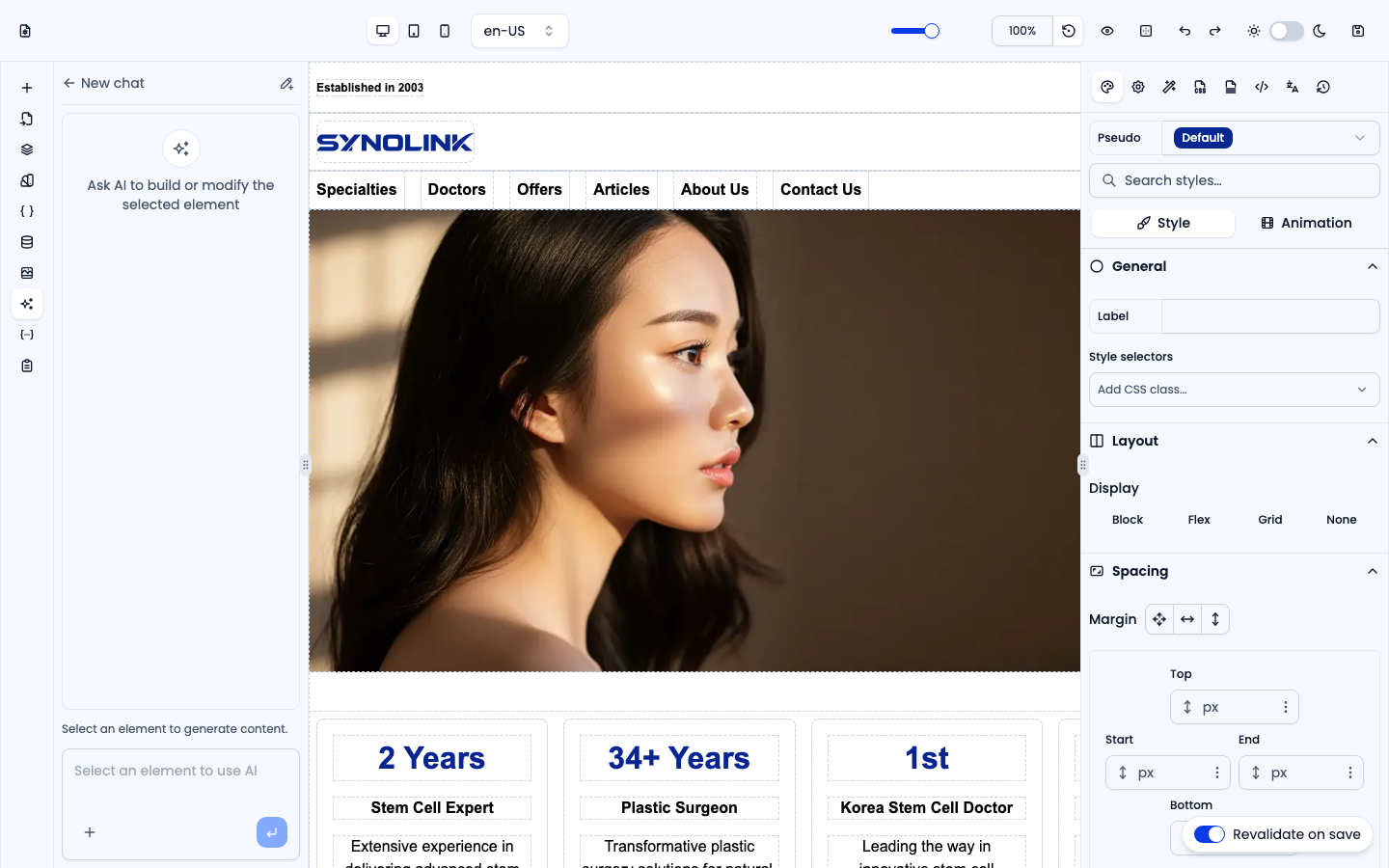
- Select the element you want to change on the canvas. AI acts on one element at a time — with nothing (or several elements) selected, the input asks you to select a single element.
- Describe what you want, e.g. "Make this a 4-column stats section with bold blue numbers."
- Optionally attach up to 3 images (the + button) for design reference.
- On submit, the AI builds a result and applies it directly to the selected element. Applied responses are marked Applied, with the tokens used (and the estimated cost, when configured). Click a result in the conversation to preview it again.
- You can Stop a running generation.
Chats. Conversations are kept as chat sessions. Use New chat (pencil icon) to start fresh, and the back arrow to open the chat list, where you can reopen or delete a past chat. Chats are kept per page for the browser session, so they survive switching panels.
The AI sees not just the selected element but the page structure, assets, context values, collections and your design variables (brand colors, etc.) — so instructions like "use the brand color" follow your existing design system.
Translation (I18n)
Manage every text on the page per language, and run AI translation or AI rewrite. Open the right I18n panel.
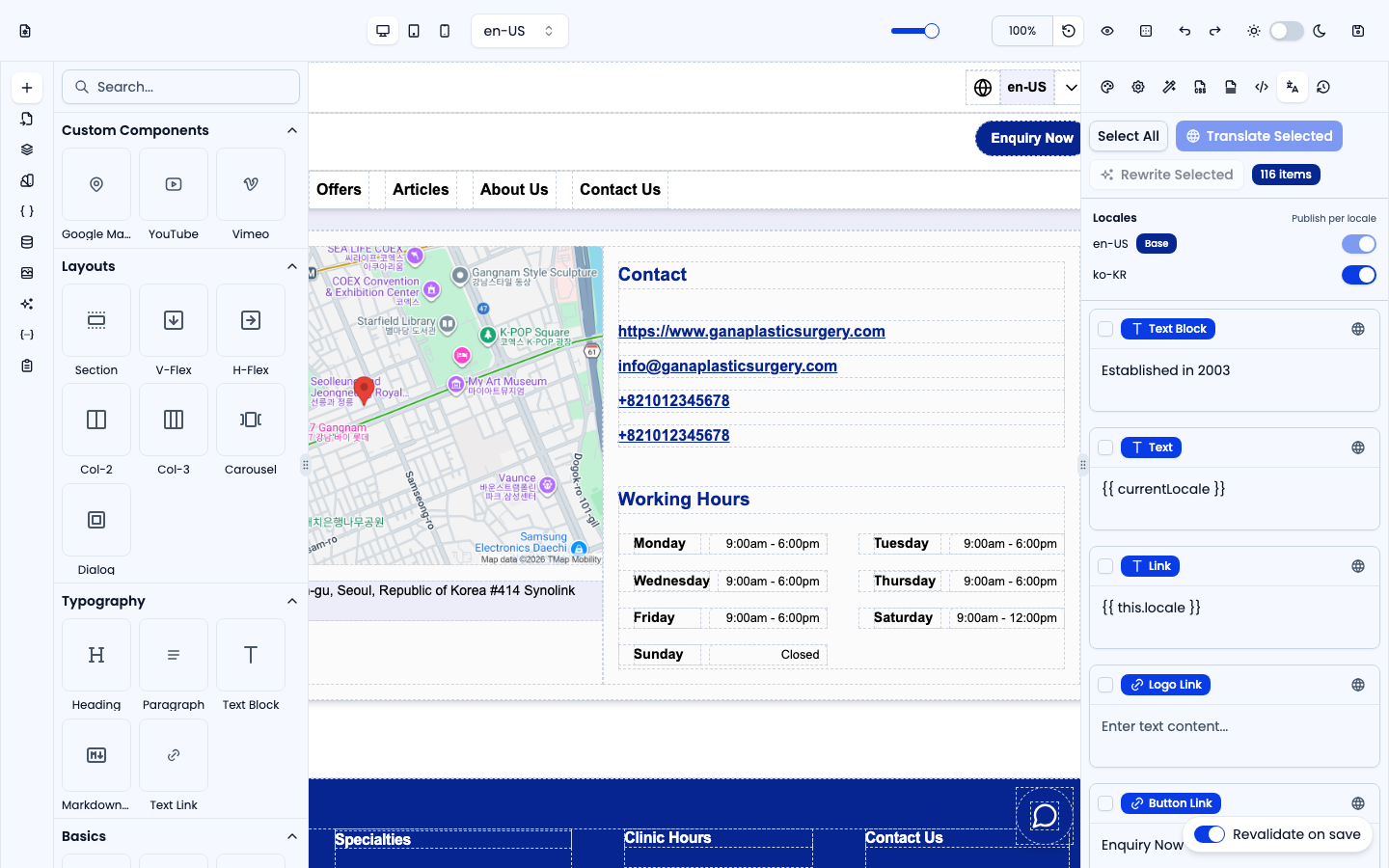
- Translatable items list — Every translatable text on the page is listed (the count is shown as N items). Each box shows the content in the current editing language; edit it here to save the value for that language. (Switch the editing language in the top toolbar.)
- Translate one item — Use a row's globe (🌐) button to translate just that item into a chosen locale.
- Translate many at once — Check items, then Translate Selected → target locale translates all checked items from the current language in one go. Select All and Check Highlighted (n) (check only the elements selected on the canvas) are also available. The badge shows how many are checked (n / N items).
- Rewrite Selected — Rewrites the checked items in the current editing language so the copy describes your organization, using your organization's context. Only the text changes; layout, styles and
{{handlebars}}stay as they are. Handy for replacing template placeholder copy. The button appears when you edit a page or component of one of your sites (it isn't shown in template editors), and is disabled in preview. - Publish per locale (Locales) — Toggle whether each language is published. The Base locale is always published and can't be turned off. Keep partly-translated languages off until they're ready, then switch them on.
Translate buttons require a translation API to be configured. You can still manage per-language content by typing it in directly. AI output — translated or rewritten — is applied straight to the page, so review it before you save; use undo in the top toolbar if you don't like the result.
In short
- Bind lists to their source with Collection → 2. quickly build/refine layout with AI Prompt → 3. fill and translate per language with I18n → 4. check in preview, then save (and publish the draft, if you're editing one).