The Page Editor lets you design web pages with your mouse — no code required.
Opening the editor
A site's Pages tab shows the site's page tree, in the List view by default (on desktop you can switch to the Map view). Click a page in the list to select it in the side panel on the right, then:
- Click Preview in the side panel's sticky footer. The page opens in a preview dialog — with Draft and Live tabs when the page has a draft.
- In the dialog header, click Edit live page to open the page in the editor. On the Draft tab, the button reads Edit draft and opens the editor on the draft instead of the live page.
- Or click Open in new tab to open the live page in the editor's preview mode in a new tab.
Preview is available once the page has content in its draft or live version. If neither has content yet, the button is disabled — hover it to see why.
The ⋯ menu next to Preview (also opened by right-clicking the row in the list) has Edit in editor to open the editor directly, Copy page (optionally copying the body, description, header/footer and SEO metadata), Delete and more. Components open the same way: select one in the list and use its Preview. Per-page SEO is set in the editor's Metadata tab. See Creating a Site for the side panel and the draft plan workflow.
Layout
The editor has four areas.
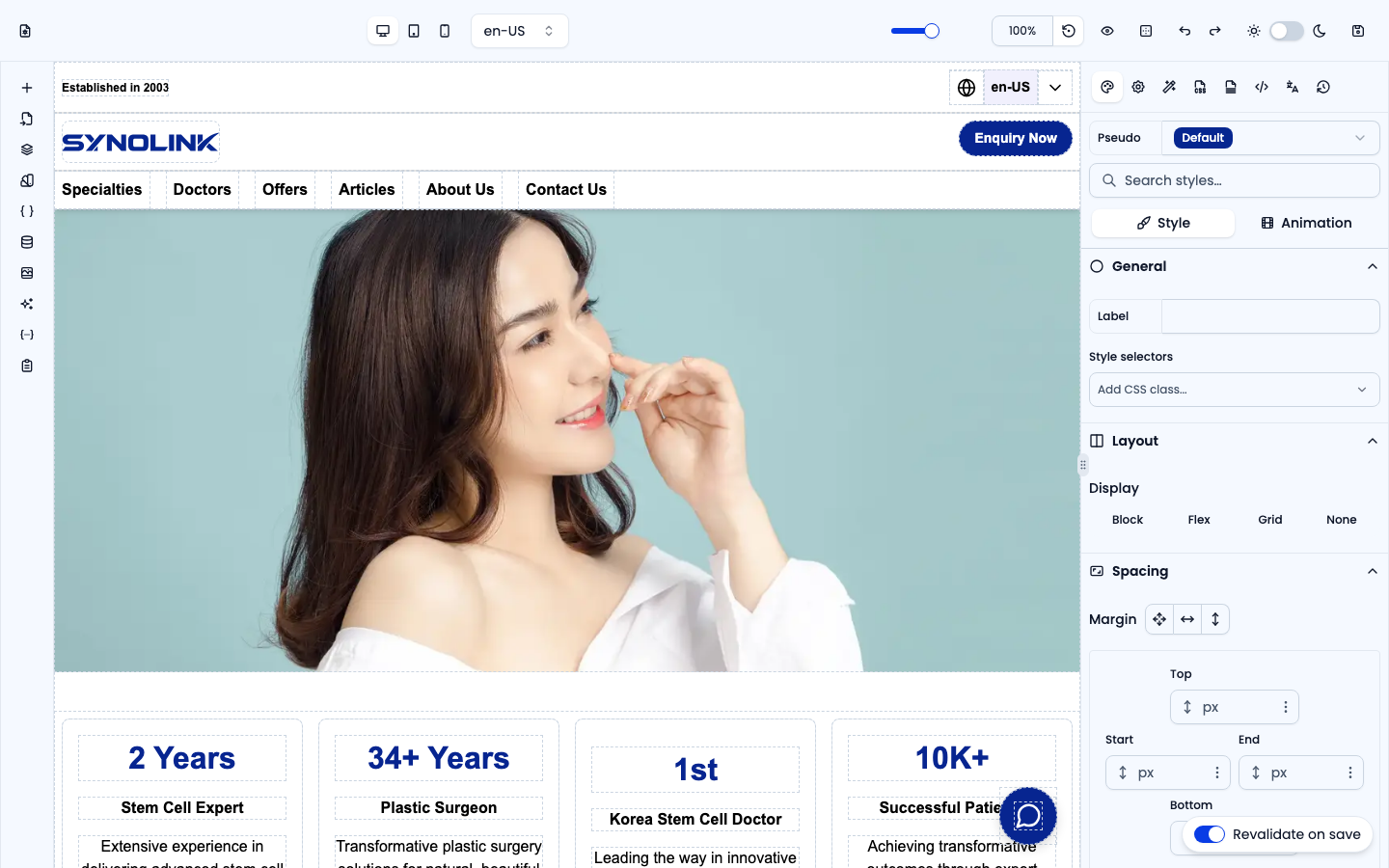
- Center (canvas) — The editing area where your actual page is shown
- Left panel — Elements to add, import, page structure (layers), variables, classes, data, assets, AI and the page's draft Plan
- Right panel — Styles, settings and actions of the selected element, plus page-level SEO (Metadata), translation (I18n) and History
- Top toolbar — Page details, screen size (desktop/tablet/mobile), language, canvas zoom, preview, element outlines, undo/redo, dark mode, and save
Tip: hold the spacebar (or use the middle mouse button) and drag to pan the canvas — handy with zoom on large pages.
For a closer look at each panel and tab, see the Editor Screen Tour guide.
Basic editing flow
1. Add elements
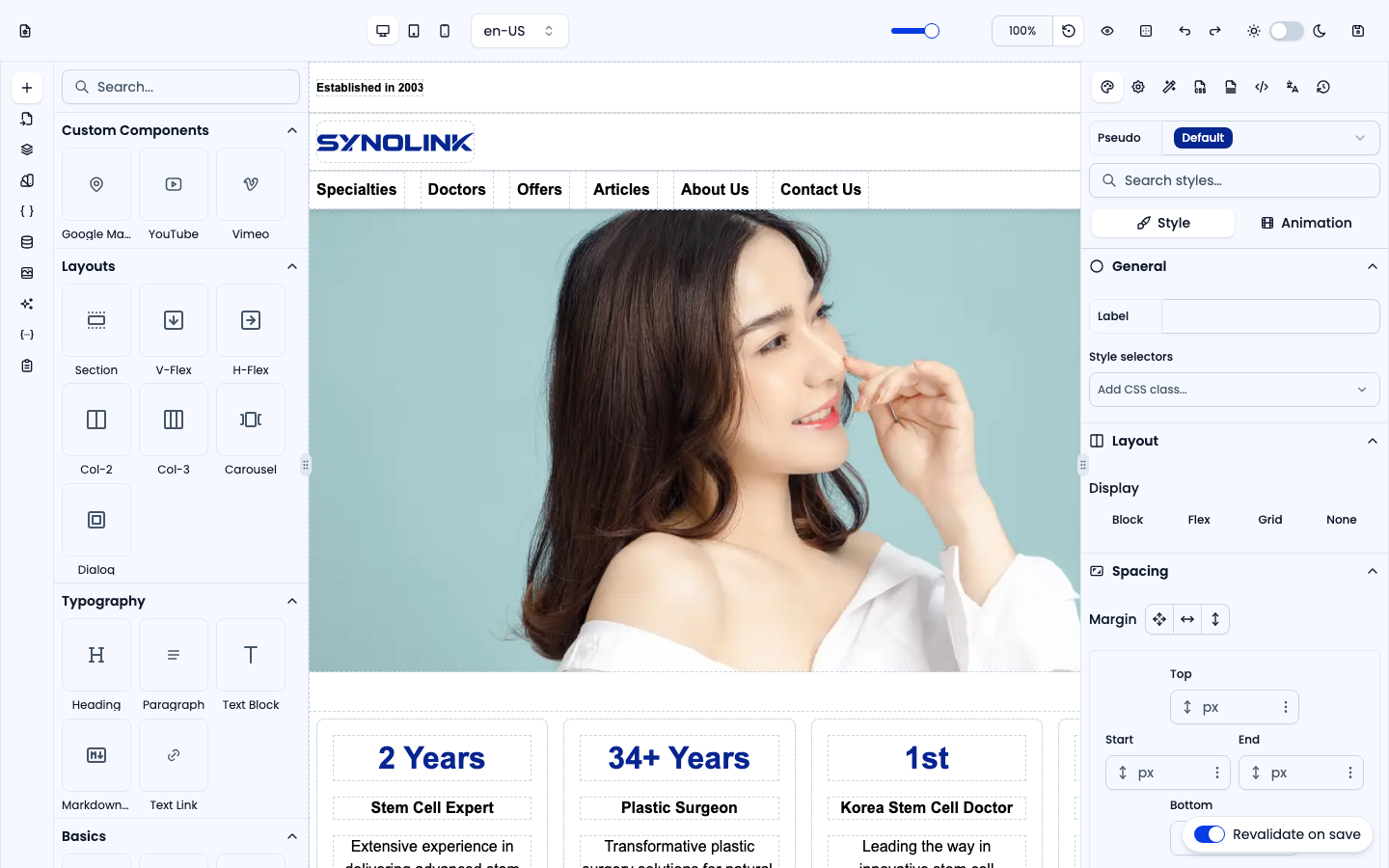
Pick text, images, buttons, layouts, etc. from the Elements panel on the left and drag them onto the canvas. Elements are grouped into Custom Components, Layouts, Typography, Basics, Advanced, Form, Media, Collection, Blocks and, when the site has reusable components, Template Blocks. Use the search box to find one by name.
2. Edit content
Click text on the canvas to type directly; pick images, videos and icons from the Assets panel.
3. Adjust styles
When you select an element, the Style panel on the right reflects it. Change colors, spacing, size, fonts, and alignment here.
4. Check responsiveness
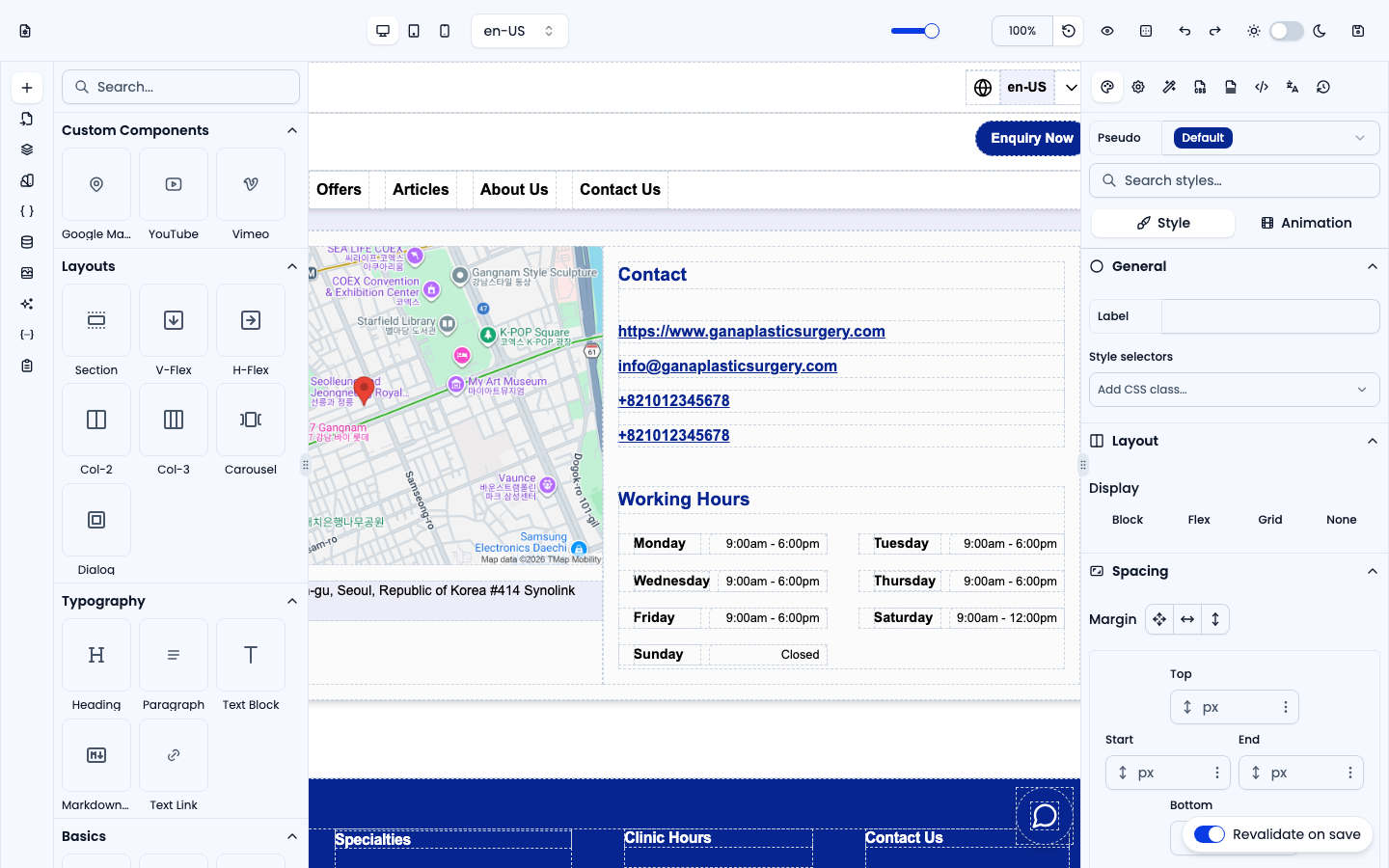
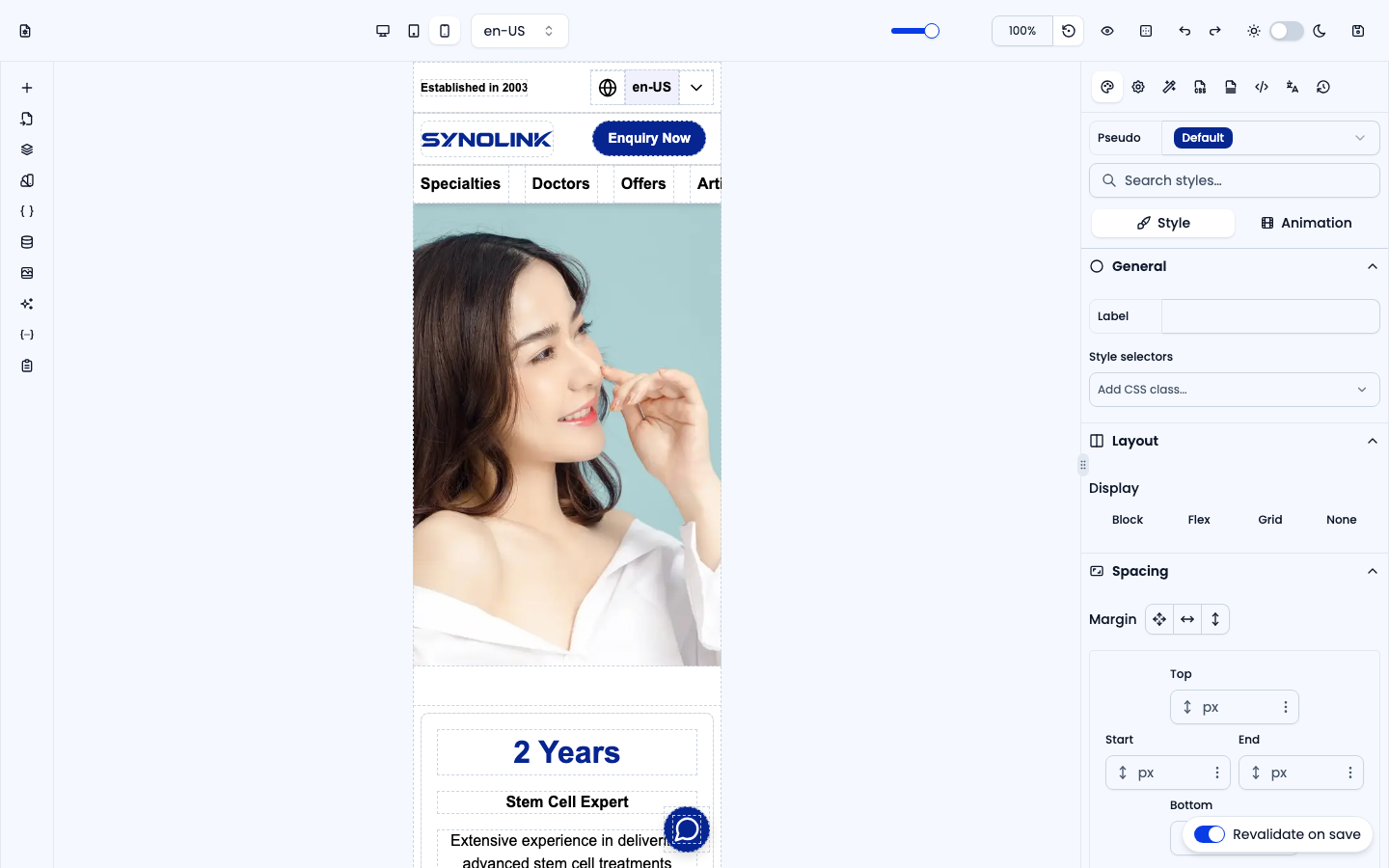
Switch to tablet/mobile views in the top toolbar to refine each screen size. Styles can be set per device.
5. Preview
Click the eye icon to hide the editing chrome and see exactly what visitors will see. Click the eye-off button in the corner to return to editing.

To share the whole site with others before it is deployed, see Sharing a site preview in Creating a Site.
6. Save
Save your changes. On a site that is already deployed, keep Revalidate on save (bottom right) switched on so the live page refreshes on your domains right after saving. If the site hasn't been deployed yet, deploy it from the site's header — see SEO, Publishing & Domains.
Editing a draft
When the site has a draft plan, the left Plan tab shows the page's Draft brief — its AI instruction and content sections, plus Generate. Edit the brief while looking at the page, generate the draft, then publish it from the site's Pages tab (Publish page, or Publish in the banner for the whole site). Changes made while editing a draft stay in the draft until you publish.
Binding dynamic content
For frequently-changing information like article lists or product catalogs, use data binding instead of typing it in by hand. Once linked, editing the source content updates the page automatically. See Data, AI & Translation.
Multilingual
If you run multiple languages, switch the editing language in the toolbar, enter content per language in the I18n panel, and use AI translation to draft quickly. For language setup, see Organization Settings.
FAQ
Q. I edited, but it isn't on the live site. Make sure you saved. If you were editing a draft, publish it from the site's Pages tab. If the site is live but still shows old content, use Revalidate in the site's header. See SEO, Publishing & Domains.
Q. I deleted an element by mistake. While editing, you can restore it with undo, or step back in the History panel.