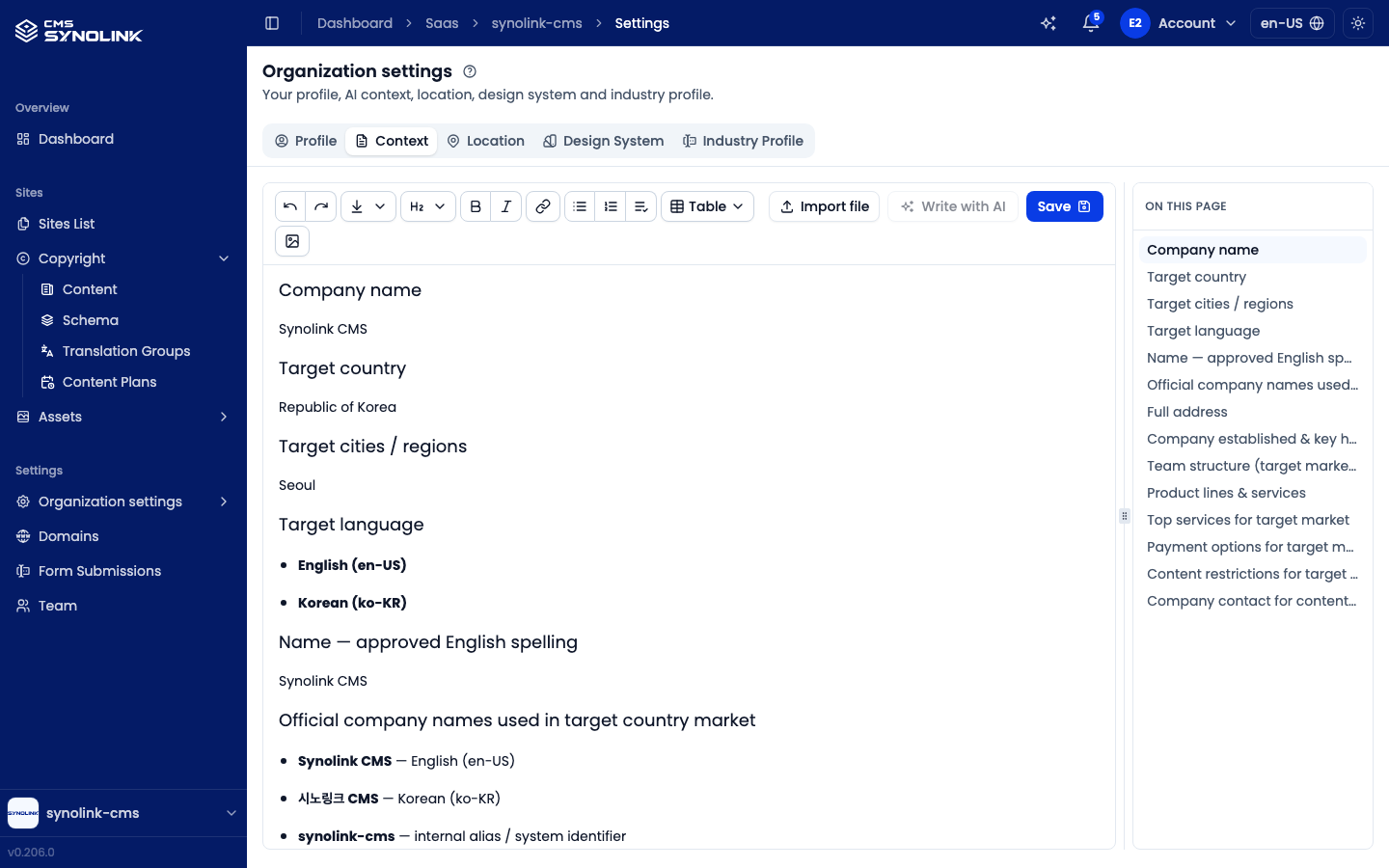
Open your organization's context from Settings → Organization settings → Context in the left sidebar. The context is one markdown document describing your organization — who you are, what you offer, who you serve, and how you talk to them. Every AI feature in the workspace reads it, so the more accurate it is, the more the results sound like your organization.
What the AI uses it for
The AI reads your context when it:
- answers in the Dashboard Assistant chat
- rewrites text in the page editor so it describes your organization — for example Rewrite Selected, which replaces a template's sample copy
- plans content in the AI content planner (see Content Plans)
- works in your workspace through your own AI assistant (see Connect your AI)
Where it's required
Some screens won't go ahead until the context exists:
| Where | What happens without a context |
|---|---|
| Complete your setup | Admins and Owners see this screen instead of the dashboard until the context is saved. It's the last step of onboarding |
| AI content planner | Plan with AI is disabled, with a No context yet alert and an Open context button |
| Industry Profile → AI Autofill | Shows Write your Context first to use AI Autofill. |
| Prepare your site checklist | The first step, Write your context, stays unchecked |
On the Complete your setup screen, the buttons read Save and continue and Approve and continue, and the dashboard opens once you've saved.
Editing the context
The editor is a markdown editor with a formatting toolbar. Structure the document with headings — the On this page panel on the right lists them, and clicking one jumps to it. Drag the divider between the editor and the panel to resize it. Until there are headings, the panel shows Add headings to build a table of contents. (It's hidden on small screens.)
There's no autosave. Click Save to keep your changes — the button is disabled while the editor is empty.
Importing a file
- Click Import file and choose a
.md,.markdown, or.txtfile. - If the editor already has content, you're asked Replace the current content with the imported file? Click Replace to continue. Unsaved edits in the editor are lost.
- Check the imported text, then click Save. Importing only fills the editor.
Writing with AI
Write with AI has the AI write a draft from your organization's details, following the writing guide that comes with your workspace's Industry Profile (domain schema — see Organization Settings). The draft sits beside your current context until you approve it.
Requesting a draft
- Click Write with AI.
- While the AI writes, the editor is locked (Editing is locked while AI writes the draft). You can leave the page — the draft keeps going, and the page checks on it periodically.
- If it takes more than 10 minutes, you'll see The AI draft is taking too long. You can request a new one. If it fails, an error appears and you can try again.
Reviewing and approving
When the draft is ready, a banner reads An AI draft is ready. Review it, then approve it to replace the current context.
- Use the toggle to switch between AI draft, Current (your saved context), and Compare (the differences between the two).
- Edit the draft in place if needed.
- Click Approve. Your edits are saved, and the draft replaces the current context.
Writing a new draft
There's no button to discard a draft. To start over, click Write with AI again — you're asked Discard this draft and write a new one? Click Write a new draft to confirm. The current draft and your edits to it are lost; your approved context stays as it is.
What to write
Write it the way you'd brief a new colleague. For example, a bakery might cover:
- Who you are — your name, location, how long you've been around, and what makes you different
- What you offer — your products and services, with the details customers ask about
- Who you serve — your customers and what they come to you for
- Tone of voice — how you sound: warm, playful, formal, and so on
- Facts to keep consistent — opening hours, how ordering works, names and terms you always use
- Things to avoid — claims you can't make, topics to stay away from, words you don't use
Use one heading per topic. Headings make the document easier to navigate in the On this page panel and easier to keep up to date.
Permissions
Everyone in the workspace can read the context. Only Admins and Owners can change it — edit and save it, request an AI draft, or approve one. For other roles the editor is read-only. See Managing Your Team for roles.