You create and manage sites from Sites → Sites List in the left menu. Sites are grouped by locale. Each card shows a homepage preview, a locale badge and — when the site has a draft plan — a plan status badge (Draft, Generating, Ready or Published). Use the toolbar to search, switch between the grid and list view tabs, or start a new site.
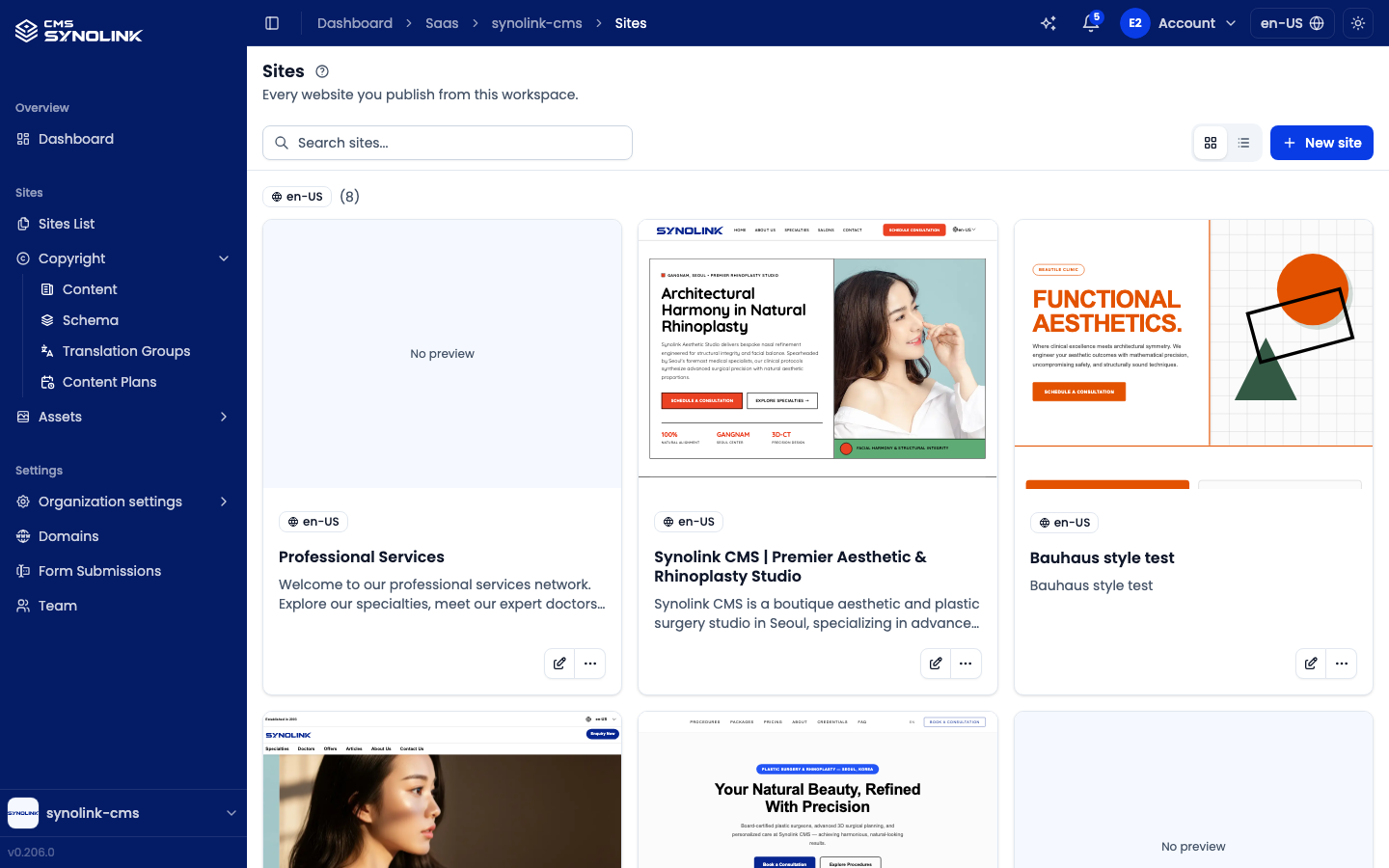
At the bottom of each card, the edit (pencil) button opens the site, and the ⋯ menu offers:
| Menu item | What it does |
|---|---|
| Continue in AI builder | Reopen the AI Site Builder on this site's draft (draft sites only) |
| Generate content | Open the site's Pages tab and start content generation (draft sites only) |
| Clone site | Create a copy of the site |
| Delete | Permanently delete the site (and tear down its deployment) |
Starting a new site
Click New site to open Select a way to get started. There are three ways to begin:
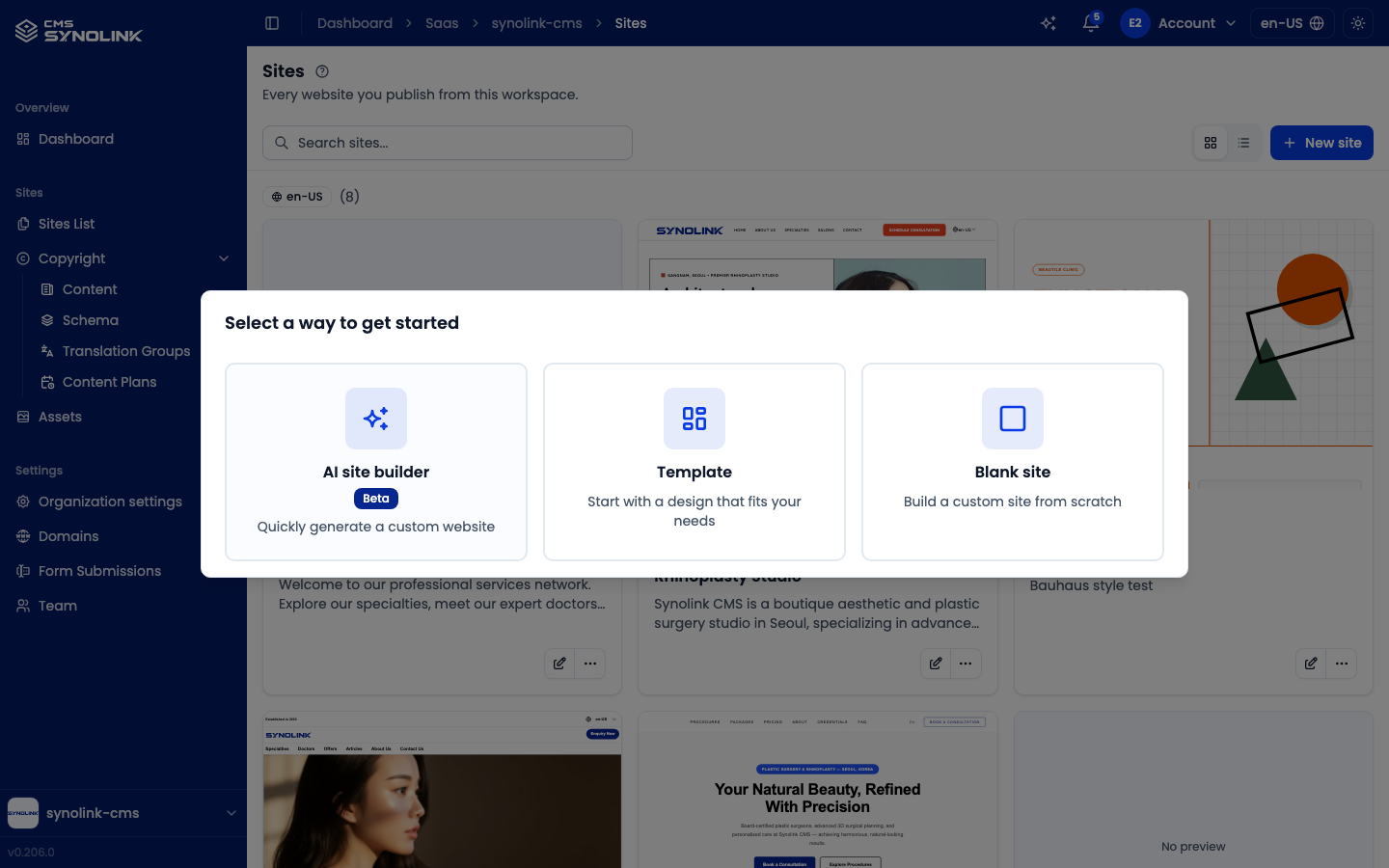
| Method | Best for |
|---|---|
| AI site builder (Beta) | Quickly generate a custom website — describe your site and AI drafts the structure |
| Template | Start with a design that fits your needs |
| Blank site | Build a custom site from scratch |
- Template opens the Templates gallery. Templates that match your workspace are listed first and marked Best match. Search and pick a template, then fill in the Customize your site form and click Create site — pages and components are created from the template.
- Rewrite the text for this SaaS with AI is on by default. Right after the site is created, AI rewrites the template's text from your SaaS profile, keeping the template's layout and styles. Add guidance in AI instructions (optional) if you like. A notification shows the progress; turn the option off to keep the template's text as is.
- Blank site opens the Customize your site form directly (description, favicon, etc.) and creates an empty site.
- AI site builder takes you to the builder described below.
AI Site Builder (Beta)
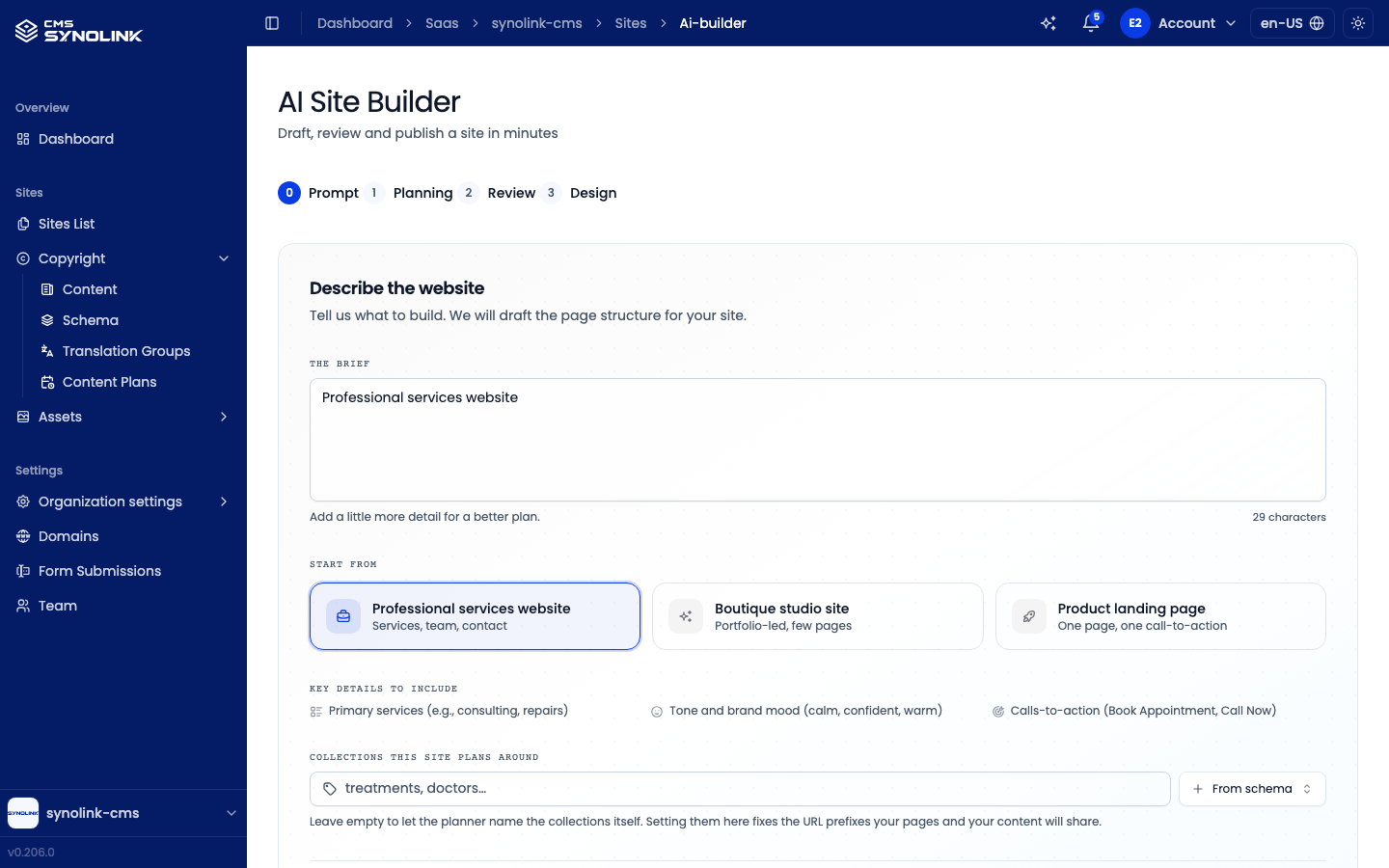
The AI Site Builder turns a short description into a draft site. A stepper at the top tracks four steps: Prompt → Planning → Review → Design.
Your plan is saved on the server as you go. If you come back to the builder with an unfinished plan, a Resume previous build? dialog offers Resume Build or Start Fresh. (Start Fresh only dismisses the dialog — the draft is kept.)
1. Prompt
- Describe the website — write your brief in The brief box. The Start from cards (Professional services website, Boutique studio site, Product landing page) prefill it, and Key details to include lists what makes a better plan (primary services, tone, calls-to-action).
- Collections this site plans around — optionally list the collections (URL prefixes) the site should be planned around, or add them From schema. Leave it empty to let the planner name them.
- Language — pick the one language the site is built in (the list comes from your workspace's languages). A site is built in a single language; other languages are added afterwards.
Click Next to start planning.
2. Planning
The AI drafts your site structure — gathering data, building the structure, planning pages, and saving the plan — and you'll see pages and components stream in live under Activity. If planning fails partway, Continue with what was saved lets you keep the partial plan.
3. Review
Review the generated plan in the Structure tab (or read the raw JSON) and edit pages, URL paths and content outlines as needed. Then click Continue to Design, Regenerate (plan again), or Back to Prompt.
4. Design
Set your site's look in Design Preferences:
| Choice | Options |
|---|---|
| Tone | Professional · Friendly & Approachable · Modern & Clean · Warm & Caring |
| Visual Style | Ma · Swiss · Bauhaus · Brutalist · Neo-Brutalism · Editorial · Playful · Couture |
| Colors | Primary and Secondary |
| Font | One font for the site |
A live Preview reflects your choices. Click Save & Open Plan — the builder saves your preferences and opens the new draft site. Content is generated there, not in the builder.
Finishing the site: the draft plan
A site created by the builder opens on its Pages tab as a draft plan. A banner at the top reads Draft plan — not live yet. and stays visible on every tab.
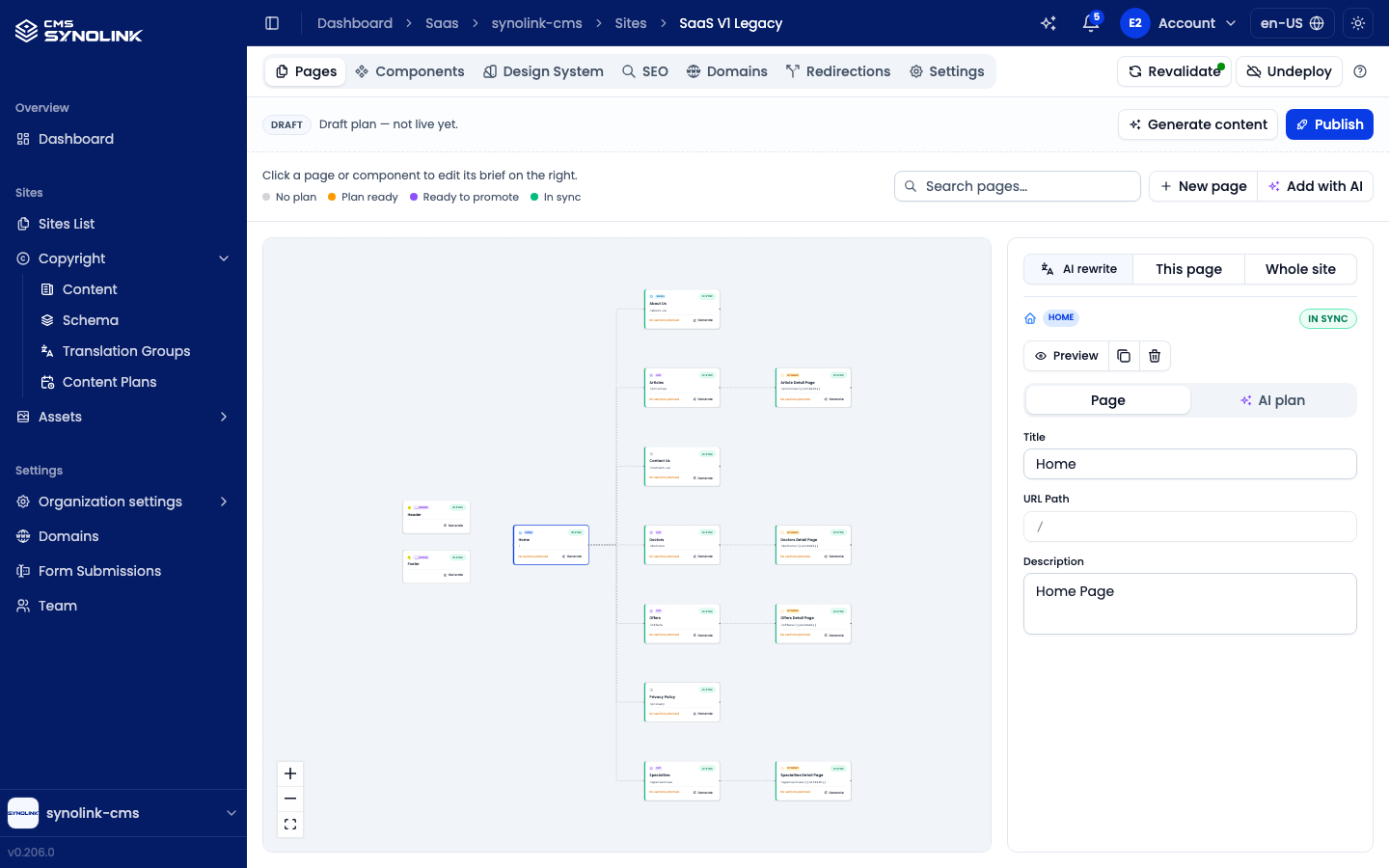
List and Map. The Pages tab opens in the List view by default. On desktop (1024px wide or more), the List / Map toggle in the toolbar switches views, and your choice is remembered per browser.
- List — the page tree on the left and a wide side panel on the right (its fields use two columns). Each row shows the title, URL path, generation progress (e.g. 3/5 generated), a status badge and ⋯ (the action menu — right-clicking the row opens it too). Child pages are indented under the nearest parent path that is a page; rows with children have ▸/▾ to collapse or expand them, plus Collapse all / Expand all, and a collapsed row shows "n hidden". The header and footer are in a separate Layout components section below. With the keyboard, ↑/↓ moves the selection, ← collapses (or goes to the parent) and → expands (or goes to the first child).
- Map — a node canvas with a 380px side panel. The header and footer sit in their own column beside the page tree, and each node shows only its state and generation progress. Right-click a page or component node — or hover it and click the small ⋯ button — to open the same action menu as the side panel's ⋯. Right-click empty canvas to choose Add with AI or New page.
The toolbar:
- Search pages… — in the list, filters the rows (keeping each match's parent pages so the hierarchy stays true) and shows "Showing M of N pages" above them; layout components are hidden while you search. In the map, it only highlights matching nodes. The ? button next to it opens the canvas help and the status legend (No plan · Plan ready · Ready to promote · In sync).
- AI first / Manual — pick a working mode. AI first leads with AI planning, generation and publishing: the side panel opens on the AI plan tab, and the coloured primary button walks you through plan → generate → publish → edit. Manual leads with editing pages by hand: the side panel opens on the Page tab, the primary button is always Edit in editor, and the AI actions stay available in the ⋯ menu. Your choice is saved per browser (device).
- Add page — the main part of the button adds a page the way your mode prefers: AI first opens Add with AI (describe a page and the planner drafts it for review), Manual opens New page (create one manually). Click ▾ to pick either one yourself.
Status filter. In the list view, the status chips under the toolbar — All · Needs a plan · Needs generating · Ready to publish · In sync · No plan — filter the rows, each with a count. They follow the same rule as the side panel's primary button: no brief → Needs a plan; a brief but nothing generated → Needs generating; a generated draft ahead of live → Ready to publish; published → In sync; a page with live content and no AI plan → No plan. Click the active chip again to go back to All.
The side panel. Click a page or component — a row in the list or a node on the map — to open it in the side panel on the right. The top shows its kind badge and sync badge, plus the page title and URL path. Below that are two tabs: Page (its Title, URL Path and Description) and AI plan (its AI Instruction and Content Sections). A component works the same way, with a Component tab in place of Page.
A sticky footer at the bottom of the panel holds ⋯ (all actions), Preview, and one coloured primary button on the right that follows the item's state:
| State | Primary button |
|---|---|
| No brief yet | Plan with AI |
| Brief, but no generated draft | Generate (violet) |
| Generated draft is ahead of live | Publish page |
| Live is current, or Manual mode | Edit in editor |
Per-page actions live in the footer and the ⋯ menu (right-clicking the row or node opens the same menu). The menu is grouped into AI, Publish and Page, followed by Reset content and Delete in red. Items you can't use right now stay visible but disabled, with the reason underneath.
| Action | What it does |
|---|---|
| Preview (footer) | Open the page in a preview dialog with Draft and Live tabs. The dialog header has Edit draft / Edit live page (following the tab you're on) and Open in new tab — this is how you open the page editor. You can also switch the preview width between Desktop, Tablet and Mobile. Disabled until the draft or live page has content |
| Plan with AI / Re-plan (⋯ › AI) | Describe the page and let AI draft (or redraft) its sections |
| Generate / Regenerate (⋯ › AI) | Write (or rewrite) this page's draft content from its brief. Regenerate replaces the current draft and uses AI credits, so it asks Regenerate this content? first (the live site doesn't change until you publish). The first Generate runs without confirmation |
| Rewrite this page’s text with AI (⋯ › AI) | Rewrite this page's text from your SaaS profile. Layout, styles and images stay as they are; you can add AI instructions (optional) first. The rewrite is saved directly, so a deployed site shows it right away |
| Publish page (⋯ › Publish) | Publish just this page's draft to the live site |
| Mark as published (⋯ › Publish) | Shown only when the live page has moved past the draft; marks the draft as published without changing the live page, discarding the draft edits |
| Edit in editor (⋯ › Page) | Open the page editor |
| Copy page (⋯ › Page) | Copy the page, optionally with its body, description, header/footer and SEO metadata |
| Reset content (⋯) | Clear the page's Draft content and/or Published content so it renders empty; the brief is kept |
| Delete (⋯) | Delete the page |
A component's ⋯ menu has Generate / Regenerate, Publish component (header / footer only), Mark as published and Edit in editor. To rewrite the text of the whole site at once (every page and component), use Rewrite the whole site’s text with AI in the site header's ⋯ (Site actions) menu; it works the same way as the per-page rewrite.
Bulk actions. On desktop, the list view has a checkbox on each row. Use the header checkbox to select every visible row, and Shift+click to select a range. Once anything is selected, a bar appears on top of the list with "n selected" and the actions below. The number in brackets (k) is how many of the selected rows the action actually applies to; an action with k = 0 is disabled, with the reason shown.
| Button | What it does |
|---|---|
| Generate (k) | Fills the rows that have nothing generated yet. Runs without confirmation and skips rows that already have content |
| Publish (k) | Publishes the rows whose draft is ahead of live |
| Regenerate (k) (⋯) | Replaces the selected items' drafts with newly written content. Asks for confirmation, and uses AI credits for each item |
| Mark as published (k) (⋯) | Shown only when it applies to some of the selected items |
| Delete (k) (⋯) | Deletes the selected pages; the confirmation lists every page title |
Click ✕ to clear the selection. Changing the search or the filter clears it too.
On tablets and phones. On screens narrower than 1024px (including the installed PWA), the Pages tab always shows the list, without the view toggle, checkboxes or bulk actions. Tap a row to open the side panel as a bottom sheet, with the same sticky footer. Each row's ⋯ opens the action menu.
On phones (narrower than 768px), the toolbar shrinks to one row: search, a View options button (sliders icon) and a + button; the status chips and the mode toggle aren't shown separately. View options holds Status (the same six status filters with counts, pick one), Working mode (AI first / Manual) and the status legend; a dot on the button means a status filter is active. The + button always asks whether to Add with AI or create a New page. The draft plan banner also shrinks to one line: the status badge with a short summary, a ⋯ (More plan actions) and Publish. The ⋯ holds the notices (pages with no content, unpublished variables with the Publish variables link) plus Generate content (or Generate missing content) and, when it applies, Mark as published.
Per-page SEO is edited in the page editor's Metadata tab (see Editor Screen Tour).
Banner actions for the whole site:
- Generate content — fills every page and component that has no content yet (shown as Generate missing content once something exists). It never rewrites existing content — use each page's Regenerate for that.
- Publish — writes the draft plan to the live site. Pages without content publish blank, so you'll be asked to confirm. After a site has been published once, the button becomes Re-publish, which re-syncs pages from the plan and overwrites edits you made in the editor (pages added outside the plan are left alone).
- Mark as published — appears when the live site has already moved past a draft; it marks those drafts as published without changing the live site, discarding the unpublished draft edits.
Publishing the plan fills the site's pages. To make the site reachable by visitors, deploy it — see SEO, Publishing & Domains.
Site tabs
Open a site to manage it through its tabs. Pages, Components, Design System and SEO are shown directly; the other tabs (Analysis, Domains, Redirections, Infrastructure and Settings) are in the More dropdown at the end of the tab bar. When one of them is open, it is shown as a tab next to More. AI Studio, Preview, ⋯ (Site actions — Rewrite the whole site’s text with AI) and Deploy (or, once deployed, Revalidate and Undeploy) sit in the header on the right. On phones (narrower than 768px) the header shows only Deploy (or the deployed-site buttons) and the ⋯ (Site actions) menu, which then also holds AI Studio and Preview. While the draft plan banner is showing (there is a draft to publish) on a site that has never been deployed, Deploy moves into that ⋯ menu too, so Publish in the banner is the only filled button; once nothing is left to publish, Deploy is back in the header.
| Tab | What it does |
|---|---|
| Pages | Page list and map, draft plan, per-page actions (see Using the Page Editor) |
| Components | Layout components (header/footer) and other reusable components; Bind to Header / Bind to Footer |
| Design System | Per-site colors, fonts and other variables (see Design System & Components) |
| SEO | Crawlers (robots.txt and llms.txt) and Google integrations |
| Analysis (More) | The site's AI analysis report |
| Domains (More) | Manage the site's domains — available once the site is deployed (until then it is disabled in the menu, with the reason shown) |
| Infrastructure (More) | This site's deployment status — shown to Admin and above (see SEO, Publishing & Domains) |
| Redirections (More) | Redirect old paths to new ones (301/302) |
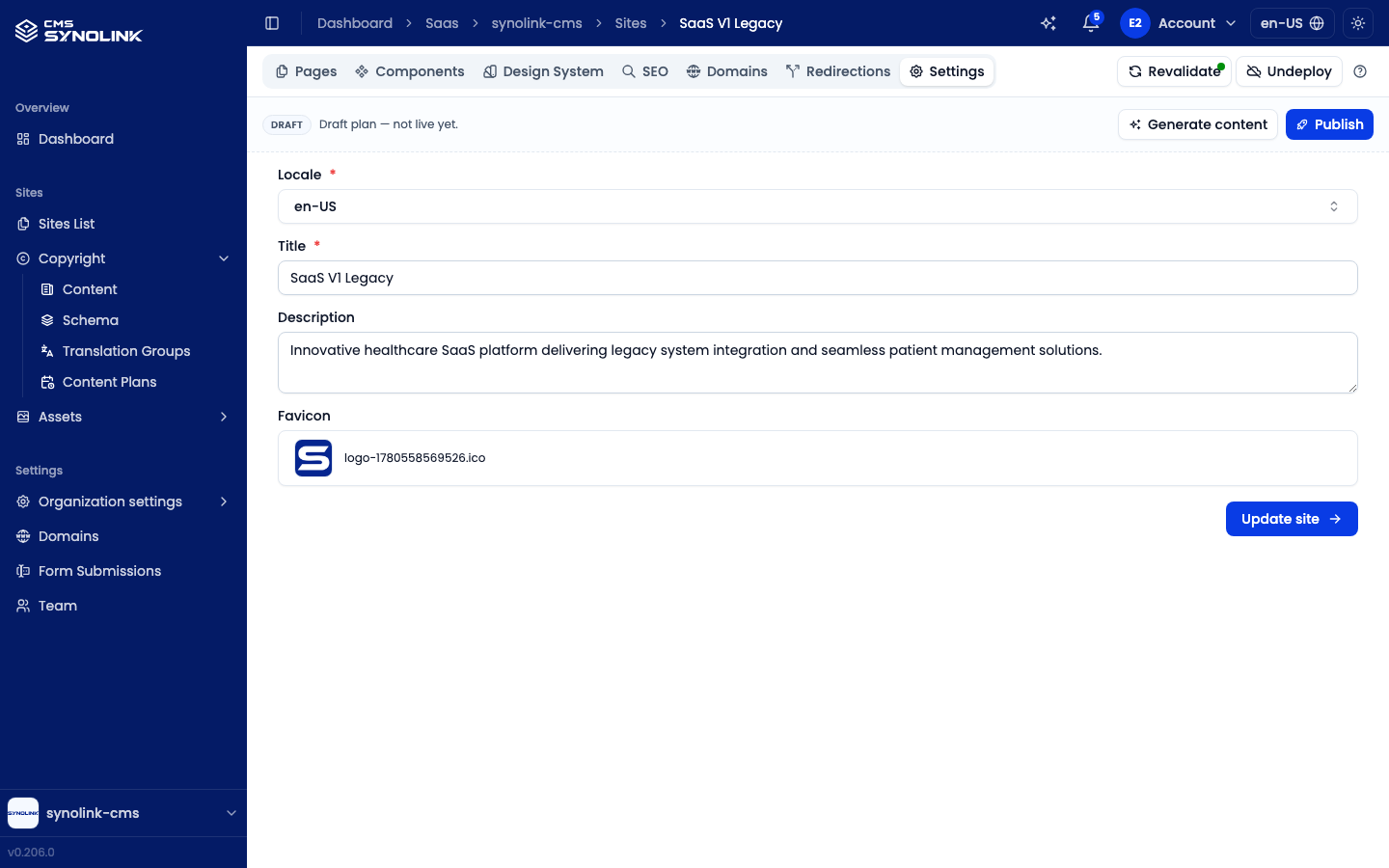
| Settings (More) | Site details — Locale, Title, Description, Favicon (Update site) |
Sharing a site preview
Click Preview in the site header to open the Share a site preview dialog. It creates a link to browse the whole site exactly as visitors will see it, without deploying, which is handy for showing a site to your team or a client before it goes live. Choose the options and click Create link to get a Preview link. Copy it with the copy button, or click Open preview to open it right away.
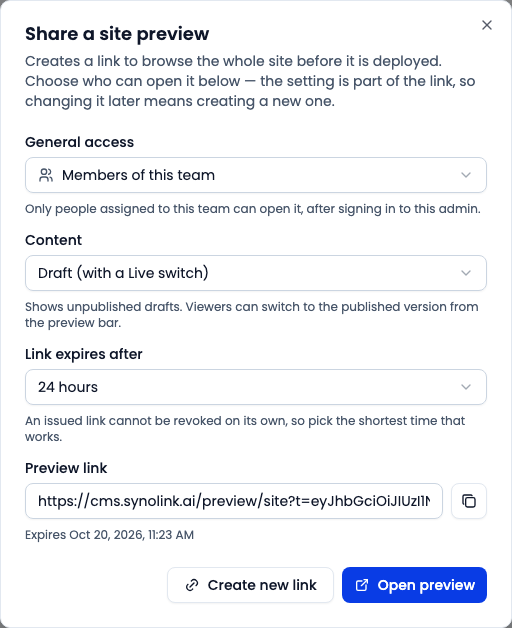
| Option | Choices |
|---|---|
| General access | Members of this team (default): only people assigned to this team can open it, after signing in to the admin. Anyone with the link: anyone can open it without signing in |
| Content | Draft (with a Live switch): shows unpublished drafts, and viewers can switch to the published version from the preview bar. Live only: shows only the published content |
| Link expires after | 1 hour · 24 hours · 7 days |
The options are part of the link. To change them, click Create new link to make a new one. An issued link cannot be revoked on its own, so when you share with Anyone with the link, pick the shortest expiry that works.