Manage your content plans from Sites → Copyright → Content Plans in the left sidebar. A content plan is a list of articles your site needs — each one an entry with a title, a brief, and the content type it will become. The AI drafts each entry, and every draft waits for your review: nothing becomes a content item until you accept it.
The flow is always the same:
- Plan the content with the AI content planner and save the result as a content plan.
- The AI writes each Scheduled entry at its time. To write one sooner — or one that isn't scheduled — use Write this now or Write them now.
- Review each draft, edit it if needed, and accept it to create the content item.
Creating a plan with AI
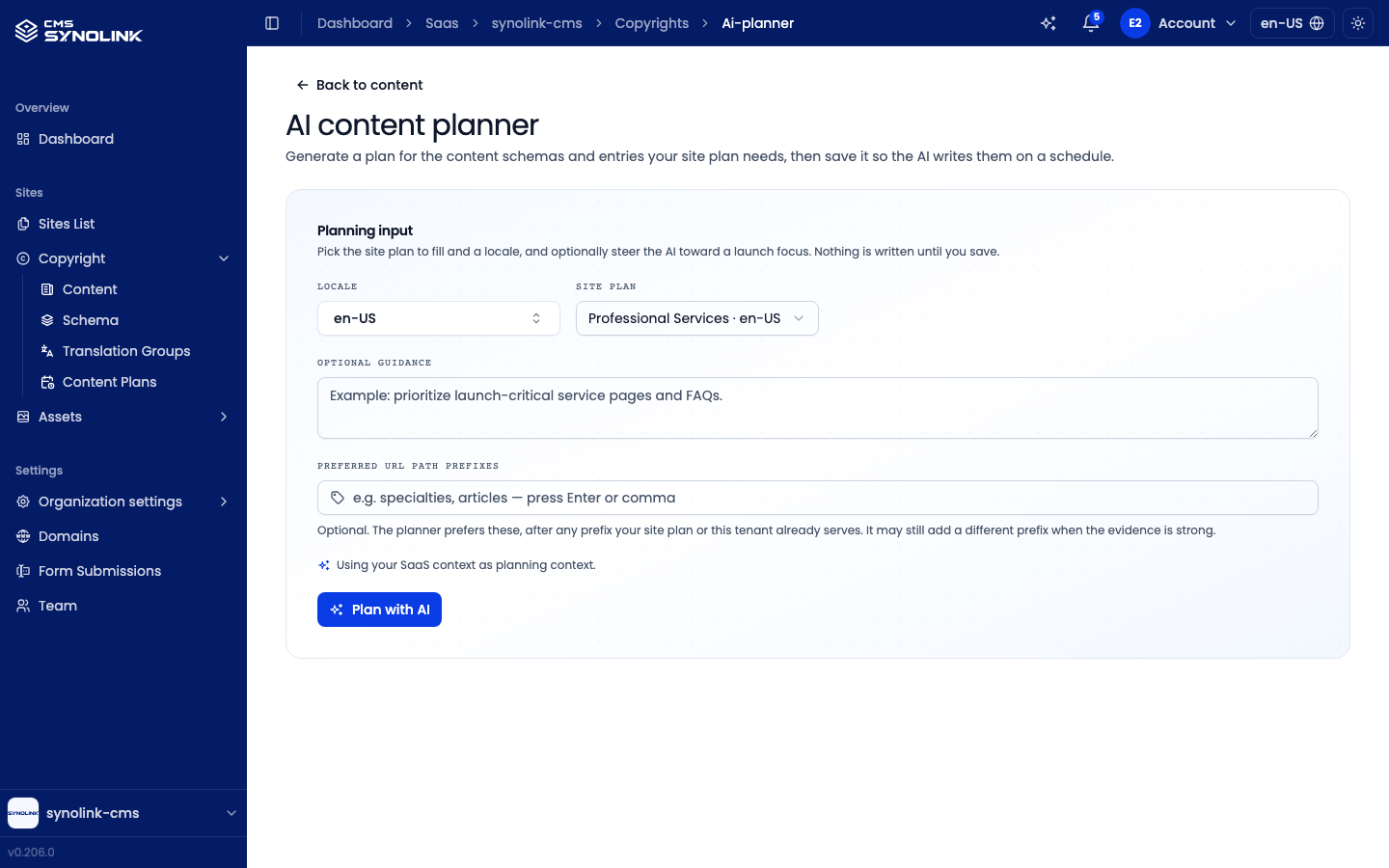
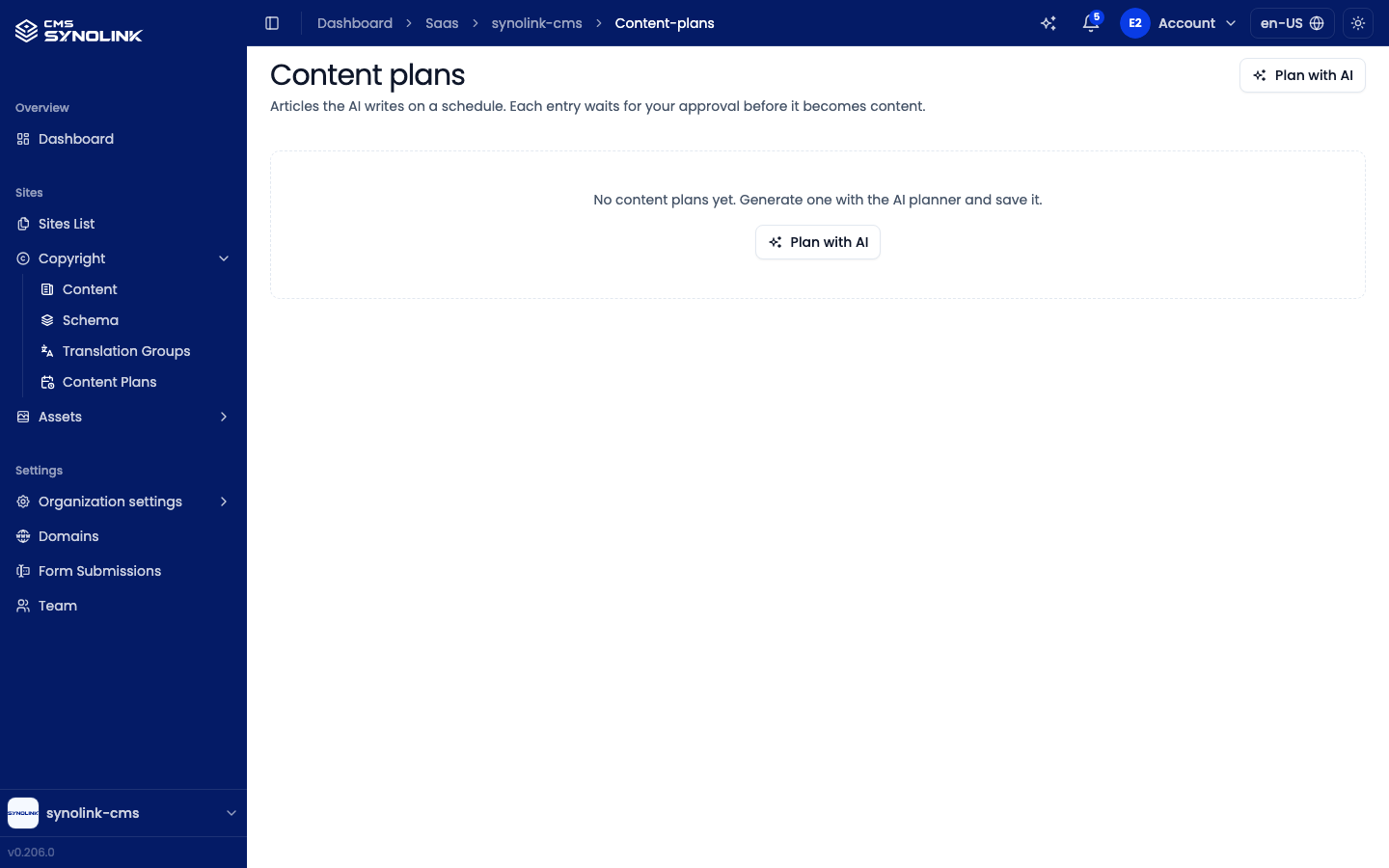
There's no button for an empty plan — plans are created from the AI content planner. Open it with Plan with AI at the top right of the Content Plans list (or on the empty list), or with Plan with AI on the Content list.
Before you start
The planner needs two things, and its Plan with AI button stays disabled until both exist:
| Needed | If it's missing |
|---|---|
| Your organization's Context | A No context yet alert with Open context |
| A site plan (the page structure from the AI site builder) | A No site plan yet alert with Open the AI site builder |
Planning
- Under Planning input, choose the Locale and the Site plan to fill.
- Optionally add Optional guidance (for example, a design studio might write Prioritize the portfolio and services pages) and Preferred URL path prefixes (press Enter or a comma after each one).
- Click Plan with AI. The plan streams in as it's written; click Stop to end it early.
- Review the plan: the content schemas it proposes, the entries for each schema, and the Gaps for a human to fill.
Nothing is saved while you plan. You can change the input and plan again as often as you like.
Saving the plan
Click Save as content plan.
In the Save this plan dialog, check the Plan name (it starts as the site and locale, such as Main site · en-US) and the Description.
Under When should the AI write these?, choose a preset:
Preset What it does Start soon, spread out Default. Entries are given scheduled times, spread out from about 10 minutes from now Start tomorrow Entries are given scheduled times starting tomorrow Leave unscheduled — write them when you are ready Entries are saved as Not scheduled and wait until you write them Click Save as content plan. The schemas and entries are created, and the plan opens.
Scheduled entries are written for you — you don't need to keep the page open. If some entries fail to save, the dialog lists them — click Retry the failed ones. Afterwards, Open the content plan in the planner takes you to the saved plan.
The plan list
The Content Plans list shows every plan in your workspace.
| Column | What it shows |
|---|---|
| Name | The plan's name |
| Locale | The language the entries are written in |
| Entries | How many entries the plan has |
| In progress | How many entries are Scheduled, Generating, or Awaiting approval |
| Created | When the plan was saved |
Each row has two actions: Open (✎) opens the plan, and Delete (🗑) removes the plan and every entry in it after you confirm. Deleting can't be undone.
Inside a plan
Opening a plan shows its entries in a table, with an entry panel beside it when you click an entry.
To change the plan itself, click the pencil next to its name to open Edit plan, where you can change the Name, Language, and Summary. Entries that have already been written keep the language they were written in.
The entries table
| Column | What it shows |
|---|---|
| Entry | The entry's title |
| Status | Where the entry is (see Entry statuses), plus Overdue when its scheduled time passed more than 10 minutes ago and writing still hasn't started |
| Schema | The content type the entry will become |
| Scheduled | The scheduled time, if any |
| Words | The target length |
On narrower screens Words, then Schema, are hidden.
Each row's ⋮ menu offers what the entry's status allows: Edit (or Change schedule when only the schedule can change), Take out of the queue, Stop this run, and Delete.
Writing entries
Entries are written in one of two ways:
- At their scheduled time — the AI writes each Scheduled entry on the server. The entry shows Generating while it's written (at most about 15 minutes), then Awaiting approval, or Failed with the reason. You don't need to keep the page open; the table updates on its own while entries are queued.
- Right now — Write this now in an entry's panel writes just that entry, and when unscheduled entries are waiting, a banner above the table reads {n} unscheduled entries are still waiting to be written with Write them now. This writing runs from your browser and reports each step on the entry, so stay on the page until it finishes.
Either way, a written entry moves to Awaiting approval and waits for you — approval is always a manual step.
Working with several entries
Tick entries in the table to act on them together. The toolbar above the table shows {n} selected and offers:
| Button | What it does |
|---|---|
| Write now | Writes the selected entries |
| Schedule | Gives the selected entries scheduled times, from a Start at time with Minutes between entries |
| Edit fields | Sets Effort, Tags, or Keywords on all of them. Only the fields you tick are changed, and tags and keywords replace the existing ones |
| Delete | Deletes the selected entries after you confirm. Approved entries are kept |
| Add entry | Opens a blank entry form |
When the table is narrow, the buttons become square icons — hover one to see its name.
Entry statuses
| Status | Meaning | What you can do |
|---|---|---|
| Not scheduled | Waiting, with no scheduled time | Write this now, Edit, Change schedule, Delete |
| Scheduled | Waiting, with a scheduled time | Write this now, Take out of the queue, Edit, Change schedule, Delete |
| Generating | The AI is writing it at its scheduled time | Stop this run. Everything else waits until the run finishes — at most about 15 minutes |
| Awaiting approval | A draft is ready for review | Review and edit the draft, then accept it. Change schedule is also offered, but it throws the draft away |
| Approved | Accepted and turned into a content item. This is final | Open the content item |
| Cancelled | The run was stopped | Write this now, Edit, Change schedule, Delete |
| Failed | The run didn't succeed. The panel shows the reason | Write this now, Edit, Change schedule (to try again on the server), Delete |
Writing a Scheduled entry now takes it out of the queue first. Take out of the queue removes an entry's scheduled time; Stop this run only stops an entry that's being written.
Adding and editing entries
Click Add entry to open the New entry form, or open an entry and edit it in its panel. While a draft is waiting for review, the entry's plan fields are locked — edit the draft instead.
| Field | What it's for |
|---|---|
| Content type | Required. The copyright schema the entry becomes (see Content) |
| Title | Required. The article's title |
| Brief | Required. What the article should cover. It's handed to the writer as is, so write it as an instruction — for example, Explain how our placement test works and how long it takes for a language school |
| Credibility signals | Required. What your organization can actually back up — experience, qualifications, real examples. The AI won't claim anything beyond this |
| Extra instructions | Optional. Replaces the default writing guidance for this entry only, whether it's written on schedule or right now |
| Keywords | Search keywords to work in |
| Tags | Tags the content item will get |
| Target words | The target length (900 by default) |
| Effort | Low, Medium, or High |
| Content type fields | The fields the chosen content type defines. Required ones must be filled in |
| Scheduled for | Optional. The AI writes the entry at this time. Leave it empty to write it yourself instead. A time must be at least 5 minutes and at most 24 days away |
Click Create entry (new) or Save (existing). New entries are created as Not scheduled unless you set a time.
Reviewing and accepting a draft
When an entry reaches Awaiting approval, its panel opens on the Draft tab; the Plan tab shows the entry's plan fields.
- Check Path this article will be served at. If the path doesn't match the collection your pages show, a Use {suggestion} link may appear — click it to switch to that path.
- Review and edit the Summary, Overview, and Article. The article editor has the same formatting toolbar as the Content editor, including inserting images from your Assets.
- Click Save draft to keep your edits, or Discard changes to drop them.
- Decide whether to tick Publish it straight away. This is the only publish control: ticked, the item goes live; left unticked, it's created as a draft that the public site doesn't show.
- Click Accept and create the content item. Unsaved edits are saved first.
A message confirms the result — Created and published or Created as a draft — and the entry becomes Approved. From then on, edit the article on the content item itself (Open the content item).
Accepting as a draft lets you add images and links on the Content screen before you set the item to Active.
Permissions
| Role | What you can do |
|---|---|
| Viewer and above | View plans, entries, and drafts |
| Editor and above | Create, edit, write, schedule, accept, and delete plans and entries |
See Managing Your Team for roles.
On the Overview dashboard, the Plan your content step of the Prepare your site checklist counts as done once your workspace has any content plan or content item.
Using your own AI
If you've connected Claude or another assistant over MCP, it can also create content plans, write their entries, and approve them for you. See Connect your AI.