Everything in the admin portal happens inside a workspace — one organization with its own sites, content, and settings. This guide walks through the screen you land on and where to find things.
Before the dashboard: finish your setup
Until your workspace has a context document, Owners and Admins see a Complete your setup screen instead of the dashboard. The context is one markdown document describing your organization — write it in the editor or bring it in with Import file, then click Save and continue. Once the context is saved, the dashboard opens as normal.
The context is the document the AI builds everything else from, so it's worth writing it carefully. You can change it any time under Organization settings → Context — see Context.
Switching workspaces
The current workspace — its logo and name — sits in the footer of the left sidebar. Click it to open the Switch workspace menu. If you have many workspaces, type in Search workspaces... at the top to find one by name.
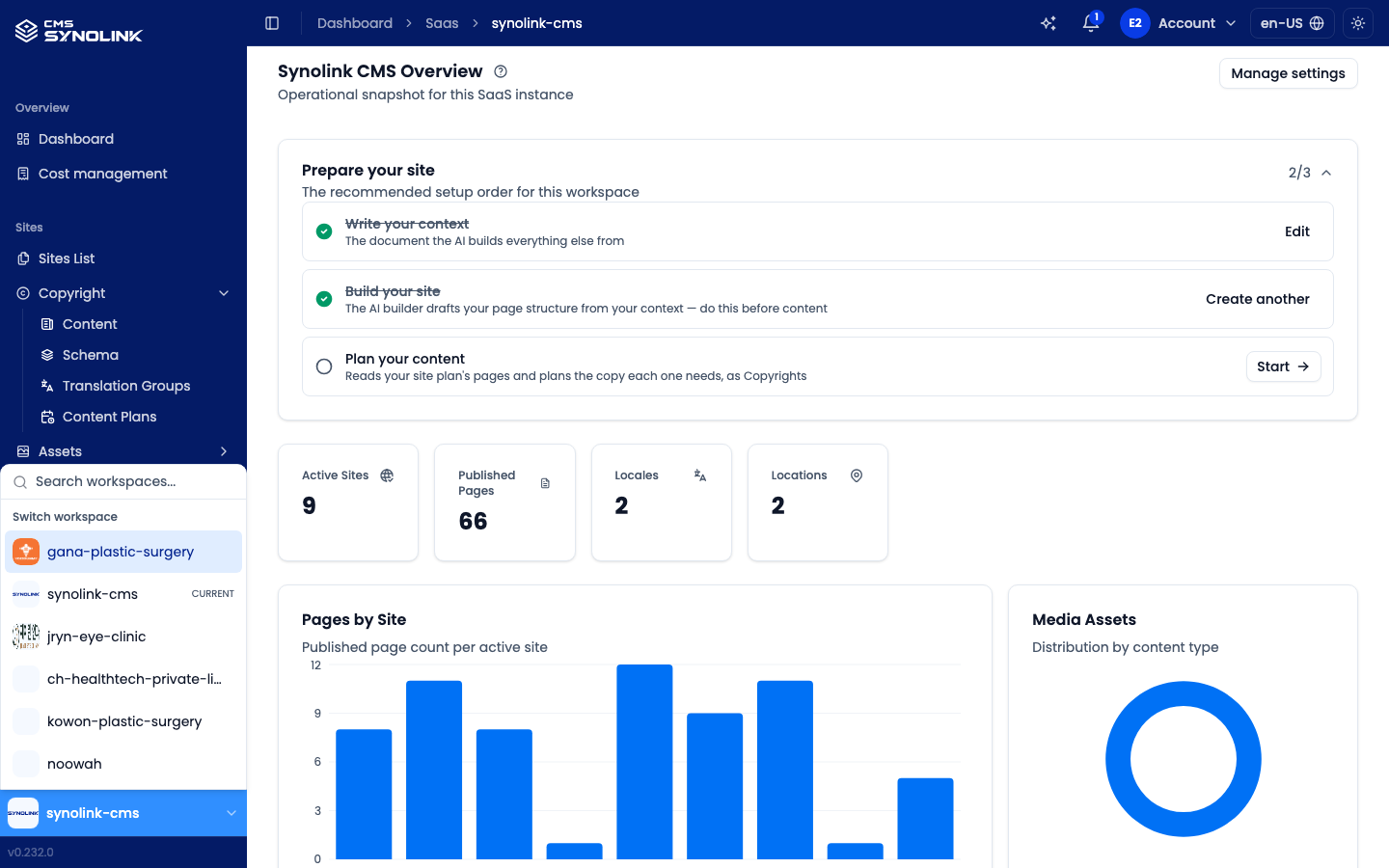
- Pick any workspace in the list to move to it; the one you're in is marked Current.
- If you don't own a workspace yet (for example you've only been invited into others), the menu also shows Create Your Own Saas Workspace, which takes you to onboarding.
- Sites, content, and settings shown on every screen are scoped to the selected workspace.
The Overview dashboard
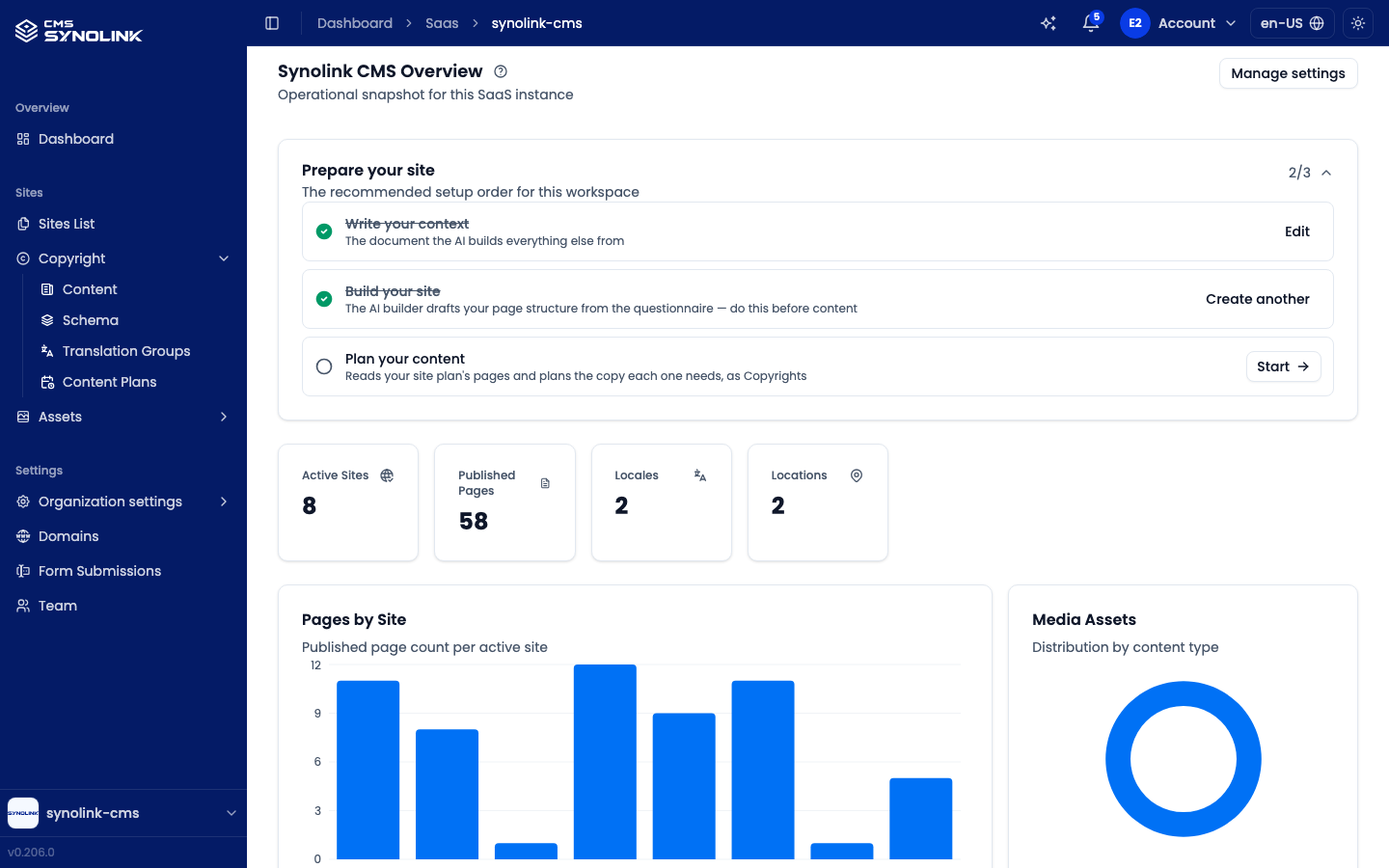
Opening a workspace takes you to Overview → Dashboard, an at-a-glance summary of your organization.
Prepare your site
The Prepare your site card at the top lists the recommended setup order, with a progress counter (e.g. 2/3):
| Step | What it does |
|---|---|
| Write your context | The document the AI builds everything else from — opens Organization settings → Context |
| Build your site | The AI builder drafts your page structure — do this before content |
| Plan your content | Reads your site plan's pages and plans the copy each one needs, as Copyrights — see Content Plans |
Each unfinished step has a Start button. Finished steps are checked off and offer Edit (context) or Create another (site and content) instead. Steps aren't locked — you can open any of them in any order. When all three are done, the card collapses (click the counter to reopen it).
Stats, charts, and recent activity
- Top cards — counts of Active Sites, Published Pages, Locales, and Locations
- Pages by Site — published page count per active site
- Media Assets — distribution of your uploads by content type
- Recent Enquiries — the latest 5 form submissions
- Media Summary — asset counts and latest uploads
- Manage settings (top right) — jumps to Organization settings
The left-hand menu

| Group | Item | What it does |
|---|---|---|
| Overview | Dashboard | Workspace summary |
| Cost management | AI credit usage — see Cost Management | |
| Sites | Sites List | Create and edit sites |
| Copyright → Content · Schema · Translation Groups · Content Plans | Write and organize your content (articles and other copy) | |
| Assets → Images · Videos · Documents | Manage media | |
| Settings | Organization settings → Profile · Context · Location · Design System · Industry Profile | Organization basics, the AI context document, address, branding, and business profile |
| Domains | Connect domains | |
| Form Submissions | Review enquiries from your site's forms | |
| Team | Invite teammates and manage roles | |
| Infrastructure | Deployment status of your sites — see SEO, Publishing & Domains |
Some items depend on your role: Team is visible to Member and above, Cost management and Infrastructure to Admin and above. See Managing Your Team for what each role can do.
Header tools
The bar across the top of every page holds:
- Sidebar toggle and Breadcrumbs on the left — collapse or expand the sidebar, and see where you are.
- Dashboard Assistant (sparkle icon) — opens or closes the assistant panel (see below).
- Notifications (bell icon) — a badge shows your unread count; open it to read notifications or Mark all as read.
- Account menu — your Profile and Sign out. In Profile you can add your phone number and verify it by SMS.
- Language switcher (e.g.
en-US) — switch the admin portal between English and 한국어. - Theme toggle (sun/moon icon) — Light, Dark, or System.
Help while you work
- Page tours — the ? button next to a page heading replays that page's guided tour. Each tour also runs once automatically the first time you open the page on a desktop screen.
- Dashboard Assistant — click the sparkle icon in the header to open a chat panel on the right. See below for details.
Dashboard Assistant
The Dashboard Assistant is an AI chat built into the admin portal. Ask how a feature works or how your site is doing, or ask it to make a change and it does the work itself. It uses the same tools as an AI you connect through Connect your AI, and it can only do what your role allows.
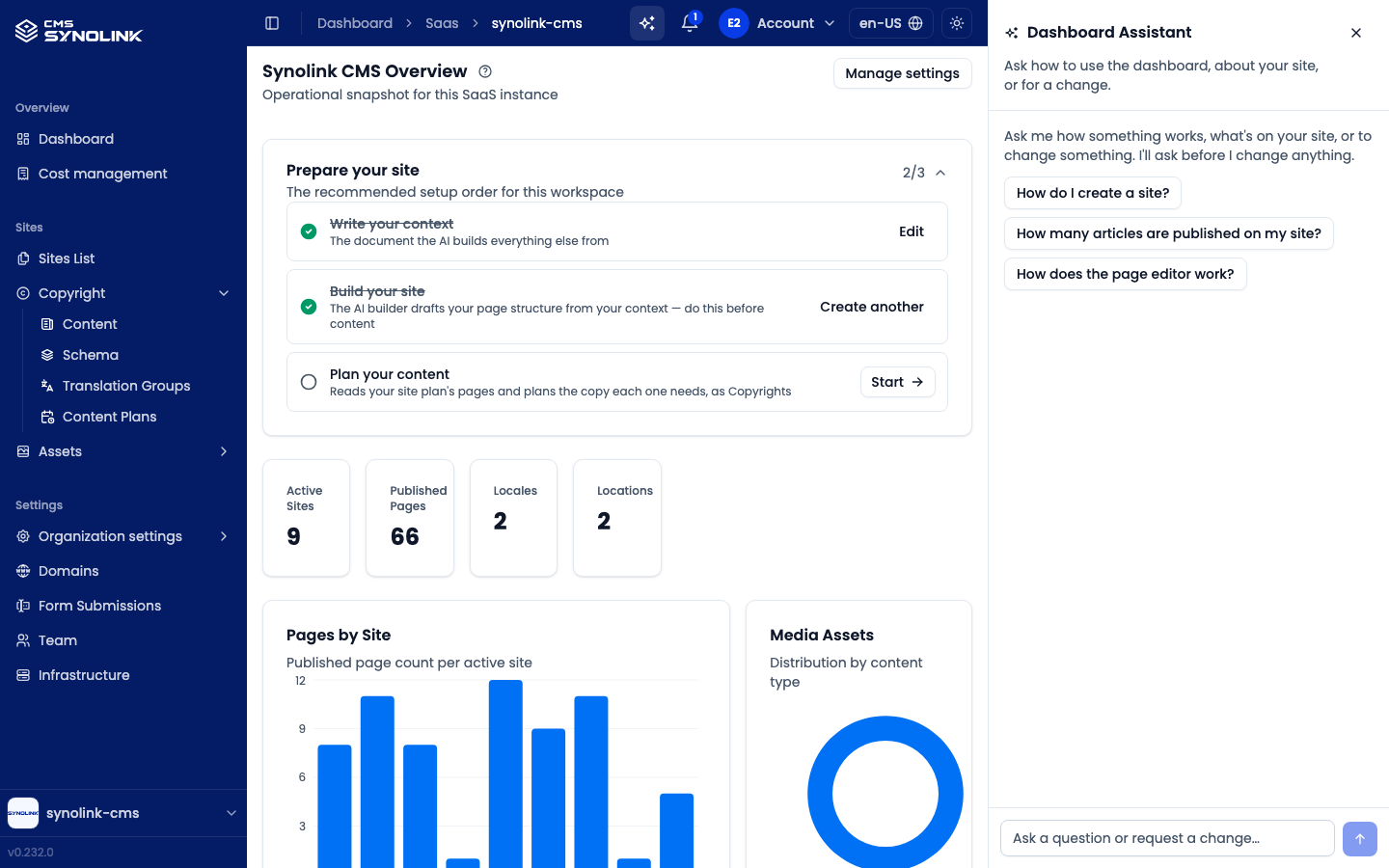
- Asking questions — Suggested questions such as How do I create a site? appear to get you started. When it needs your site's data to answer, the assistant reads it, showing Reading your site data… meanwhile.
- Requesting changes — Anything that changes your workspace, such as editing a page or writing content, is not run right away. An Approve this change? card appears in the conversation; review it and click Approve or Reject. Show all arguments shows the full request, and irreversible actions carry a warning. You can't send a new message until you answer the card.
- Conversation history — Conversations are saved in this browser, per workspace, so closing and reopening the panel picks up where you left off. Signing out deletes them. New chat clears the current conversation after you confirm.
Using it on your phone
The admin portal adapts to phone screens. On a narrow screen a tab bar appears at the bottom — Home, Sites, Content, Team (or Forms if you can't see Team) and Menu — and tables turn into cards. Tap Menu to open the full sidebar.
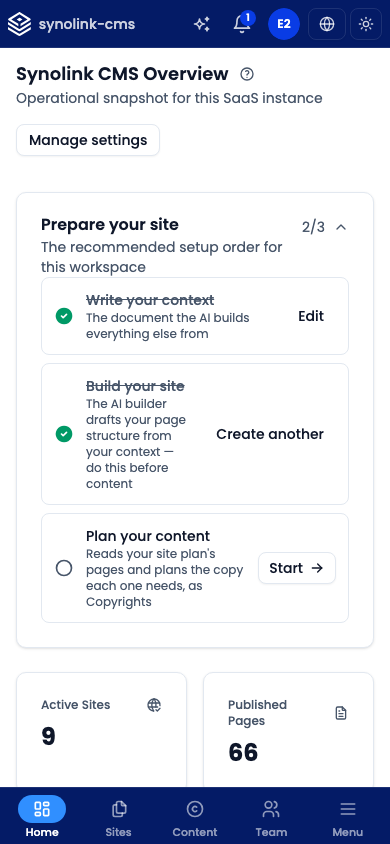
- Install as an app — Use your browser's Add to Home Screen (iOS Safari) or Install app (Chrome, Edge) to install the admin portal like an app. It then opens in its own window, without the browser's address bar.
- Page editor — The editor needs a wide screen, so on a phone you first see Edit on a larger screen. Tap Continue anyway to open it.
Next steps
- Review your organization's details under Organization Settings.
- Work through the Prepare your site checklist, then continue with Creating a Site.
- Invite colleagues from Managing Your Team.